
Compatibility: iOS and Android
Set up Corrections
-
Open the battery cover on the vivax locator and plug in the supplied USB cable
-
Plug the other end into your computer
-
Download the free MyLocator3 app from the Vivax Metrotech website
-
Launch the app
-
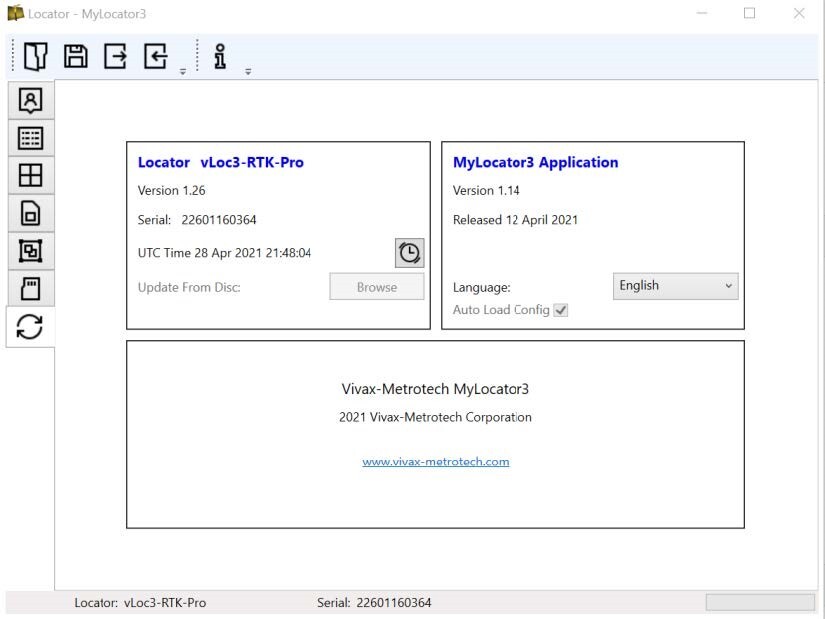
- ⚠️ Important: Install all available firmware updates before proceeding. Skipping this step will cause the tool to malfunction.
-
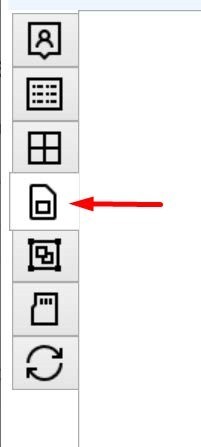
Click the button shown in the screenshot below
-
Add your NTRIP credentials to the NTRIP section
-
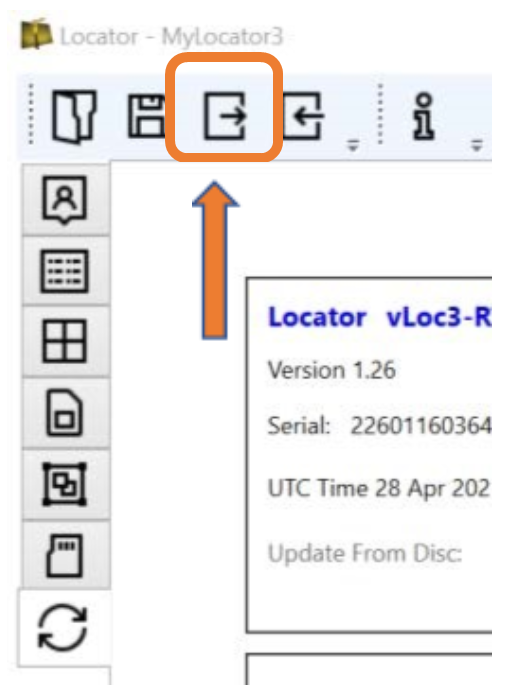
Click the third icon from the left in the Menu Bar to save the settings to the locator
Pairing with the vLoc Tool
Android:
-
Open the Android Settings app and go to the Bluetooth settings.
-
Turn on the Vivax locator, then press and hold the i button until the menu appears.
-
Using the + button, scroll down to the “Bluetooth Pairing” option, and press the M button to enter the Bluetooth menu.
-
Press the M button again to enter the Bluetooth Search and select your Android device.
-
Close the locator menu.
-
Tap Scan from the Android Bluetooth settings and select the Vivax locator to pair with it.
- Continue to the "Continued – Locator Setup in PointMan Settings" section below.
iOS:
Vivax uses Bluetooth Low Energy on iOS devices, so the locator should not be paired in the iOS Settings Bluetooth page.
-
Under the Devices section, tap Configure btle and tap Scan.
-
Select the Vivax locator when it appears in the list and tap Add.
- Tap OK to close the Configure btle dialog.
- Continue to the "Continued – Locator Setup in PointMan Settings" section below.
Continued – Locator Setup in PointMan Settings
-
In the Devices section, tap the GPS dropdown and select either Vivax-Metrotech or Vivax-Metrotech + Level
- Note: The "+Level" option will only send data to PointMan if the Fix Type is RTK and the locator is leveled.
-
Tap the Locator dropdown and select Vivax-Metrotech. From the second Locator dropdown, select the Vivax locator's bluetooth name.
- Set the Antenna Height.
-
From the Correction dropdown under the GPS section of the PointMan Settings page, select None.
- Set a Geoid as needed. Otherwise, skip this step.
- Close the Settings page and collect a test point to confirm the accuracy levels and Fix Type you are receiving from the paired Vivax locator.
Collecting Data Tips
-
While collecting data in PointMan, the Status menu in the top right corner should say “Awaiting Locate”.
You will not see any live accuracy readings or the Fix Type until the data has been captured. -
On the vLoc tool you will see a “teardrop” shaped icon on the top right corner. Those icons represent the following:
-
Grey: No satellites
-
Red: Satellites but no RTK fix
-
Green: RTK fix is valid
-
-
When ready to capture data, press the “i” button and then the “+” button on the Vivax locator.
Troubleshooting
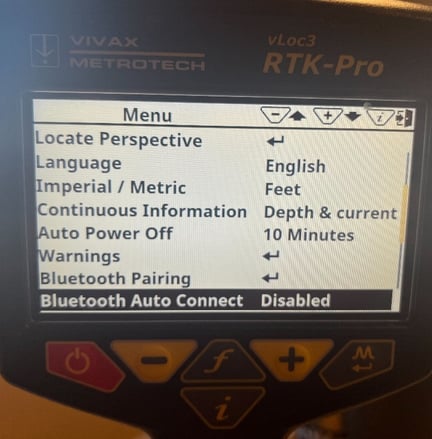
The Bluetooth Auto Connect feature of the vLoc3 RTK Pro has been known to cause Bluetooth connection issues. Toggling this setting off can help to prevent drops in connection from occurring while locating. To turn off the Bluetooth Auto Connect Feature:
-
Hold the i button to open the settings on the locator
-
Use the + button to scroll down to the Bluetooth Auto Connect Setting
-
Use the M button to disable the setting
Additional Locator Troubleshooting Tips
Note about Uninstalling PointMan: If you are a PointMan Mobile-only License user, uninstalling the PointMan app will delete all project data stored on your device. It is important to backup any project data before uninstalling the mobile app.
For questions or issues
Contact the PointMan Support Team by completing the Support Request form or send an email to [email protected] and include the following:
-
Brief description of what you are experiencing
-
Include screenshots / screen recordings showcasing the issue if any
-
Include supporting data files showcasing the issue if any
-
-
The devices you are using and if you have anything set in the GPS settings
- ex: GPS, Locator, Mobile Device, EPSG, Correction Service, etc.
-
List of steps that were already taken to troubleshoot the issue
The PointMan Support Team is available from 8:30am to 4:30pm MT, Monday through Friday.