
Note: Only Admins with the Admin permission set at the Organization level may manage users.
User Management
Steps for adding, deleting, deactivating, or reactivating users.
Steps for assigning RTK licenses that came with your PointMan subscription.
Notes:
You will see the following notification if you’ve reached your license limit and try to add an additional user.

The user types and options available when adding a user depend on the license types and quantities your organization has purchased.
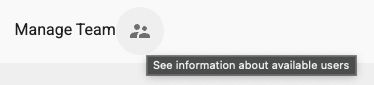
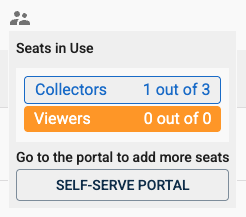
To see which user types your organization has purchased, and how many are in use or available, click the Group icon next to the Manage Team title.
Note about Claiming User Accounts
Once an Admin has added a user to the Pro environment, that user will receive an email from [email protected] containing a temporary password.
The user must sign in to the PointMan Web interface with the temporary password and set a new password before they can log into the Mobile app.
See the Claim User Accounts page for further instructions.
Auto-Renewal
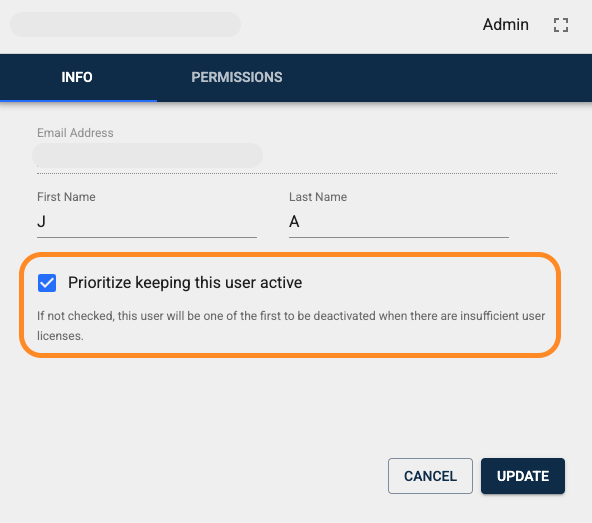
- Check the box to keep the user active upon renewal.
-
If the box is unchecked, the user will be deprovisioned when the subscription renews.