Note: Only Admins with the Admin permission set at the Organization level may manage users.
Adding Users
- Log in to the PointMan Web interface and open the Settings page
- Under Organization, click Manage Team
- Click the + icon next to the search bar
- Enter the email, first name, and last name
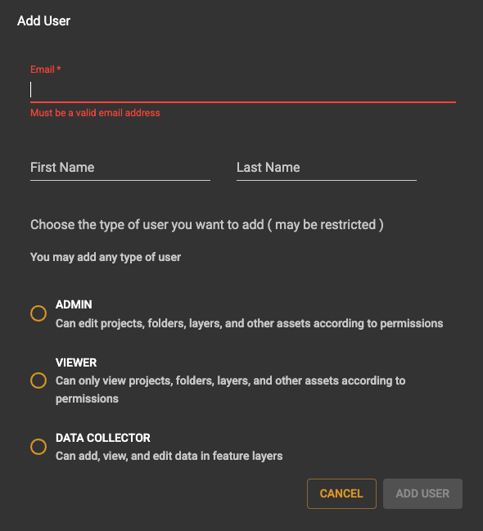
- Select the user type and click Add User
- An email with a temporary password will be sent to the email entered.
- The new user must sign in to the PointMan Web interface using the temporary password to set a new password before they can log in to the PointMan App.
Deleting Users
To permanently delete a user, use the Delete function. Deactivating a user will not delete the user from the system.
- From the Manage Team page, search for the user and click the Trash icon to the right
- Click Delete to confirm
The deleted user will no longer be able to access PointMan. Any data previously collected by that user will remain saved and unaffected.
Deactivating and Reactivating Users
- To deactivate users:
- Search for the user
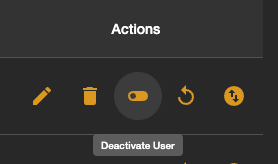
- Click the Slider button
- To reactivate users:
- Click the Filter button and select Inactive to display the list of inactive users
- Click the Slider button
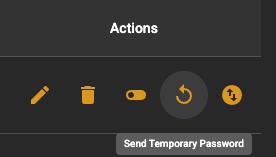
- In case the user may need to reset their password, click the Send Temporary Password button
Promoting and Demoting Users
Admin users may demoted to a Data Collector type, and Data Collector users may be promoted to an Admin user type.
If you want to change an Admin or Data Collector user to a Viewer user, they must be deleted and re-added as a Viewer user type.
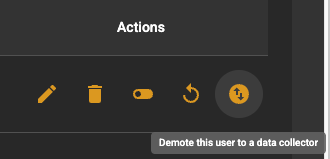
- In the Manage Team page, search for the user and click the Bi-directional icon under Actions
- Click OK to confirm
-
The user must log out and back in to both the Web interface and Mobile app for the changes to take effect.