
CSS and SLD files can be uploaded to the Pro environment to be used to style imported data.
Should you need help developing an SLD file, visit the following site for assistance: https://docs.geoserver.org/main/en/user/styling/qgis/index.html.
To Upload a Style File
-
Login to the web app
-
While on the map view, go to the Settings page by clicking the Hamburger icon in the top left corner
-
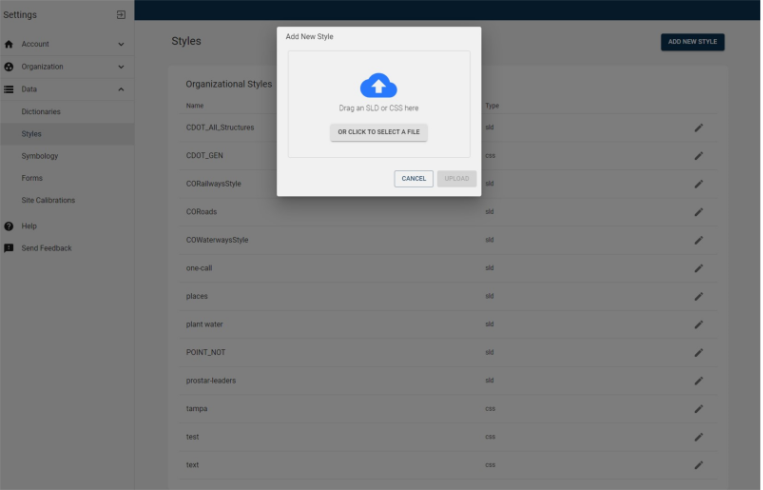
From the Settings page, go to Styles under Data to open the Style File Library
-
On the Styles page, click Add New Style
-
Drag and drop or click to select the SLD or CSS file
-
Click Upload
To Assign the Style File to the Imported Data
-
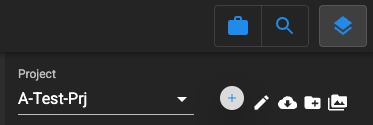
From the map view page, open the Project panel using the Layer button in the top right
-
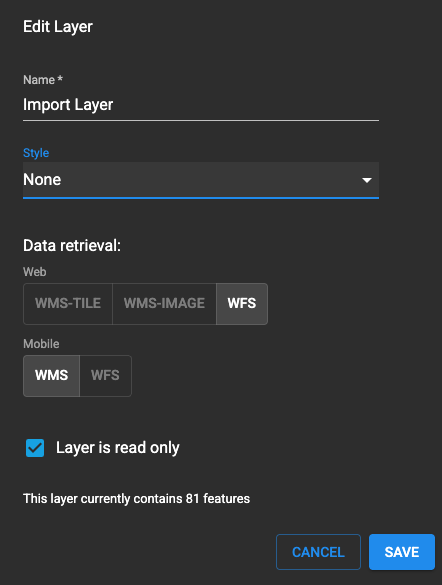
Hover over the Imported layer and click the Pencil icon that appears to the right of the Layer name to open the Edit Layer dialog
-
Click the Style dropdown and select the Style File from the Organization Styles list
-
Click Save

To Edit a Style File
-
Go to Styles from the Settings page
-
Find the SLD or CSS file to be edited from the list and click the Pencil icon to edit the file
-
Make edits as needed and click Save
-
If the Style file is already assigned to the layer, no further action is needed to apply the changes
Troubleshooting
For questions or issues, please fill out the request form (https://pointman.com/custom-support/) or send an email to [email protected] and include the following:
-
Brief description of what you are experiencing
-
Include screenshots / screen recordings showcasing the issue
- Ex: An error notification appears towards the bottom of the screen
-
Include supporting style files related to the issue
- Ex: The Style file you attempted to upload
-
List of any steps that were already taken to troubleshoot the issue
The PointMan Support Team is available from 8:30am to 4:30pm MT Monday through Friday.