
To upload a Local project to your Pro account, you will need to have both of your Local and Pro credentials added to the app. To do so, you will need to sign in to both your Local PointMan account and PointMan Pro account from the device that you are working with.
Note: The instructions below assume that you are already logged into a Local account.
Login to a PointMan Pro account
-
Open the PointMan app on your mobile / tablet device
-
If you are automatically logged into your Local account, logout. Otherwise, skip this step if you were brought to the Login page
-
Fill in the Username (email address) and the Password with your Pro credentials
-
Tap Sign In
Upload a Local Project to Pro Project
Note: You must first sign in to a PointMan Pro account on your mobile device if you have not already.
-
If you are already at the “Open Project” page, skip Steps 2 & 3. Otherwise, proceed to Step 2.
-
Tap the Hamburger Menu Icon in the upper-left corner of the app
-
Tap Open Project
-
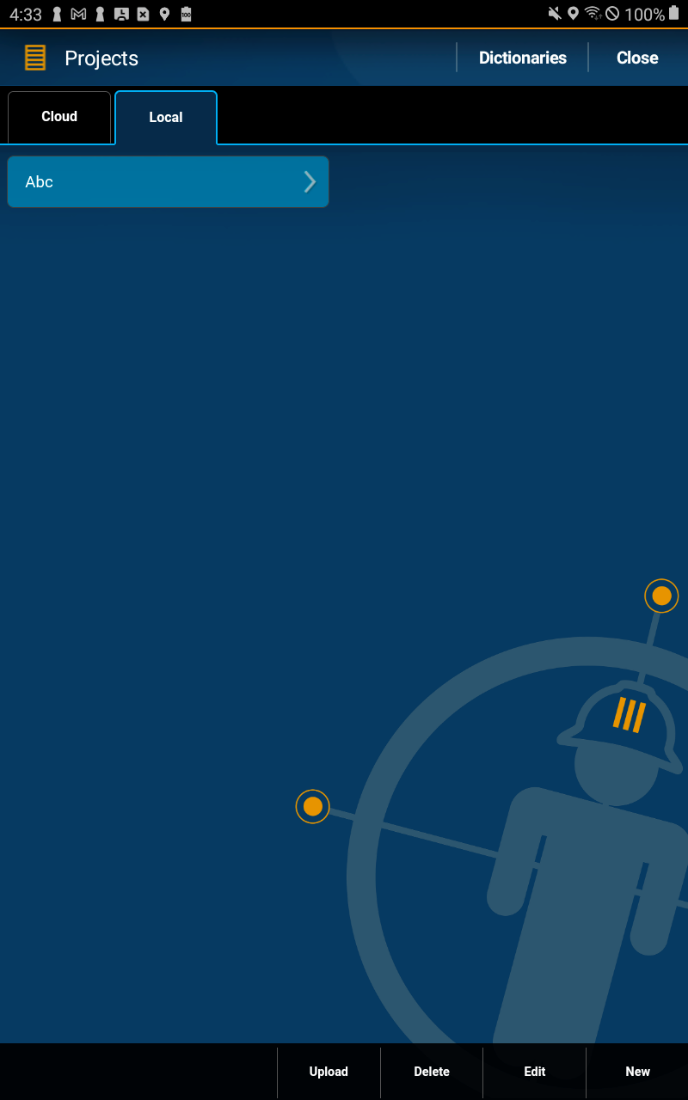
Tap the Local tab to see your Local projects
-
Tap the Local project that you would like to upload (tap only once)
-
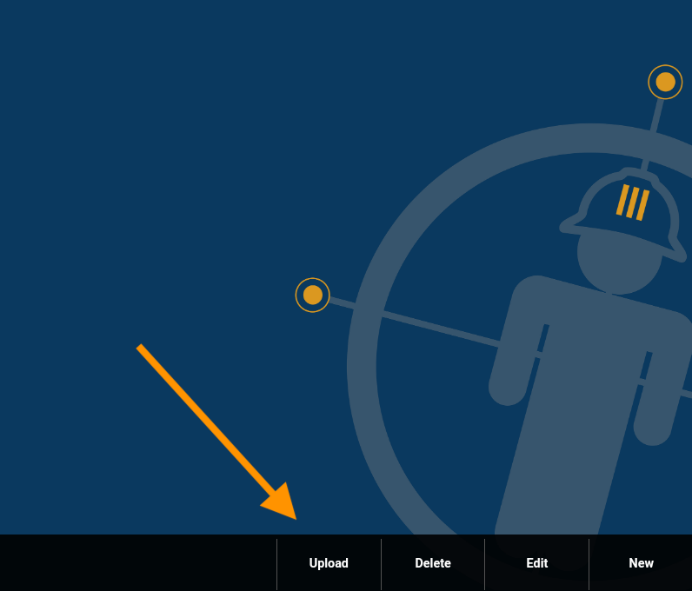
Tap Upload at the bottom of the screen
-
Tap Upload in the Upload Project dialog to confirm the upload
-
Please wait until the uploading process ends
-
After the loading ends, you have successfully uploaded the project. The project should now be in the Cloud tab and should no longer be listed in the Local tab.