
Users may use this feature if they want to share any particular layer from one project to another, but do not want to grant access to the entire project.
Note: Admin Accounts can use the “share this layer with another project” feature, but Data Collectors and Viewers can only view the shared feature layers.
-
Login to the Pro Cloud desktop access using an Admin Account.
Pro Cloud Link: https://app.pointman.com/signin
-
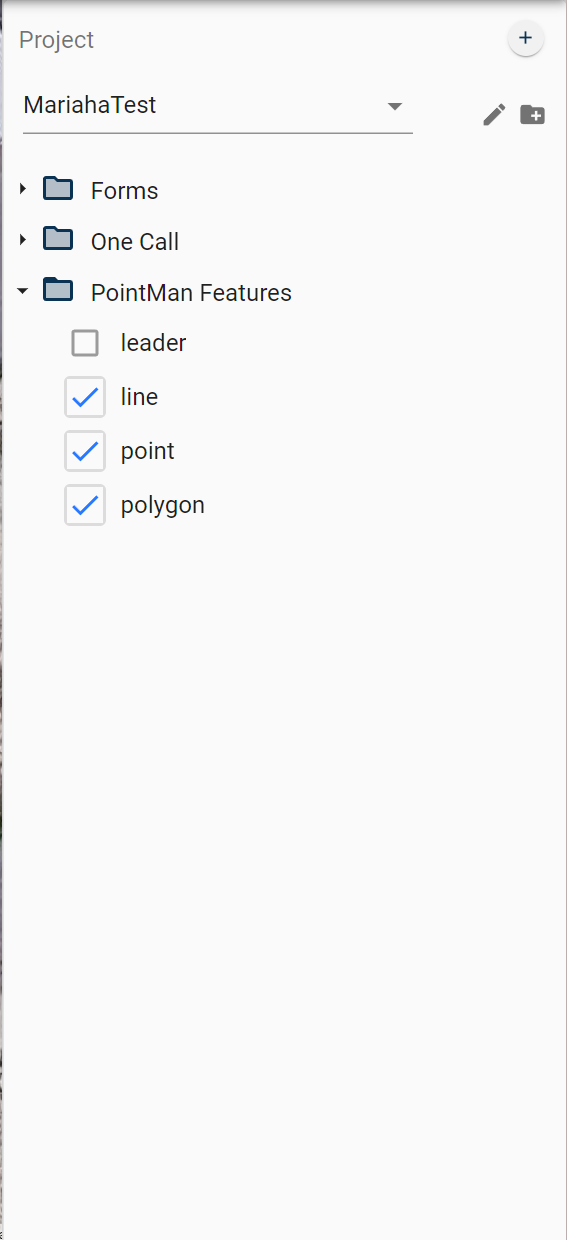
Click on the Project Panel icon in the upper right-hand corner of the main map screen. Select the project you would like to share the layer from.
-
Enable all feature layers (point, line, polygon) that you would like to share with another project. (Note: PointMan Features Folders, Imported Data Layers, Form Layers, and One Call Layers are all able to be shared.)
-
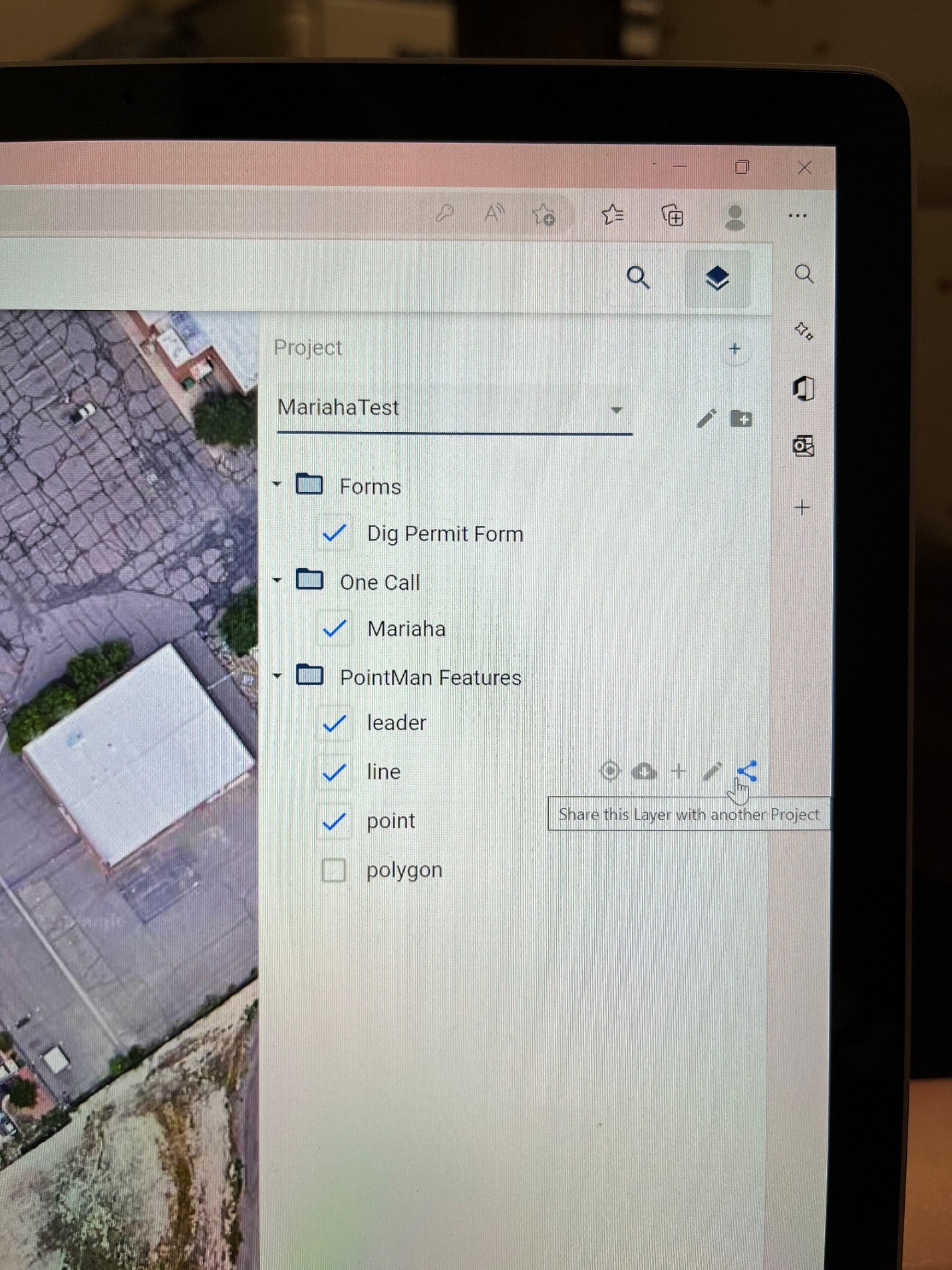
Once all feature layers are enabled, hover over the layer you want to share with another project and then click on the “share this layer with another project” button.
-
A “Share Layer” dialogue box will appear. Click on the “Share with Project” drop-down menu. Select the Project you would like to share with from the drop-down menu. Then select which folder you would like to store the shared feature layer in. Select Save.
-
Repeat Steps 4 and 5 for all other layers you wish to share, if any. Otherwise, verify that the layer was properly shared and is viewable in the project it was just shared to.
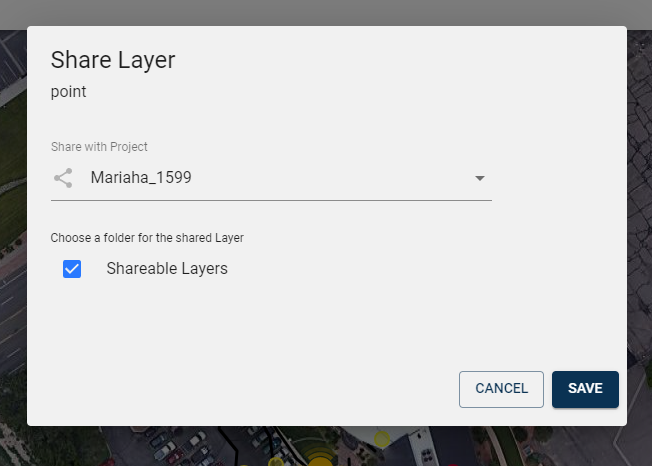
- Navigate to the Project that you shared that feature layer with to verify that all data is present.
Additional Notes:
-
Only Admin accounts may share layers. Collectors and Viewers may only view shared layer data.
-
The layer will not be editable in the project that the layer was shared to as it may only be used for viewing purposes. The project that the layer was shared from may still update the layer and those edits will be reflected in the project the layer was shared to.