
Ways to reset a password:
-
Click Forgot Password on the Sign-in page of the Web interface
-
Tap Forgot on the Sign-in page of the Mobile app
-
Ask an admin to send you a temporary password from the Manage Team page.
How do I reset my password using the Forgot Password link?
- Find the Forgot Password link
- Web: Go to the PointMan Web Sign-in page and click Forgot Password.
- Mobile: Open the Mobile app and tap Forgot from the Sign-in page.
- Enter the email address associated with your account
- Click Send Code and you will be prompted to enter a verification code
- You will receive an email containing a 6-digit verification code from [email protected].
- If you do not see the verification code email, check your Junk or Spam folder.
- Enter the 6-digit code from the email.
- Enter a new password. Your new password must have at least:
- 1 number
- 1 Lower-case letter
- 1 Upper-case letter
- 1 Special character
- 8 characters in total length
- Enter the password again into the Confirm Password field. Then click Submit.
- When the reset is complete, you will be redirected to the Sign-in page. Sign in with your new password.
How can an administrator help a user reset their password?
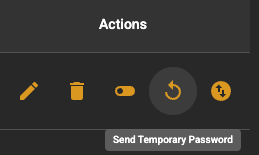
On the Manage Team page, administrators can send a temporary password to the affected user's email address. The user then uses it to sign in and set a new password.
What steps does the administrator take?
- Go to the Manage Team page under Organization in the Settings page
- Click the Send Temporary Password button under Actions
- Click Resend to confirm
User steps
- The user will receive an email from [email protected] with a temporary password
- The user can log in to either the Web interface or the Mobile app with the temporary password.
- After submitting the temporary password, the user may be prompted to enter a verification code.
- If prompted, an email containing a 6-digit verification code will be sent from [email protected]. Enter the 6-digit code into the prompt.
- Set a new password – The new password must have at least:
- 1 number
- 1 Lower-case letter
- 1 Upper-case letter
- 1 Special character
- 8 characters in total length
- Enter the password into the Confirm Password field, then click Submit
What should I do if I still cannot reset my password?
Please contact the PointMan Support team by completing the Support Request form or sending an email to [email protected] with the error message you received and the email associated with your account.