
You can turn notifications on or off from the Settings page in the PointMan Web interface under Account > Notifications.
Which events trigger a project notification?
When Notifications are enabled for the project you are currently viewing, you will receive a notification each time one of the following events occurs:
-
Project Details is updated
-
New Layers are imported
-
New Data Collection Layers have been added
-
Layer or Folder with layers was deleted
-
Layer Details was edited
-
Project Data Dictionary was modified
To Enable/Disable Notifications
-
Open the project for that you want to receive notifications for, then go to the Settings page.
-
Select Notifications under the Account Tab
-
If notifications are not enabled for your web browser, you will see the following: “Notification permissions must be granted in the browser to access settings.”
-
When prompted, click Allow.
Otherwise, to enable browser notification on Chrome, Edge, and Safari:-
Open your browser's menu (typically found in the top right corner of the browser window; the location and icon may vary by browser and version) and select Settings
-
In the search bar at the top of the screen, type in Notifications
-
For Chrome:
Select “Site settings”. Add the cloud site in the “Allowed to send notifications” section. -
For Edge:
Scroll down to Notifications and open the menu. Add the app.pointman.com url in the “Allow” section -
For Safari:
Go to the allowed sites section and add the app.pointman.com url
-
-
-
-
-
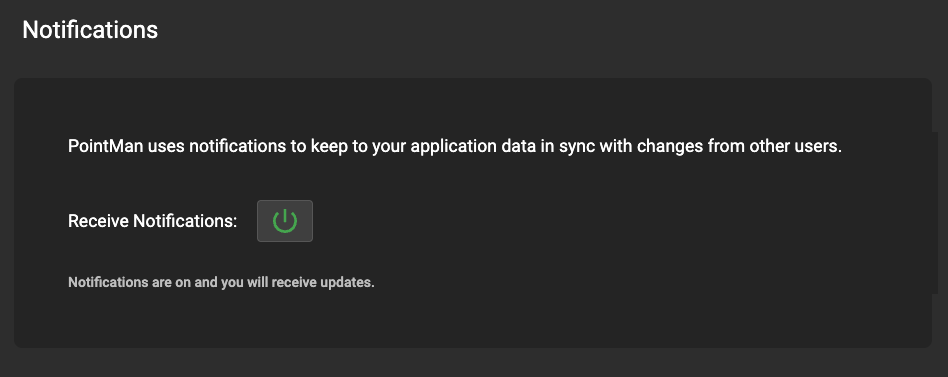
Click the Power icon to “Enable/Disable Notifications”.
-
The icon will turn green when Notifications are enabled. The note underneath the icon will read “Notifications are on, and you will receive updates.”
-
-