
-
Click the Buy Now button for the Pro Subscription
-
Fill out the Sign Up form. When setting the password, it must contain at least one of each of the following:
-
1 number
-
1 Lower-case letter
-
1 Upper-case letter
-
1 Special character
-
8 characters in total length
-
-
Click Sign Up and enter the verification code sent to the email used for sign up
-
Click Sign Up again to get to the Checkout process
-
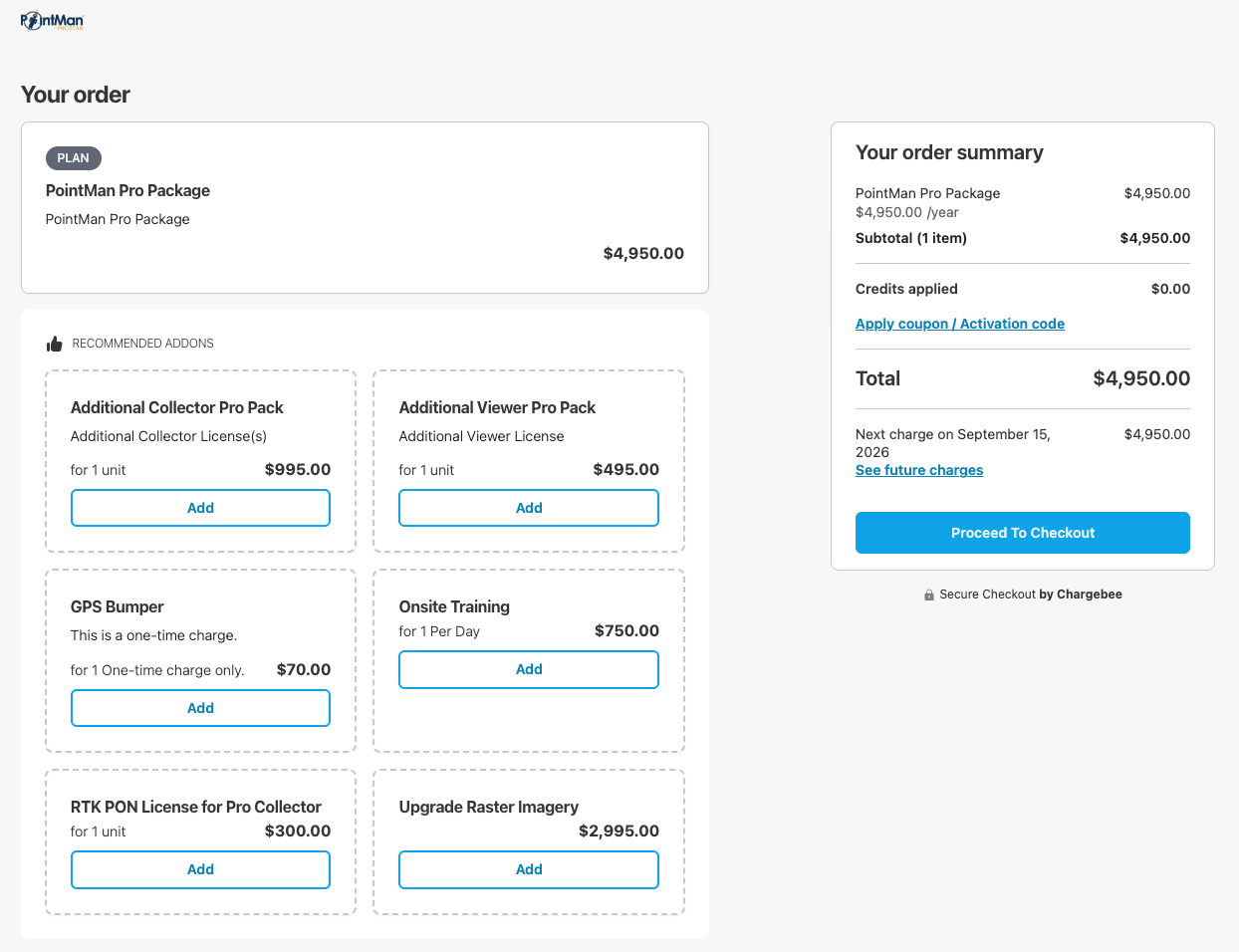
Coupon codes, if any, can be entered by clicking Apply coupon / Activation code. After entering the code, click Apply.
-
Additional seats and other items can be added as needed
- Note: The PointMan Pro Package comes with 3 collector seats (Admin or Collector user types).
-
After selecting all items, click Proceed to Checkout
-
Verify the auto-populated Account Information. The Company field may likely need to be updated
-
Fill out the Billing Address and Payment Details. Note: If you entered a code for a free Mobile license or Pro subscription, you will not need to enter Payment information.
-
Check the box next to I agree... and click Pay & Subscribe to complete the purchase
-
The End User License Agreement will display. Click to agree and the Map View will display.
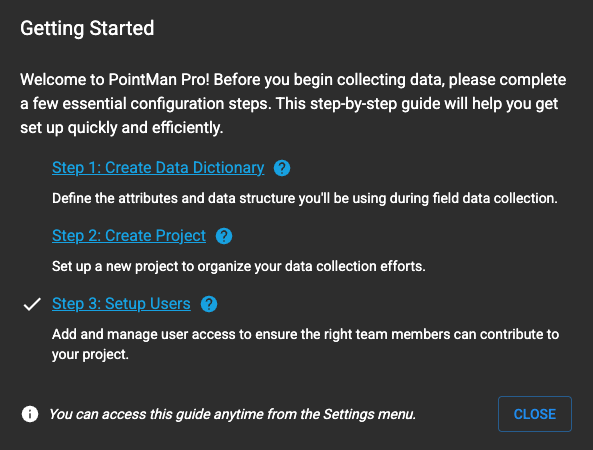
Getting Started
-
Before a Project can be created, a Data Dictionary must first be added. See the Assign Data Dictionary page for assistance.
-
To create a project, see the Create/Edit/Delete Project page.
-
To add users, see the User Management page.
If the subscription needs to be updated at any point, go to Manage Subscription from the Settings page.