
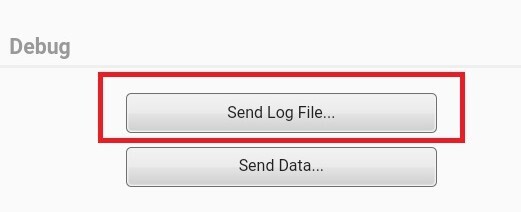
To send a Log File, open Settings, scroll to the Debug section, and tap "Send Log File…".
What information is included in a log file?
A PointMan log file includes device details, app activity, error messages, and connection records, as listed below.
-
Necessary Device Information (such as the Operating System version, currently installed PointMan app version, etc.)
-
PointMan app activity (ex: Create/Edit/Delete Features)
-
Device ID (A unique ID that associates your license/subscription to your mobile device)
-
Any error messages
-
Any attempts to pair the app with external devices
-
Requests made to external applications (examples: apps needed for GPS/Locators)
-
App Service Status: Offline/Online Mode (Pro User)
-
Instances when the PointMan app is put into the background (meaning you went away from the PointMan app to open a different app)
-
App “Crashing” instances
Note: To report an issue, follow the link in the "How to Report an Issue with the Mobile App" section.
How do I send a log file?
-
Go to the PointMan Settings page
-
Scroll to the Debug section and tap the “Log File…” button
How to Report an Issue with the Mobile App
Please reach out to the PointMan Support team.