How to pair with the different RFID readers
-
Make sure both the RFID reader and PointMan device are powered on
-
Go to you PointMan devices Bluetooth menu
-
Enable Bluetooth on the RFID device by holding the Bluetooth button for 1 second
-
When discoverable, the Bluetooth LED flashed blue
-
Select the RFID device from the Bluetooth menu
How to use the RFID reader to scan
-
Go into settings, scroll down to the tag reader dropdown menu, select your device
-
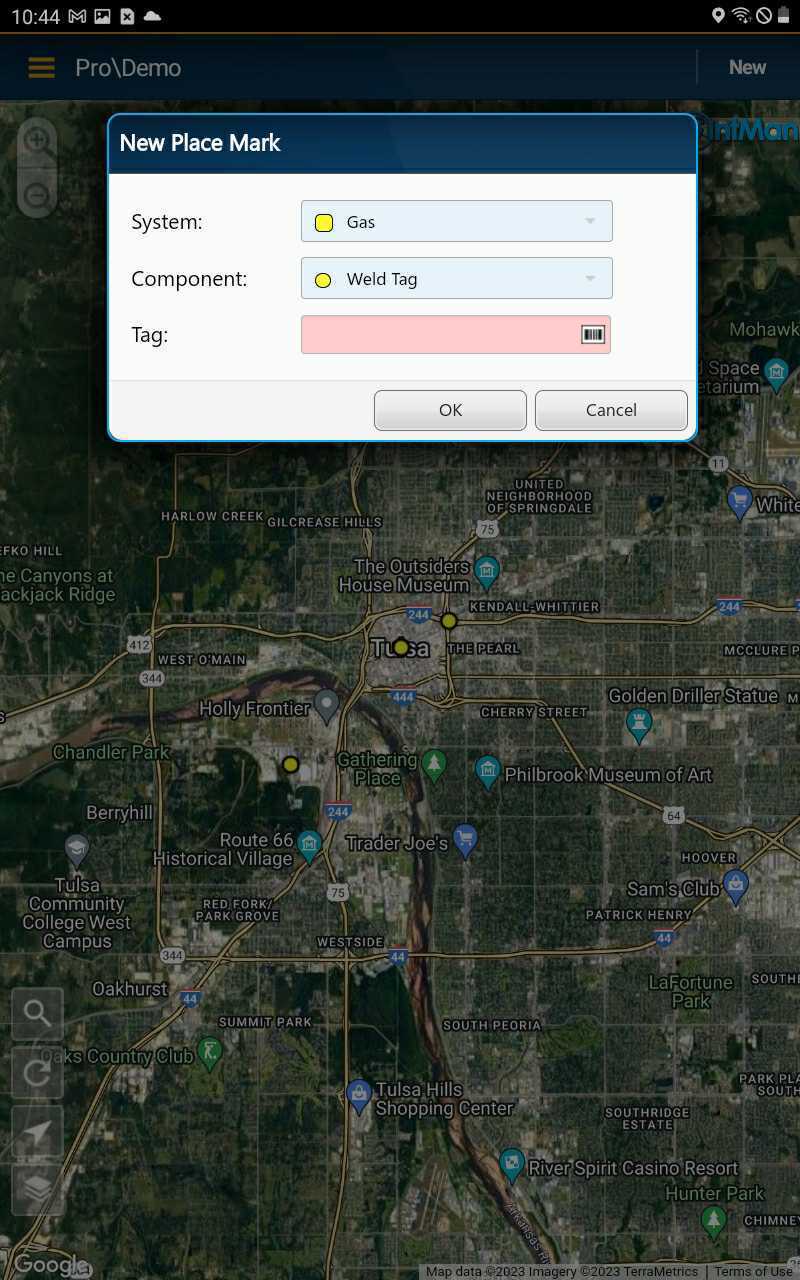
Anytime there is this barcode icon, means the system can accept the RFID reading
-
Select the bar code button when available then trigger the RFID reader.
-
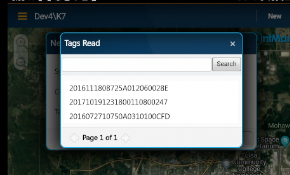
The bar should autofill with the identification number of the correct tag.
-
NOTE: If two tags are too close to each other, the user may have to select the correct tag if the reader finds multiple tags.
-
-
Weld Tags
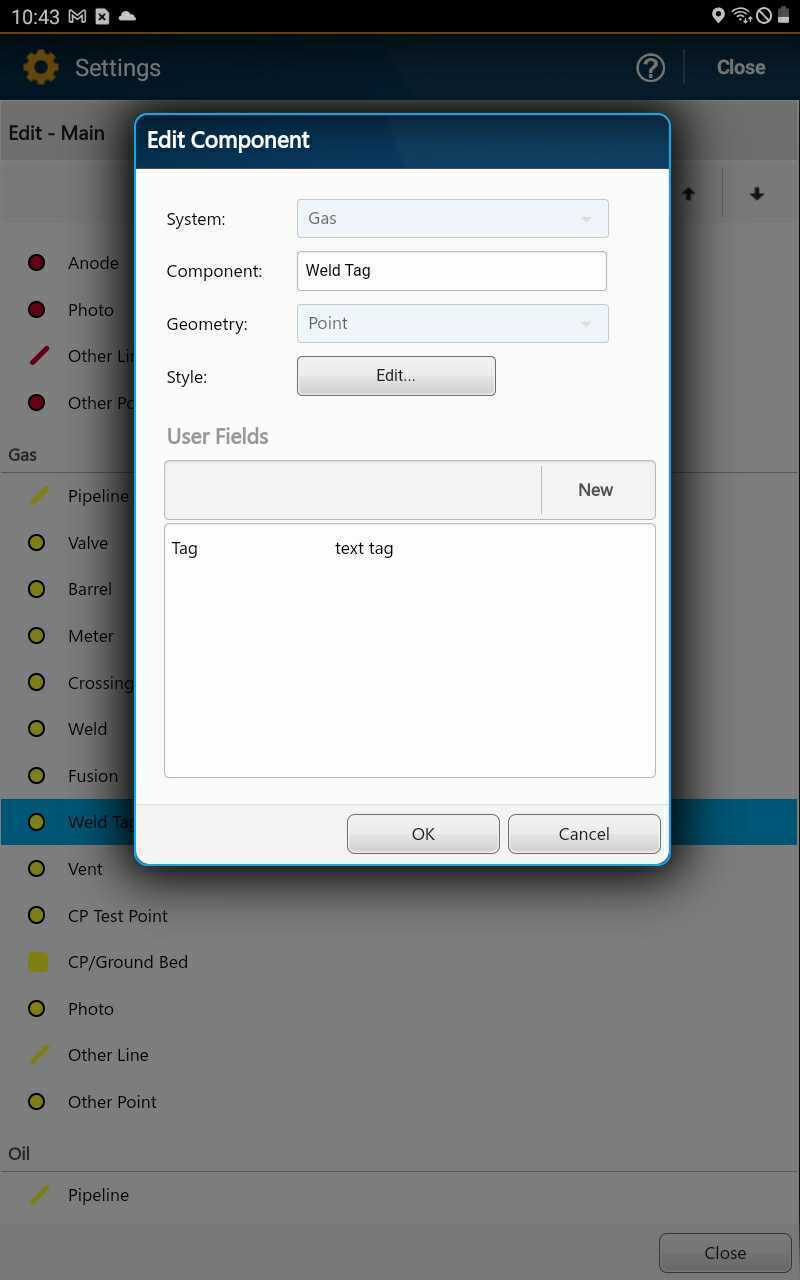
The component attribute that allows users to read the tag via RFID on point creation
To create a weld tag attribute
-
Go into settings
-
Scroll down to the data dictionary settings
-
Select the desired data dictionary, select the “edit” button
-
Find and select the desired component (or create one), and select the “edit” button again
-
Create a new attribute within the component, for attribute type, select tag
-
Select the “ok” button
-
User should now have a component with the tag attribute