
How to pair with the DA2 & Selecting the proper option from the GPS dropdown
Step 1: Trimble Mobile Manager Setup
-
Open the Trimble Mobile Manager app.
-
Login to your Trimble account.
-
Make sure that you have a valid account.
-
Close Trimble Mobile Manager.
Step 2: DA2 Device Setup Steps
-
Plug the DA2 receiver to a power source via its cable.
-
Turn on the DA2 receiver by pressing the button on the bottom.
Step 3: PointMan Settings
-
Open the PointMan app.
-
Login to your PointMan account.
-
Open the settings.
-
Tap Configure Bluetooth.
-
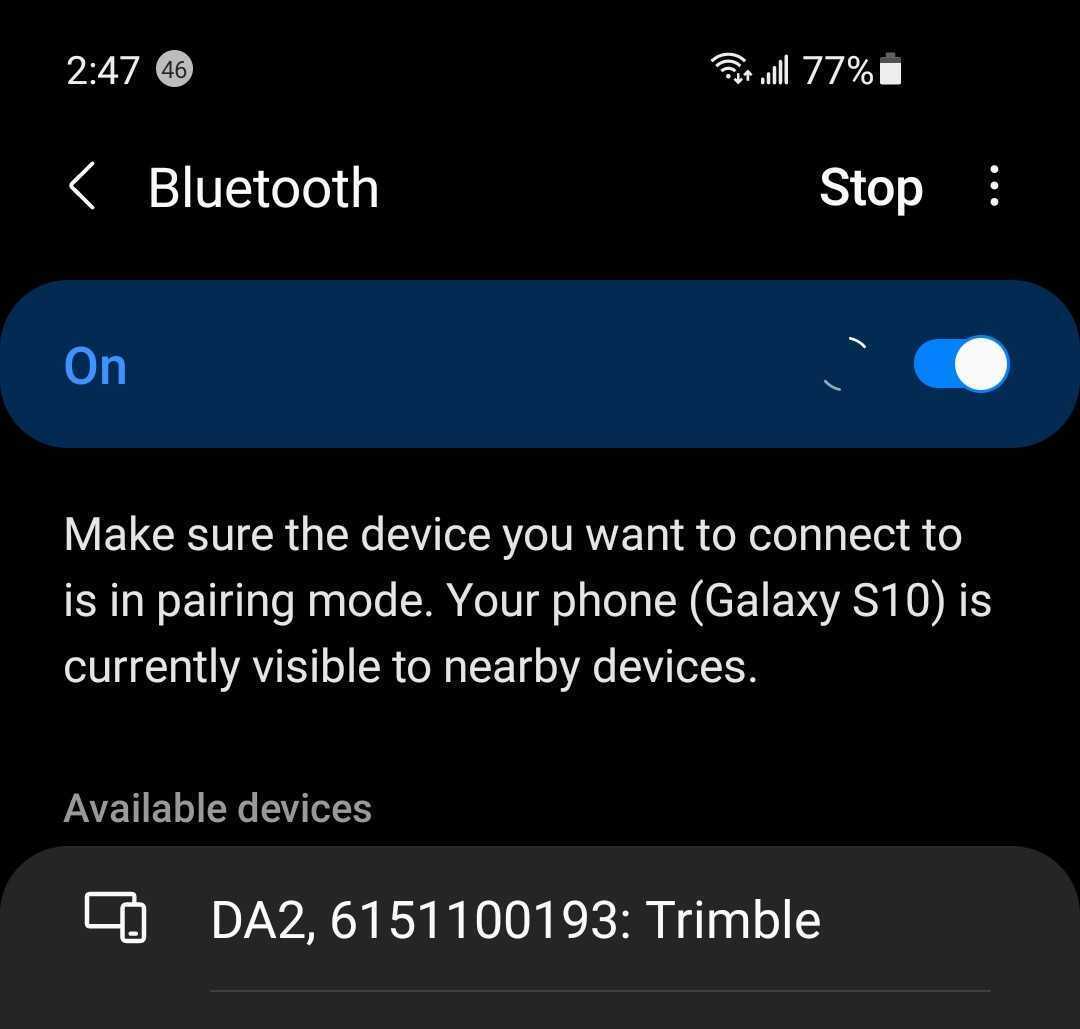
This will open the Bluetooth settings on your phone.
-
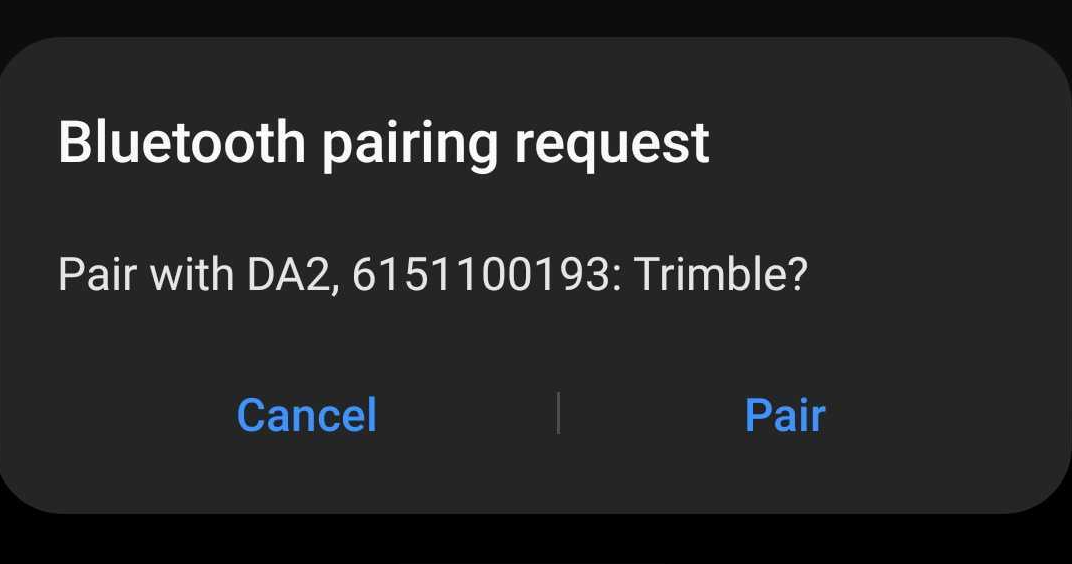
Tap DA2, and pair with it.
-
Go back to the settings page in the PointMan app.
-
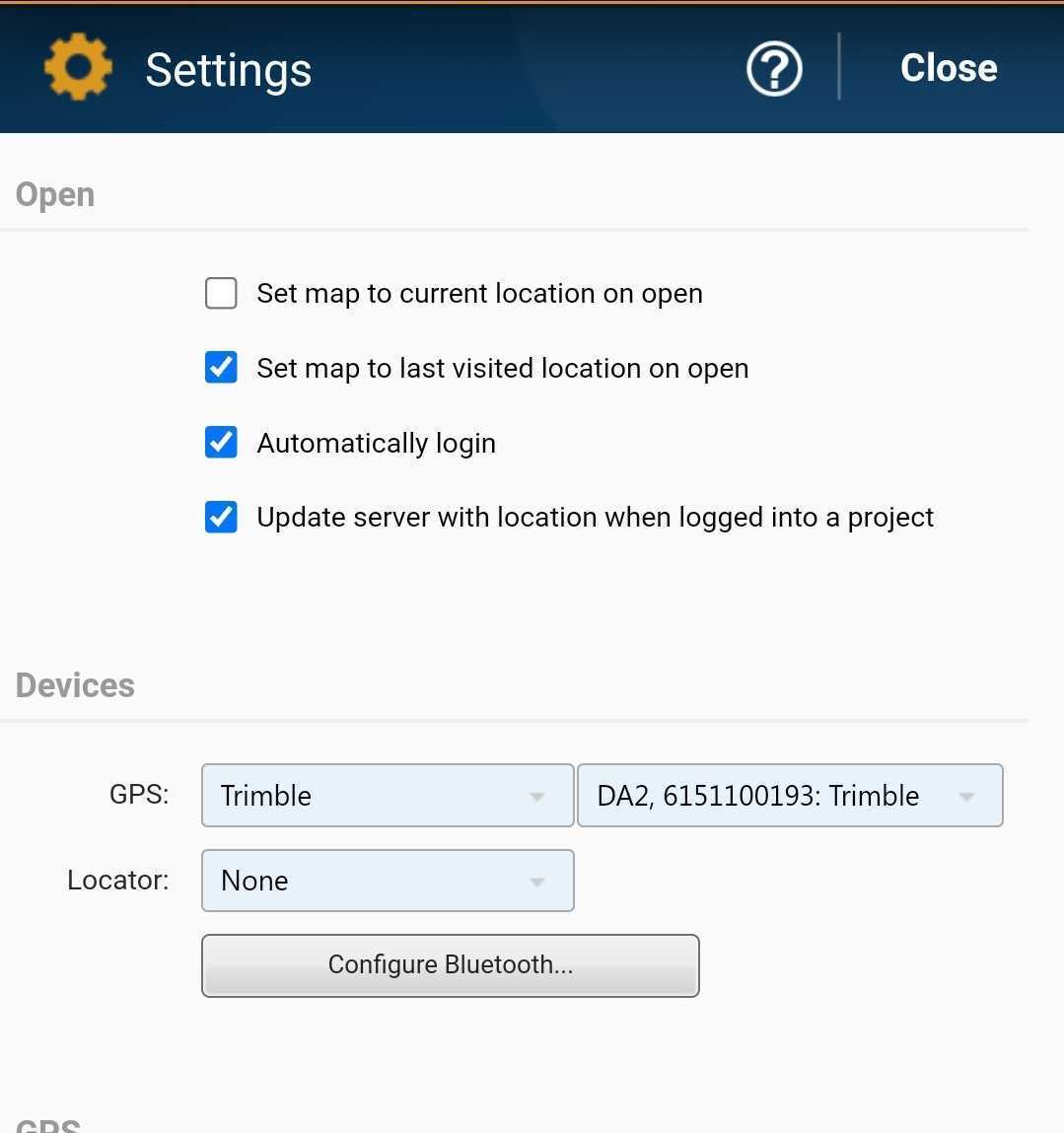
In the Devices section, tap GPS dropdown list.
-
Choose Trimble and DA2.
-
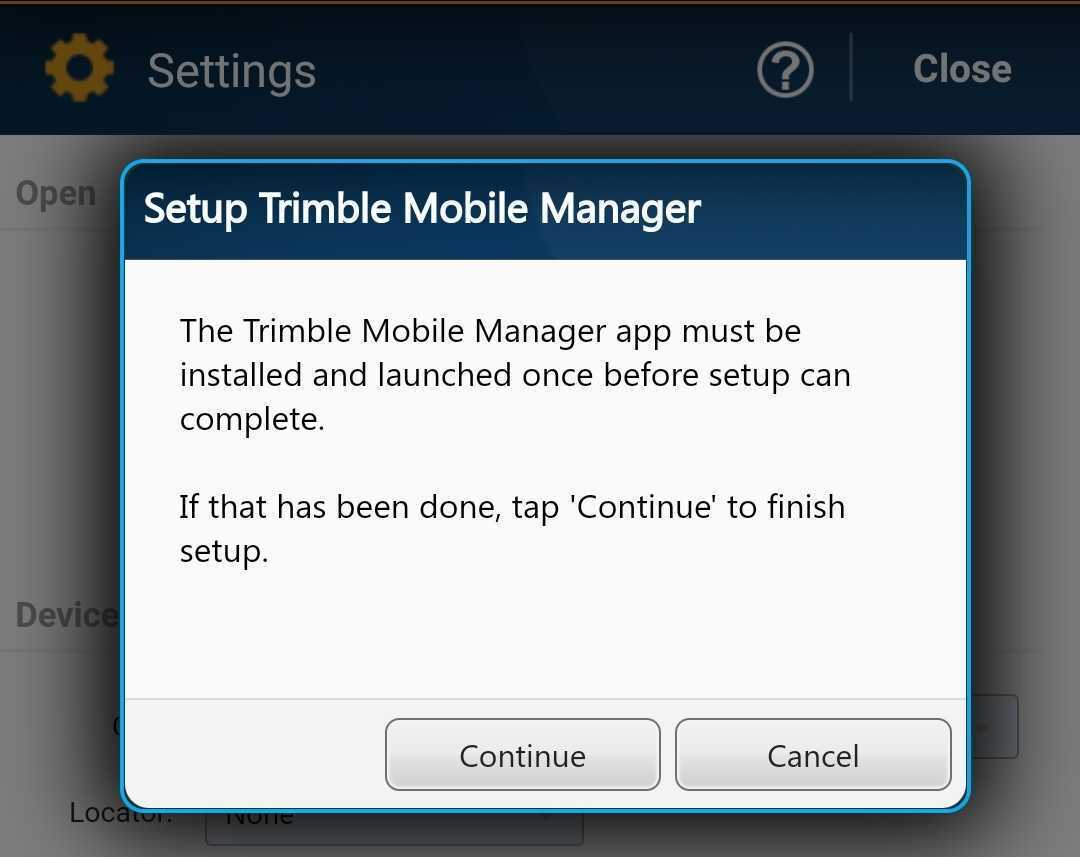
continue to connect to the device.
-
This will open the Trimble Mobile Manager to load the subscription information.
-
This process should direct you back to the PointMan app.
-
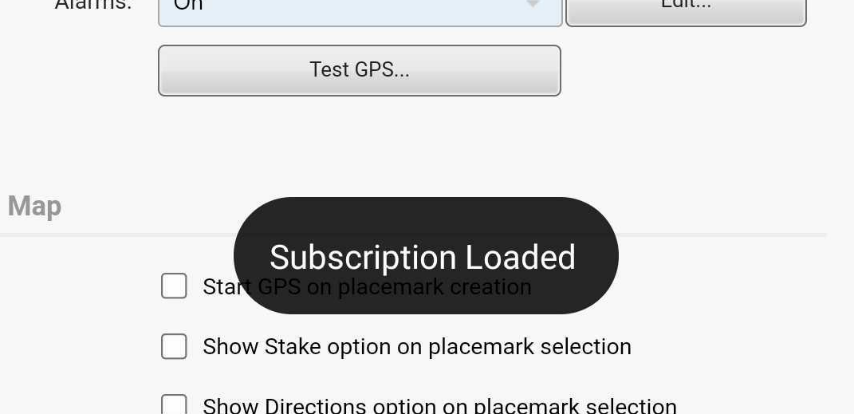
When you see “Subscription Loaded” you are ready to go with the Trimble DA2.
-
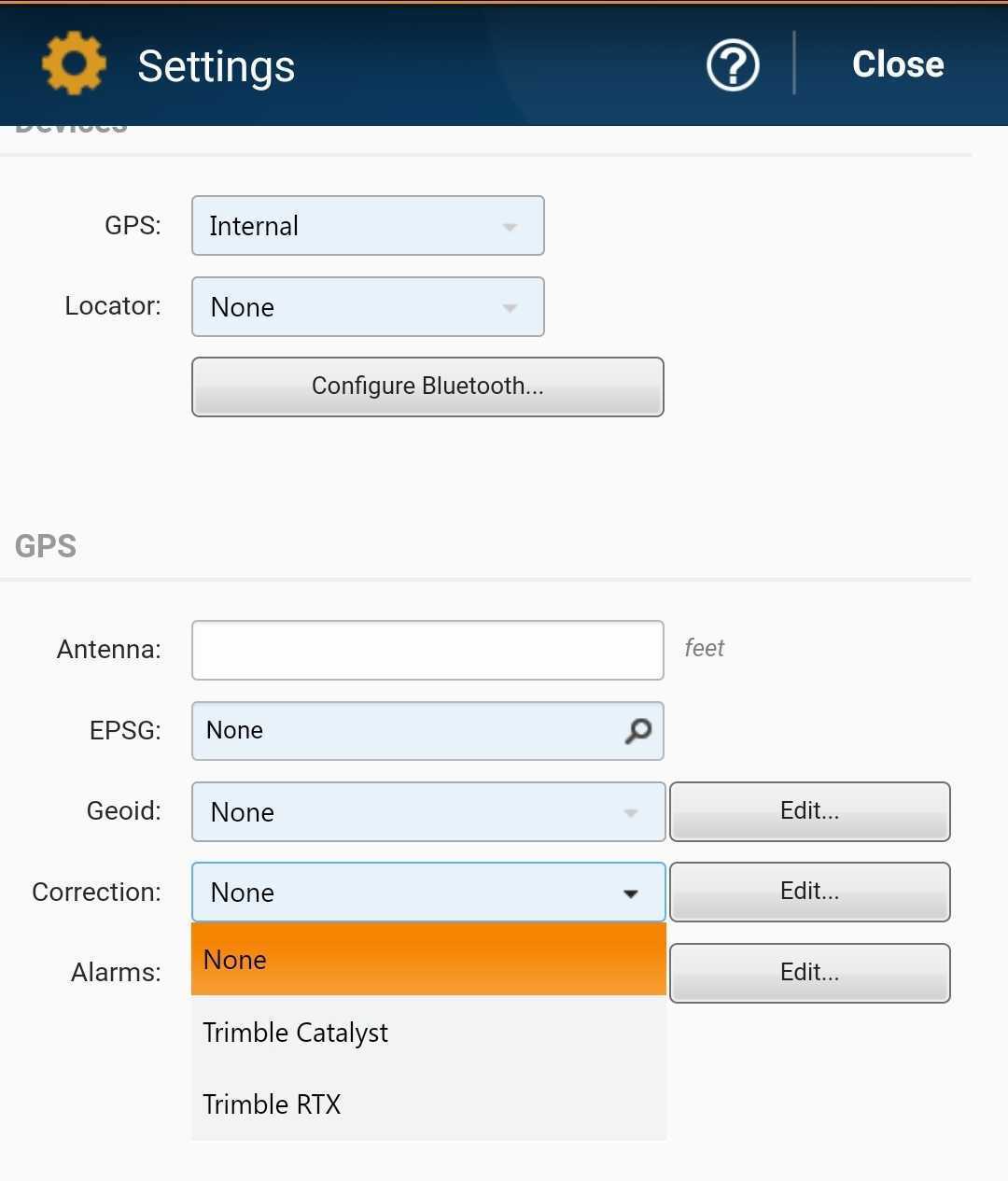
To receive the highest quality GPS information, it is recommended to use Trimble RTX as a correction profile. You can add this from the Correction Profile dropdown in the settings.
-
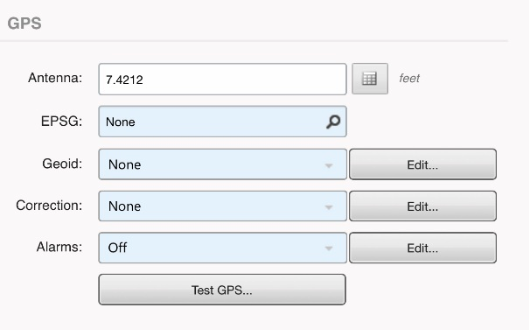
Using the Test GPS button to verify that the receiver is properly connected with PointMan
-
In the settings on the PointMan app scroll down to the GPS section.
-
Set the necessary GPS Settings and use the Test GPS button to test out the configurations
Troubleshooting
Troubleshooting Tips: Troubleshooting Issues with GPS/GNSS Units
Note about Uninstalling PointMan: If you are a PointMan Mobile License user, uninstalling the PointMan app will remove all project data stored on your device. It is important to backup any project data before uninstalling the mobile app.
For questions or issues, please fill out the request form (https://pointman.com/custom-support/) or send an email to [email protected] and include the following:
-
Brief description of what you are experiencing
-
Include screenshots / screen recordings showcasing the issue if any
-
Include supporting data files showcasing the issue if any
-
-
The devices you are using and if you have anything set in the GPS settings
- ex: GPS, Locator, Mobile Device, EPSG, Correction Service, etc.
-
List of steps that were already taken to troubleshoot the issue
The PointMan Support Team is available from 8:30am to 4:30pm MT Monday through Friday.