
Creating and Editing eForms
This section covers creating, editing, and moving eForms.
-
Tap the New button in the upper right-hand corner of the map. The New Placemark dialog will display.
-
Select System: Form
-
Select Component: Document
-
Tap Ok, the Open Form dialog will display
-
Select an eForm and then tap OK. The eForm will display
-
Fill out the form: Enter text in applicable text fields, select check boxes and radio buttons, add sketch to the sketch page by tapping the sketch icon, add a photo to the photo page by tapping the photo icon.
-
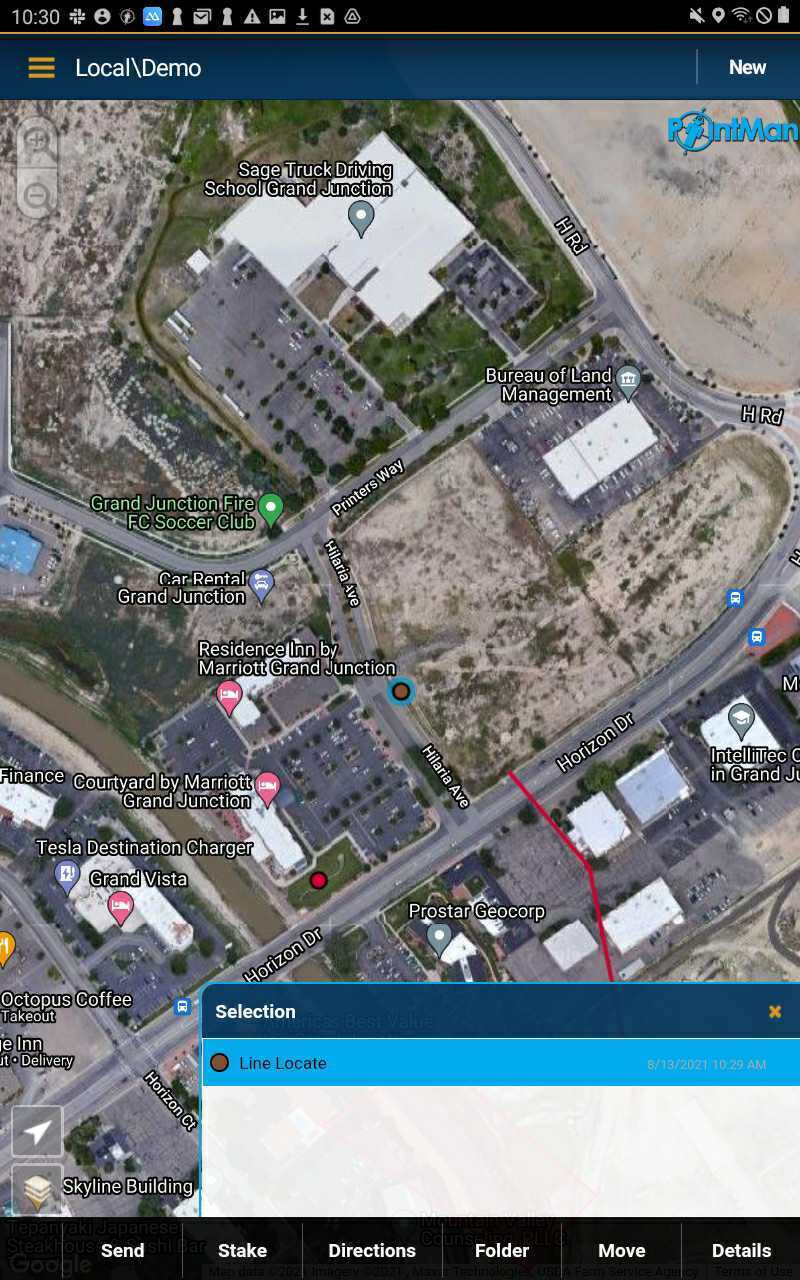
When complete, tap Close, then Save. The form will close and the point for the new form will be highlighted on the map.
-
To move the selected eForm point:
-
Tap Move
-
Tap GPS to move it to a specific point on the map
-
Tap Finish
-
-
To edit the selected form:
-
Tap Details
-
Tap Edit
-
Tap the Form file hyperlink
-
Tap Close to save any changes
-
Photos
This section covers creating, editing, and moving photos. Users can take digital photos in PointMan and store them as features on the PointMan map display or embed them into eForms.
-
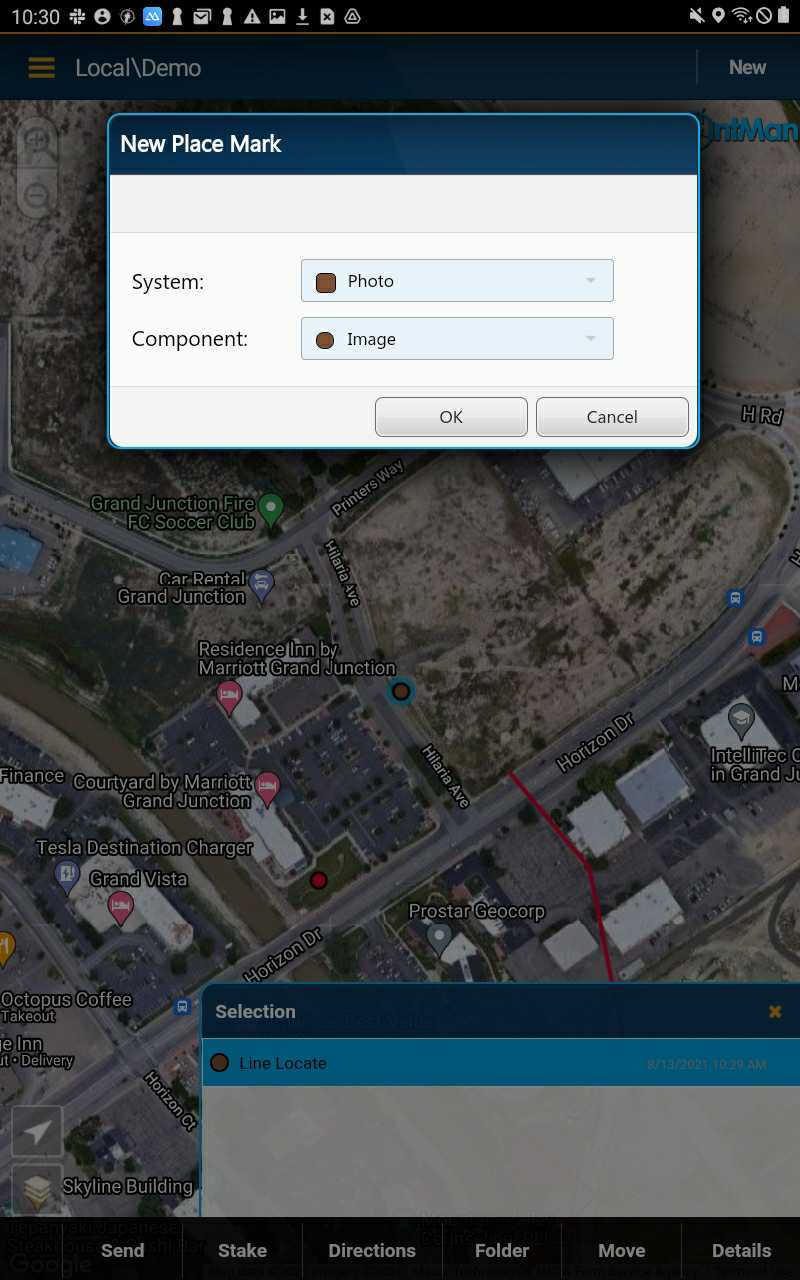
Tap the New button in the upper right-hand corner of the map. The New Placemark dialog will display.
-
Select System: Photo
-
Select Component: Image
-
Tap OK. The take photo page will be displayed
-
To include a compass reading select Compass
-
To capture a GPS reading of this photo select GPS
-
Orient the tablet/phone to take a photo of the selected item or area
-
Tap the Photo button to capture the photo
-
The photo is now available for mark up
-
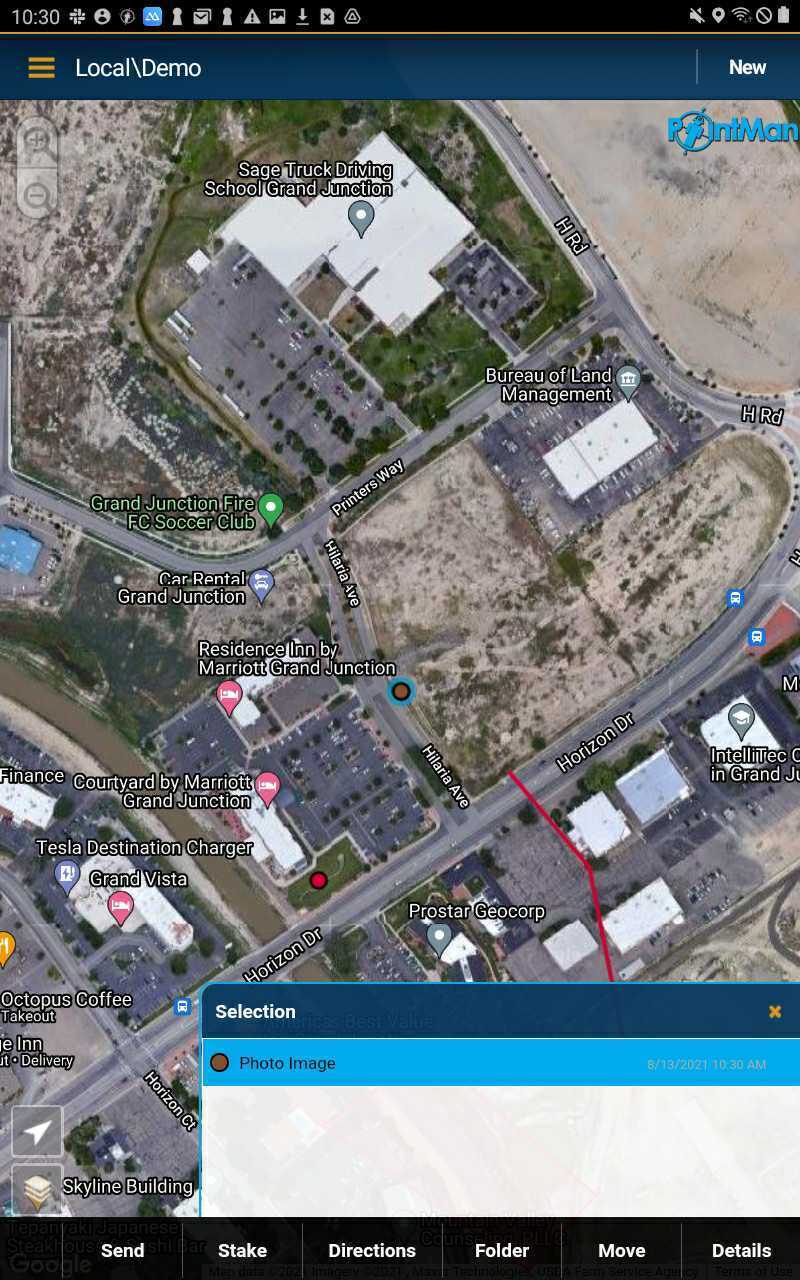
Tap Close to save. The photo will be saved as a point on the map
-
To move the selected photo point:
-
Tap Move
-
Tap GPS to move it to a specific point on the map
-
Tap Finish
-
-
To edit the selected photo:
-
Tap Details
-
Tap Edit
-
Tap the Photo file hyperlink
-
Tap Close to save any changes
-