
This locator is available for pairing with PointMan on both Android and iOS devices.
-
Open the PointMan app to the Settings page
-
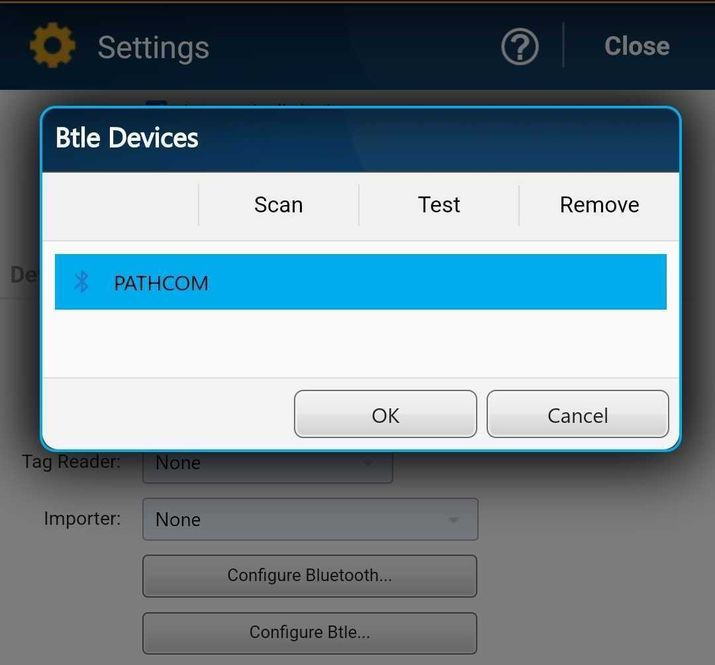
Under the Devices section, tap “Configure Btle...” to open the Btle Devices dialogue
-
Tap "Scan" and select the Rycom locator from the list when it appears
-
iOS devices may ask if you wat to allow Bluetooth, tap “Yes”
-
-
-
Tap “Test” to verify the connection between the devices. If the test is successful, you will get a "Connection Test Successful" notification
-
Close out of the dialogue and return to the Settings page
-
Under the Devices section, tap the Locator dropdown and select “Rycom BTLE”
-
A second drop down will appear. Select “PATHCOM”

-
Close out of the Settings page and return to the Map view
-
Tap “New” and select the appropriate system and component
-
Collect the required point(s) and save the placemark
-
Check “Details” for point placemarks and “Pedigree” for line and polygon placemarks
-
Ensure the data captured from the locator is accurate
-
Locator should read “PATHCOM”
-
A Locate Mode and Gain value will also be listed
-