
This section outlines the general function and use of the PointMan mobile application.
Map Display
Map display is the default landing page for users logging into the PointMan app. You can touch and drag the screen to move the map to your desired area
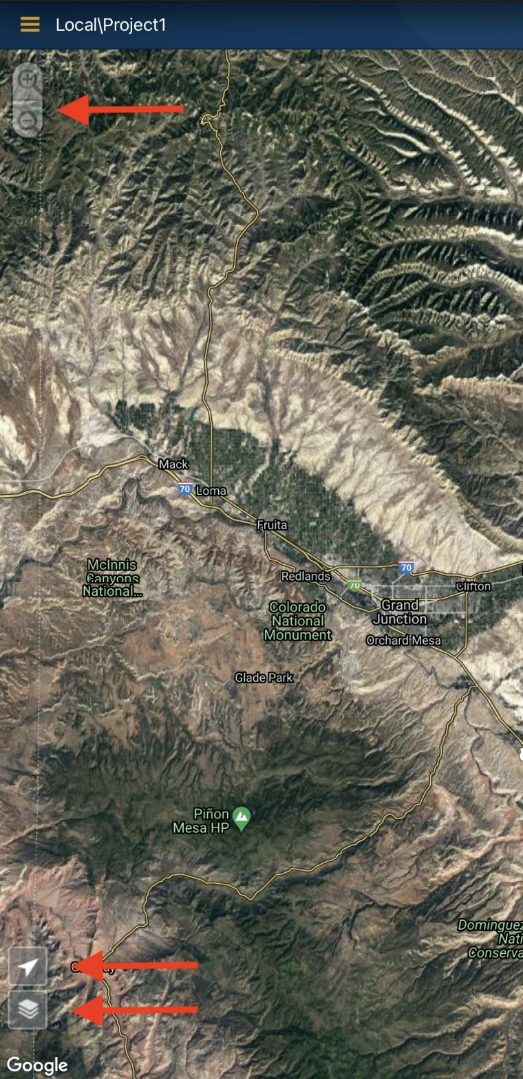
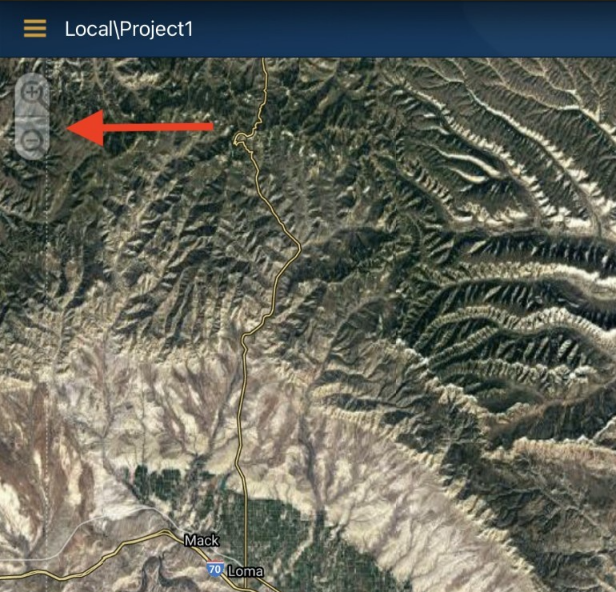
Zoom In/Out Buttons
-
Zoom in and out using the zoom buttons in the upper left corner of the Main Map Display
-
There are two other ways to Zoom in
-
Double tap to zoom in
-
Zoom in by using a spreading motion with two fingers
-
Zoom out by using a pinching motion with two fingers
-
The map will display the last known zoom level, even if you log back out and back in.
Menu Icon
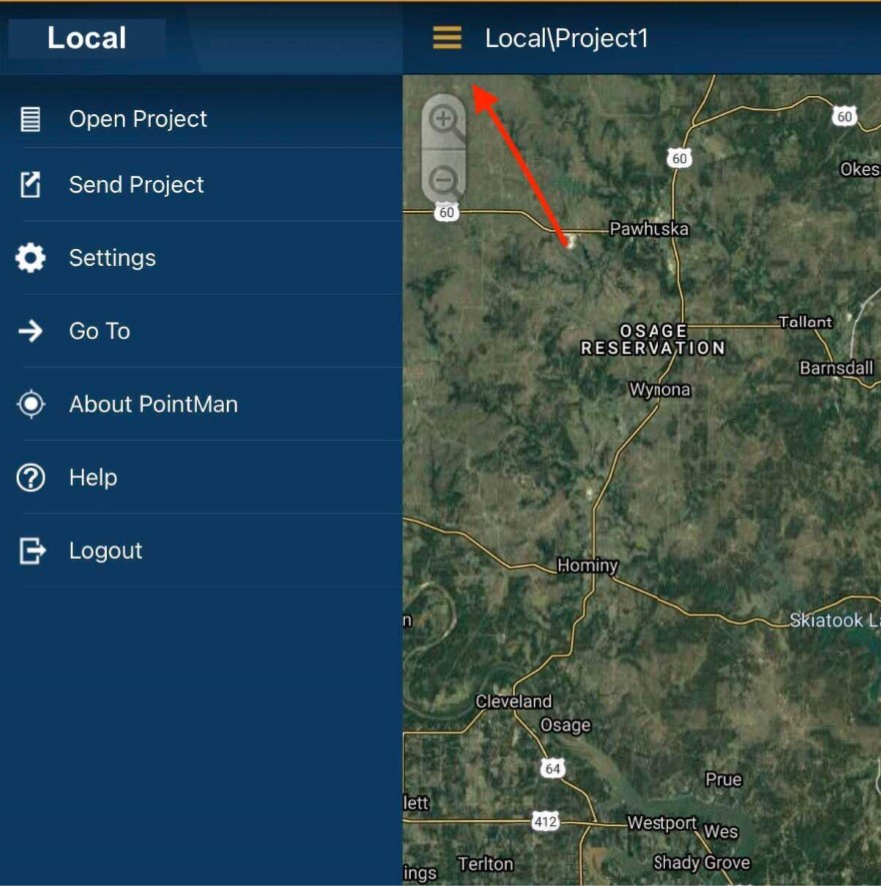
Tap to display options for accessing search tools, notifications, settings, and other action items
New Button
-
Tap to display the New Placemark dialog
-
Use this to create Points, Lines and Polygons
-
Also use this to complete eForms, take pictures, and generate sketches
Current Location Button
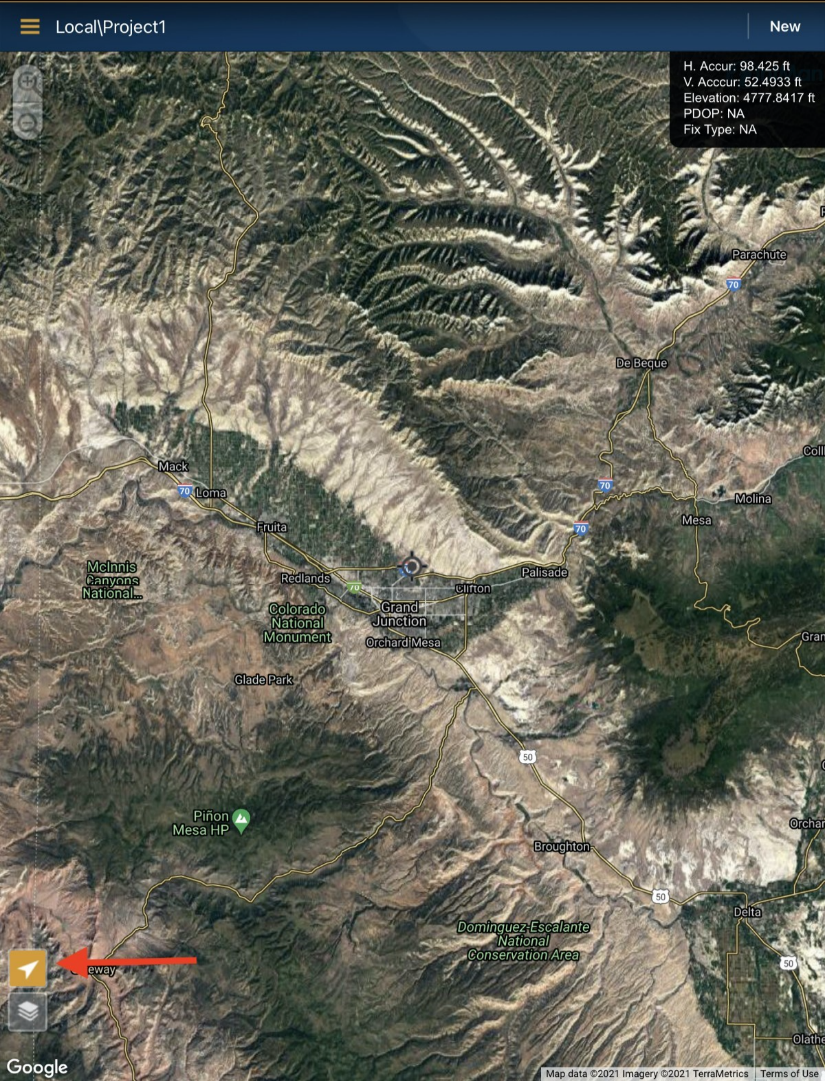
- Tap button to activate the location services on the tablet to move the map to your current location
Layer Panel Button
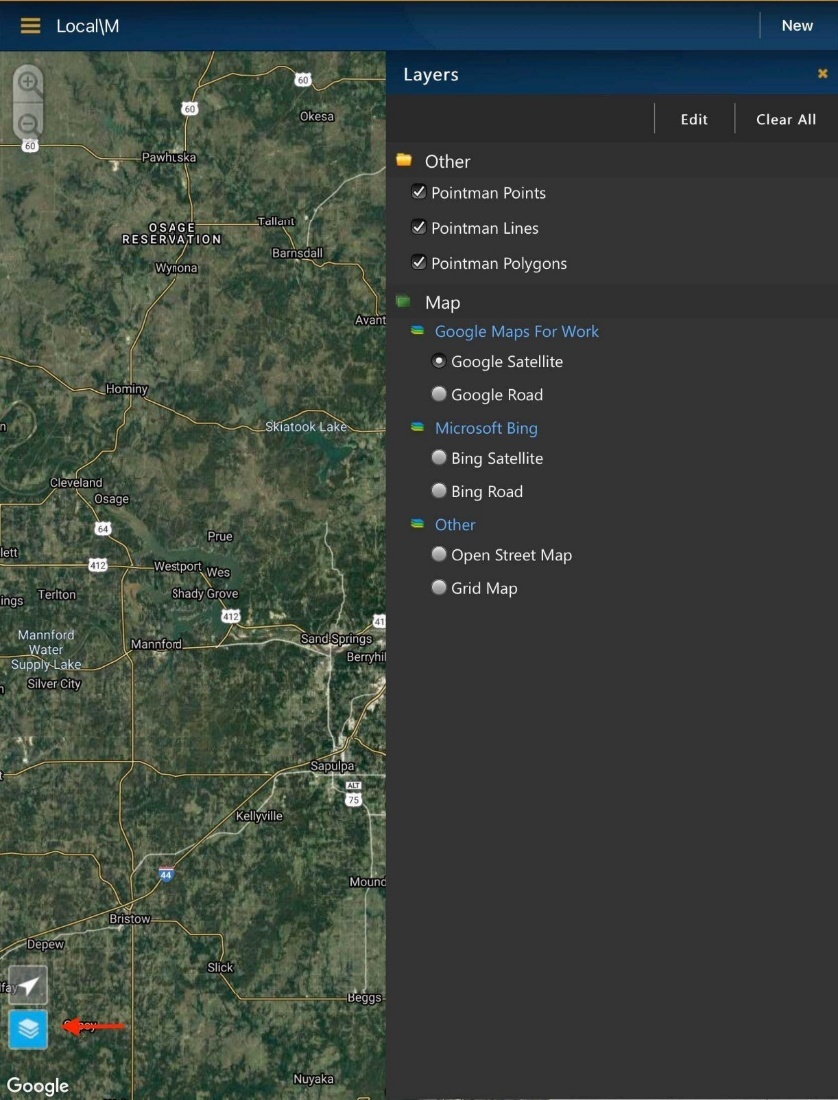
-
Tap to display the layer panel
-
Use the layer panel to show or hide specific map layers