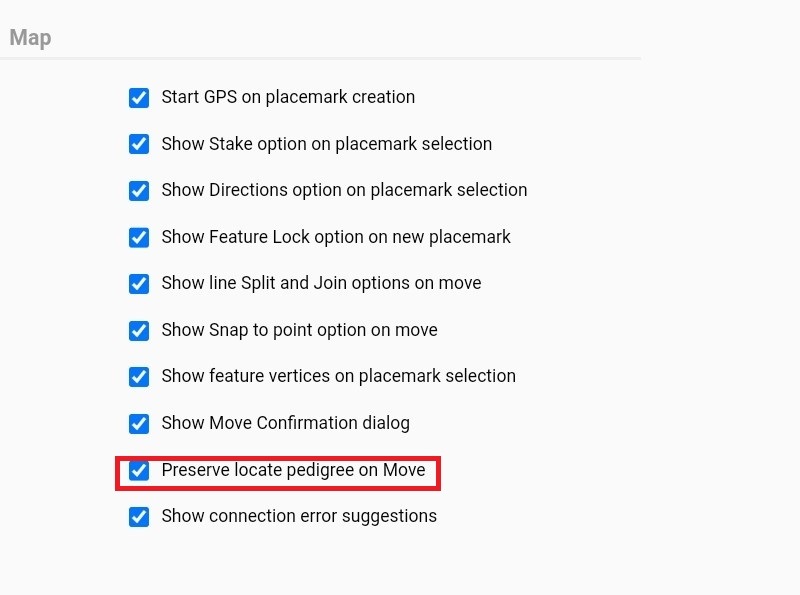
This section covers the process of moving features (points, lines, polygons) on the map as well as how to preserve Locate Pedigree when moving a feature with a new GPS unit.
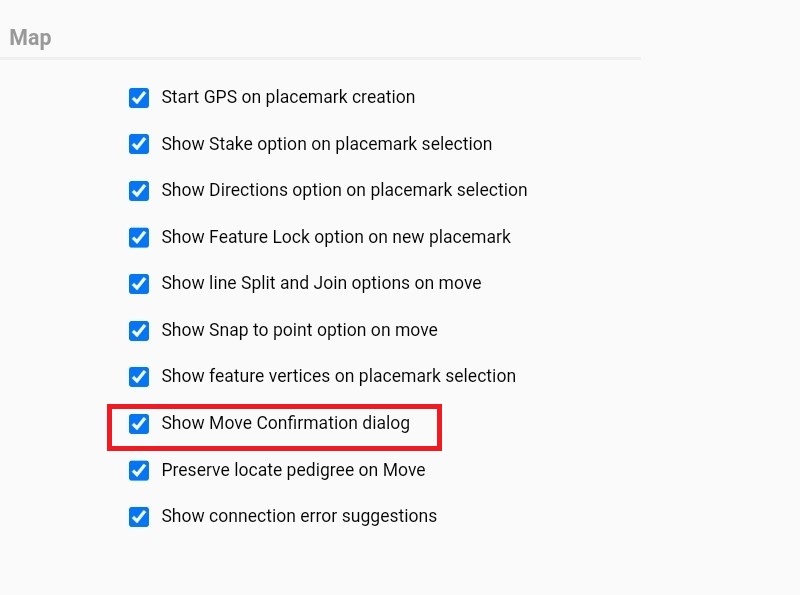
The purpose of the Move Confirmation Dialogue is to ensure that users know that moving a feature with pedigree will cause the pedigree to be removed.
The Preserve Locate Pedigree feature is used to keep the locator pedigree data intact if you need to move that specific feature while using an external GPS.
How to Edit Feature Location:
-
From the main map display, select the feature to be moved. The Selection menu bar displays at the bottom of the screen.
-
Tap “Move”
-
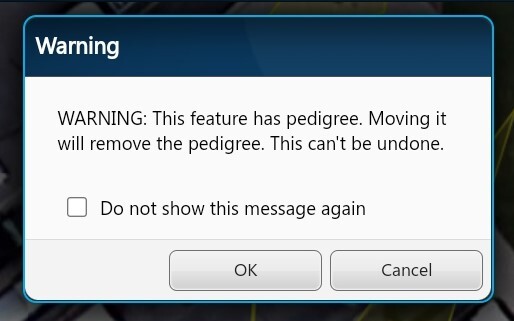
A Warning dialogue box will appear stating, “WARNING: This feature has pedigree. Moving it will remove the pedigree. This can’t be undone.”
-
Select “OK”
-
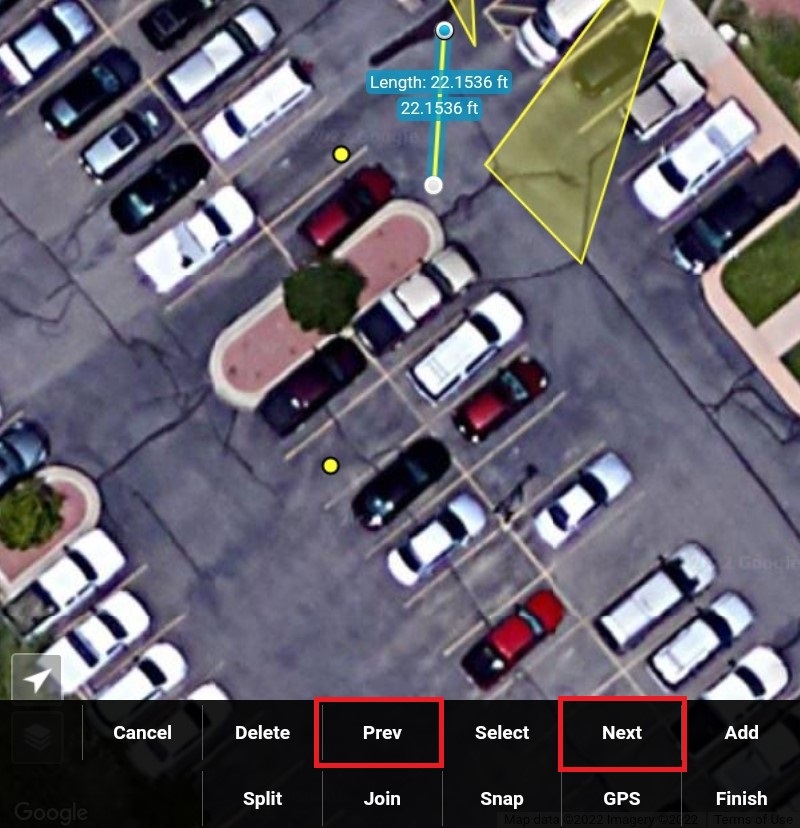
You will now be able to move the feature anywhere on the map. If you choose not to use the GPS function, then you can place the feature anywhere on the map and click “Finish” to save. To move the selected feature to your current GPS location: click “GPS”. A message displays “Obtaining GPS Fix”. Click “Finish” to save.
-
For a line or polygon feature: you can move, delete, recapture, and add points by clicking on the “Next” or “Previous” buttons to select the desired vertex to edit.
How to enable the Move Confirmation dialogue box:
-
Click on the Menu page (3-stacked lines) in the upper left-hand corner of the main map screen
-
Click on the Settings option
-
Scroll down to the Map section
-
Click on the box next to “Show Move Confirmation dialog” option to enable the “WARNING: This feature has pedigree. Moving it will remove the pedigree. This can’t be undone.” dialogue box when trying to move a feature.
-
Click “Close” to exit the settings page.
How to enable the Preserve Locate Pedigree function:
-
Click on the Menu page (3-stacked lines) in the upper left-hand corner of the main map screen
-
Click on the Settings option
-
Scroll down to the Map section
-
Click on the box next to the “Preserve locate pedigree on Move” option
-
Select any feature with Locator and GPS data
-
Connect to a new GPS and move the selected point
-
Verify the locator pedigree is accurately reflected. The information should match the previous pedigree information