
This page outlines how to split and join lines. These actions can also be accomplished via the Cloud (Desktop) access for PointMan Pro users.
Splitting a Line
-
Go to the PointMan Settings page and scroll down to the Map section.
-
Enable “Show line split and join options on move”. The toggle will be green when enabled.
-
Tap Close to return to the Map View. Tap to select the line you wish to split apart.
-
Tap Move, read the warning, and tap OK. Then use the Prev/Next buttons to select the vertex to be split at
-
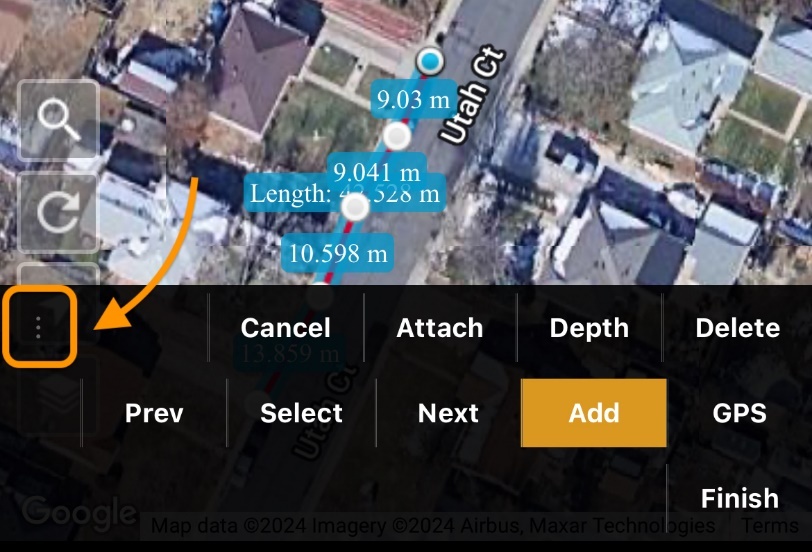
Tap Split. If the button is not already included in the bottom bar, tap the More button to open the More menu
-
-
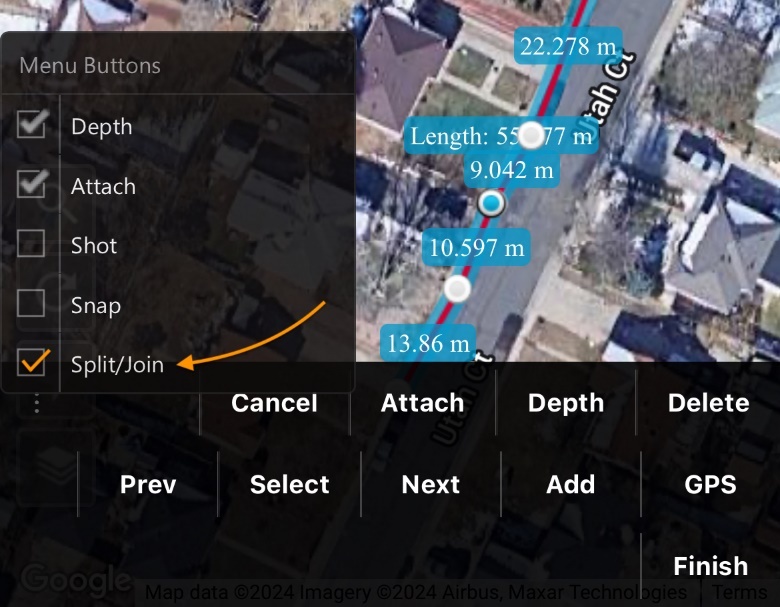
Check the box for Split/Join and tap anywhere to close the More menu.
-
-
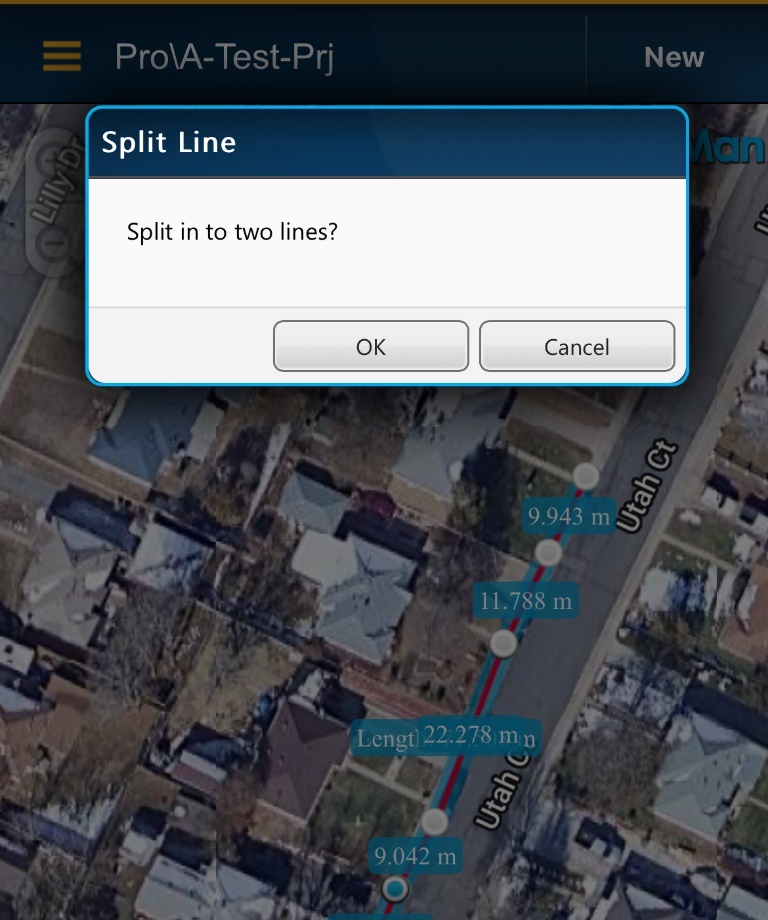
PointMan will display a message asking you if you would like to split the line into two. Tap OK to confirm.
Joining Two Lines
-
If Split/Join line has already been enabled, skip this step. Oherwise,
-
Go to the PointMan Settings page and scroll down to the Map section
-
Enable “Show line split and join options on move”. The toggle will be green when enabled.
-
Tap Close to return to the Map
-
-
Tap to select one of the lines that are to be joined and tap Move.
- Read the warning and tap OK.
-
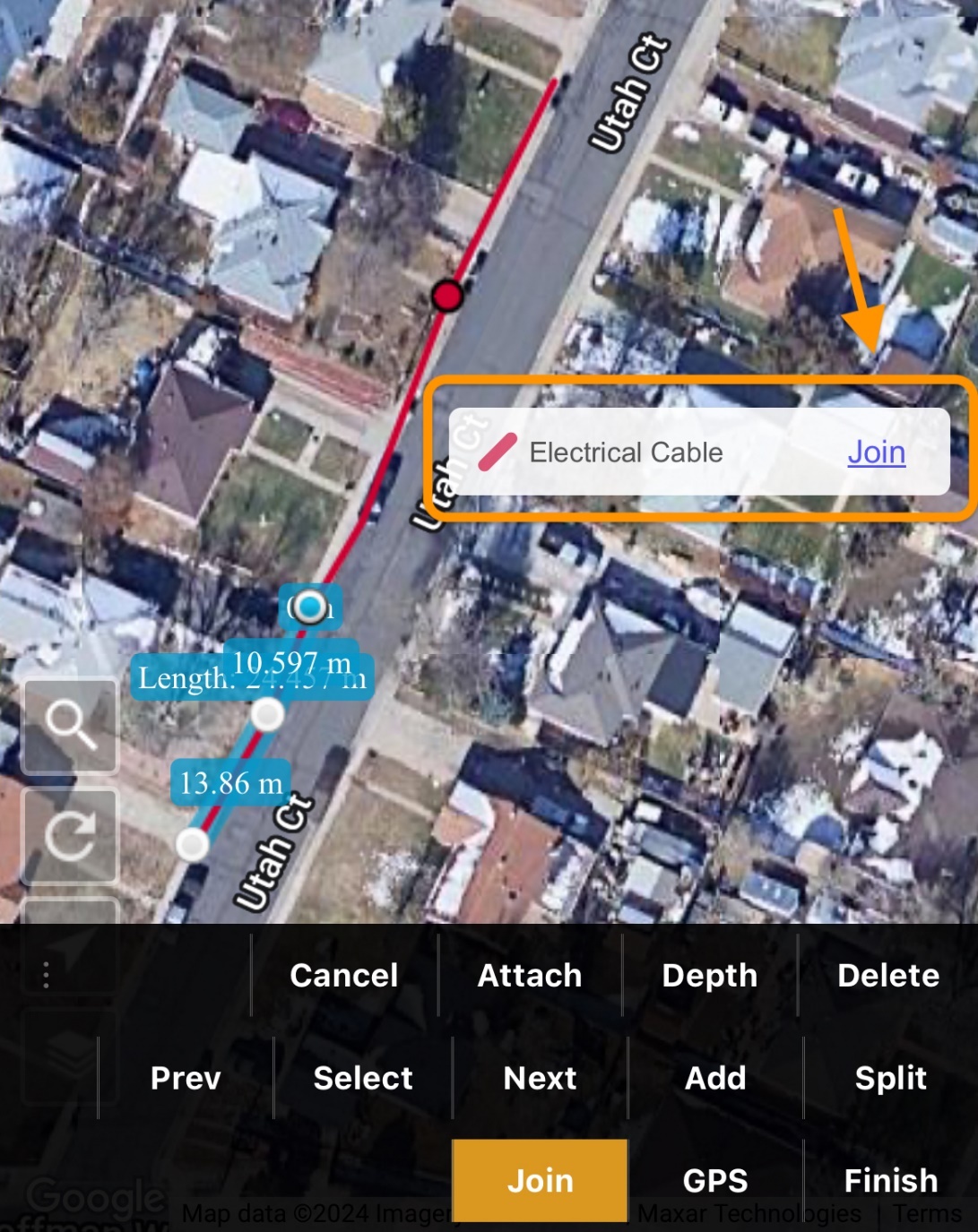
Tap Join. If the button is not already included in the bottom bar, tap the More button to open the More menu
-
-
Check the box for Split/Join and tap anywhere to close the More menu.
-
-
Tap to select the other line to be joined with the currently selected one. A message bubble will appear with a Join button.
-
Tap Join in the message bubble and the feature will automatically save. The two lines are now joined into one feature and all pedigree will remain as long as the location data is not updated.
Troubleshooting
Troubleshooting Tips: Troubleshooting Issues with GPS/GNSS Units
Note about Uninstalling PointMan: If you are a PointMan Plus user, uninstalling the PointMan app will remove all project data stored on your device. It is important to backup any project data before uninstalling the mobile app.
For questions or issues, please fill out the request form (https://pointman.com/custom-support/) or send an email to [email protected] and include the following:
-
Brief description of what you are experiencing
-
Include screenshots / screen recordings showcasing the issue if any
-
Include supporting data files showcasing the issue if any
-
-
The devices you are using and if you have anything set in the GPS settings
- ex: GPS, Locator, Mobile Device, EPSG, Correction Service, etc.
-
List of steps that were already taken to troubleshoot the issue
The PointMan Support Team is available from 8:30am to 4:30pm MST Monday through Friday.