What is GPR?
GPR works by sending a conical pulse of energy into a material and recording the strength and the time for the return of the reflected signal. A series of pulses make up a scan. The reflections are produced whenever the energy pulse transits into a material with different electrical conduction properties or dielectric permittivity from the material it left.
Some of the GPR wave gets reflected to the antenna, energy will also travel through the material until it dissipates, or the return time is too long. The signal attenuation varies and is dependent on the properties of the material through which the pulse is passing. The frequency of the GPR signal is usually in the range 10 MHz to 2.6 GHz and is a trade-off between resolution and penetration.
One of the main applications for ground-penetrating radar is for locating subsurface utilities. Standard electromagnetic induction utility locating tools require utilities to be conductive or wrapped in conductive material. These tools are ineffective for locating plastic conduits or concrete storm and sanitary sewers. Since GPR detects variations in dielectric properties in the subsurface, it can be highly effective for locating non-conductive utilities.
PointMan is now integrated with the Impulse Radar ViewPoint app. This allows users to import their GPR data from Impulse Radar equipment into PointMan and have it displayed on the PointMan app Map View.
Note: This integration is only available on Android devices.
For information on Impulse Radar GPR solutions, visit their website at https://impulseradargpr.com/.
Importing GPR Data into PointMan:
-
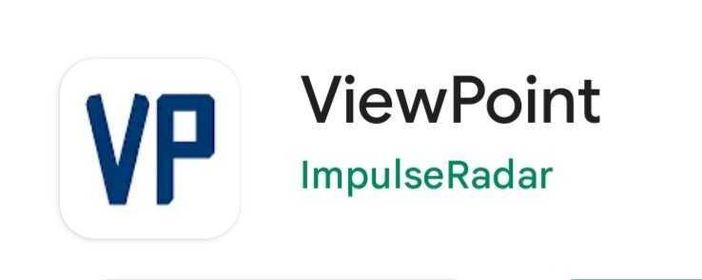
Go to the Google Play store and download the ViewPoint app
-
Ensure that the PointMan app has been updated to the most recent version
-
Open the app and login to a Local project or create a Plus account
-
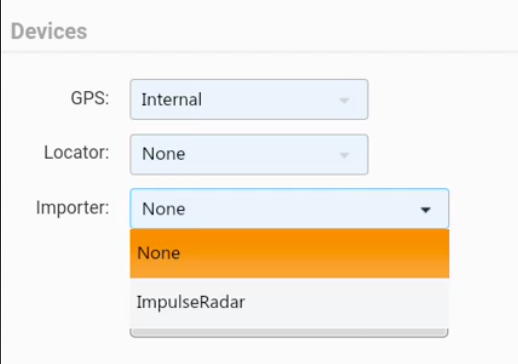
Go to the Settings page and under the “Devices” section, verify there is a new dropdown labeled, “Importer”
-
Select ImpulseRadar from the dropdown and close the Settings page
-
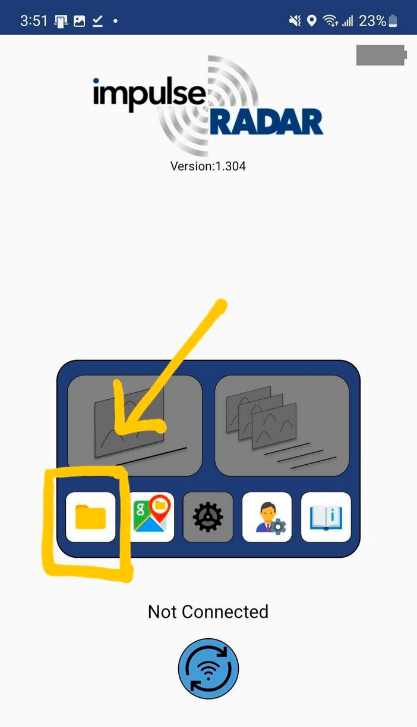
Open the ViewPoint app and tap the folder icon
-
Tap on the “Example Data” folder and open the “ML_Project GPR parking office nr2” folder
-
Tap to open any file
-
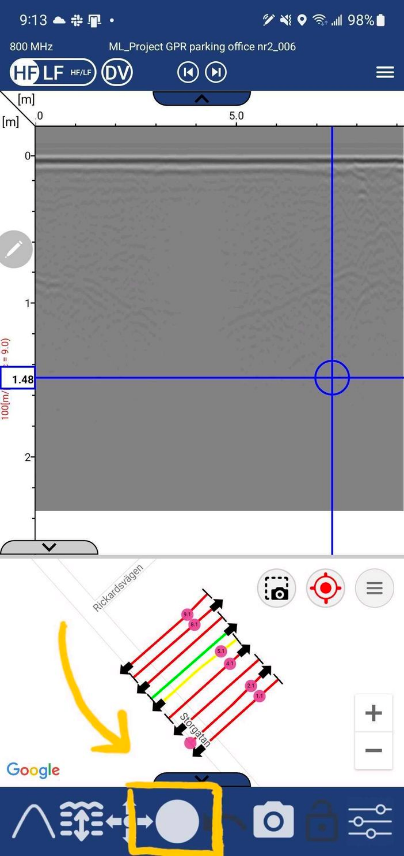
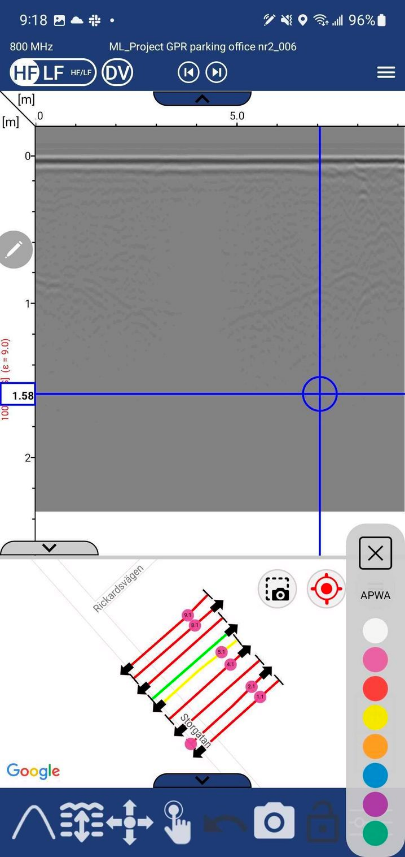
Tap the Marker icon as shown in the first image. The view will change to as shown in the 2nd image – a “Quick Marker Menu” will appear to the right side of the screen
-
-
Make a selection from the Quick Marker Menu by tapping on the color you would like to use
- Note: The color of the Marker icon will depict what color has been selected from the Quick Marker Menu to denote your current selection.
-
Tap anywhere within the Map View (the grey zone) to place a marker. Place them at your discretion. Once all markers have been placed, return to the PointMan app
-
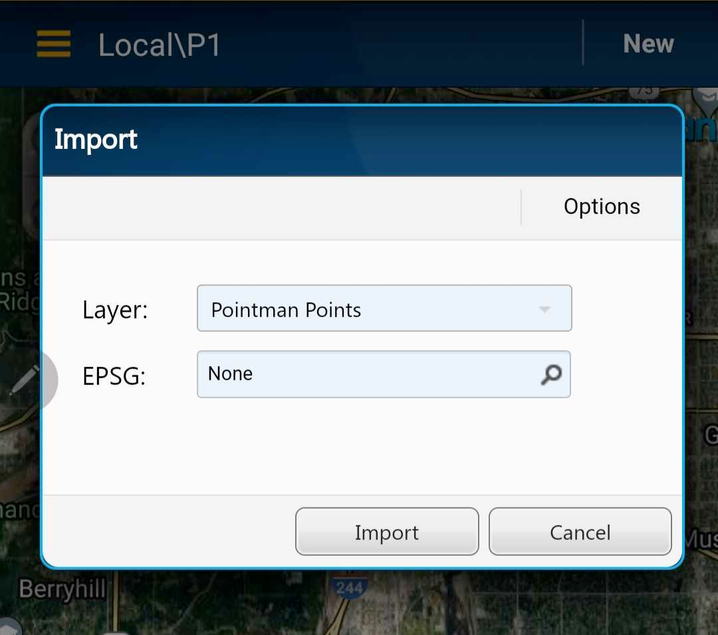
The “Import” dialogue should appear
-
Select the layer you want to save the data to
-
Select an EPSG or leave it set to “None” at your discretion
-
Tap OK and tap Import
-
You should receive an “Import Complete” toast towards the bottom of the screen
-
Identify the location of the imported data and verify the set of points are complete
Additional Notes:
-
For every point that was imported, there will be a photo link that will display the location of the associating marker on the Map View within the ViewPoint app
-
The Comment and Type fields are editable
-
Points can be moved but will lose pedigree/metadata
-
This data can be exported
-
Points can be deleted and will not affect the Map View of the ViewPoint app. Alternatively, markers deleted from the ViewPoint app will only be deleted once the GPR data is reimported or upon manual deletion
-
A set of points can be re-imported as needed and will not cause duplicate data. It will also re-import any data that was deleted from PointMan but not from the ViewPoint app
Video
PointMan - How to Integrate with ImpulseRadar PintPointR