
Use the folder tool to associate points, lines or polygons to each other. For example, you can associate as many forms or photos to a point, line or polygon as you would like. For exporting, all associated folder items can be sent together with the feature they were assigned to. This method is considered a “Parent/Child” relationship
-
From the main Map display, select the feature you wish to make the “Parent” (Tap Point, Line, Polygon or other object on the map)
-
The feature is highlighted, the Selection pane displays with the item highlighted, and a menu bar displays at the bottom of the screen.
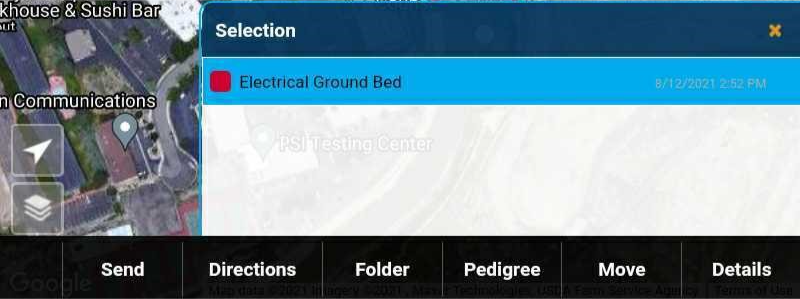
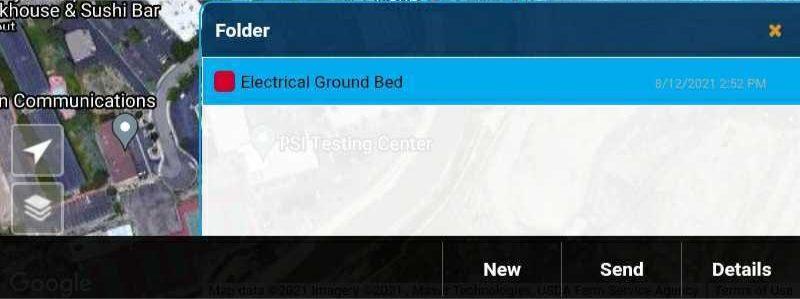
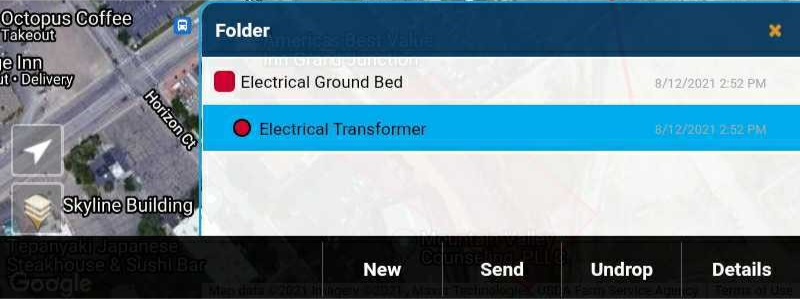
- Tap Folder. The Folder pane displays at the bottom of the screen, showing the selected feature as the parent and a tool bar
-
Tapping New: creates a new feature and automatically saves it as a child to the parent feature
-
To assign another object from the map as a ‘Child’ to that ‘Parent’ object:
-
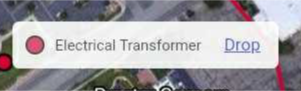
Tap the other feature that you wish to assign to the parent and a label will display
-
Tap the Drop link on the label to drop the feature in the parent folder
-
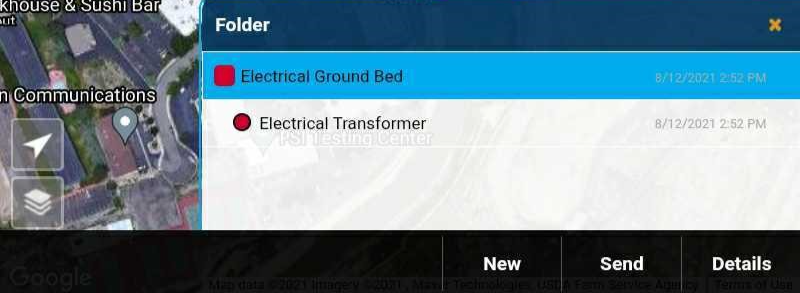
That item will display in the folder pane as a child to the parent object
-
Repeat for all features that you wish to assign to the parent
-
To automatically assign new features as they are created:
-
With the parent Folder pane open, select New (lower menu bar) The New Place mark dialog box will display
-
Select the system and component values as appropriate
-
Select OK to create the feature. This will result in the feature being added to the parent folder on Finish
-
Once a feature is in a Folder, you have the following options:
-
Tap New to create new features in this folder
-
Tap Send to export the selected feature and children
-
Tap Undrop to remove a feature from the folder
-
Tap Details to see the details of a selected feature
-
To exit the Folder, select the X in the header.