
PointMan Pro users have the ability to attach forms, photos, sketches, videos, and other files to any point, line, or polygon. These Feature Attachments can be added only after the feature has been created and saved on the map.
To create or upload an attachment:
-
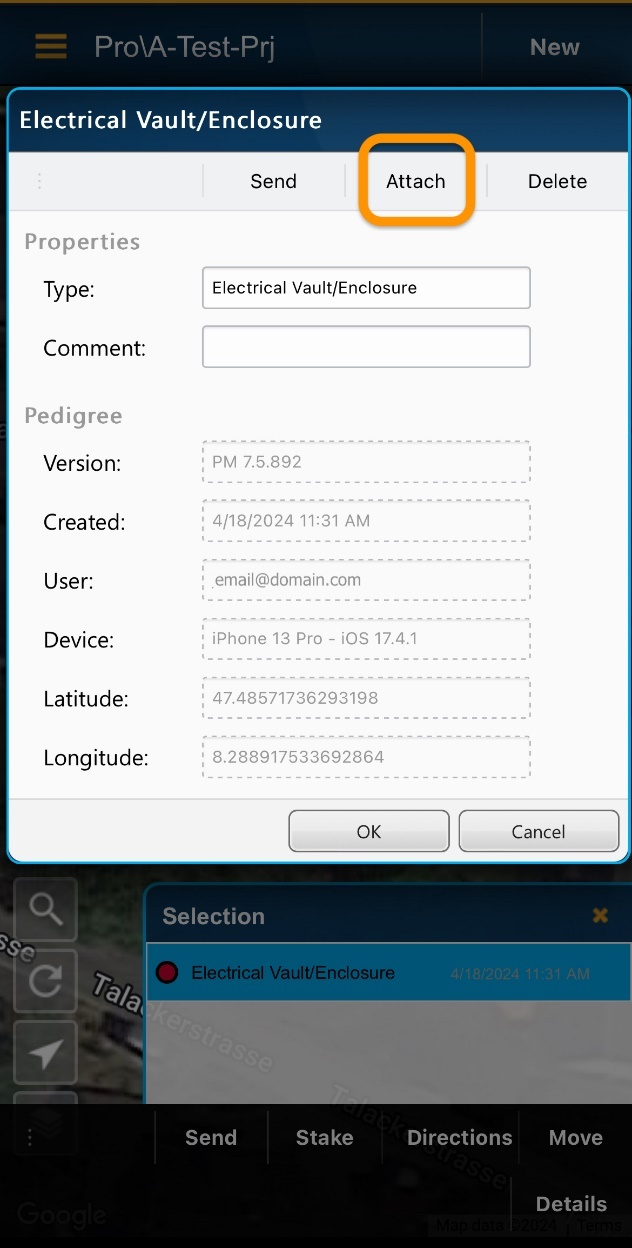
Tap to select the feature that you would like to attach a file to. Alternatively, create the feature needed.
-
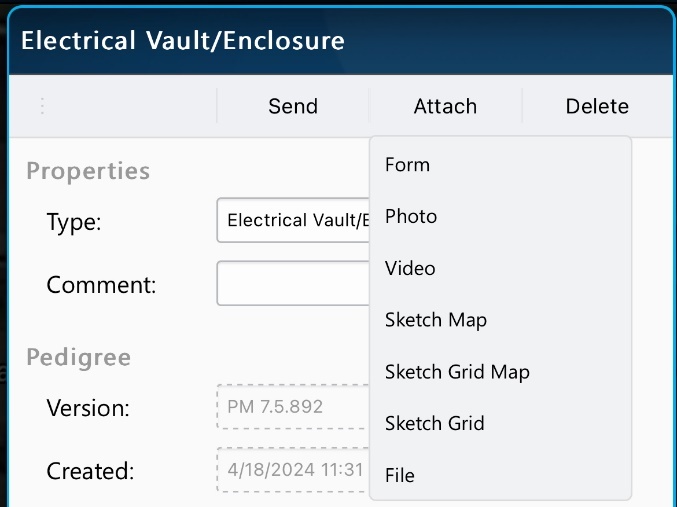
Tap Details > Tap Edit > Tap Attach
-
Select the file type to attach
-
Fill out a form
-
Capture an image
-
Record a video
-
Include sketches
-
Upload a file
-
-
To save the attachment, tap Close after filling out the form, capturing the image/sketch, or uploading a video or file.
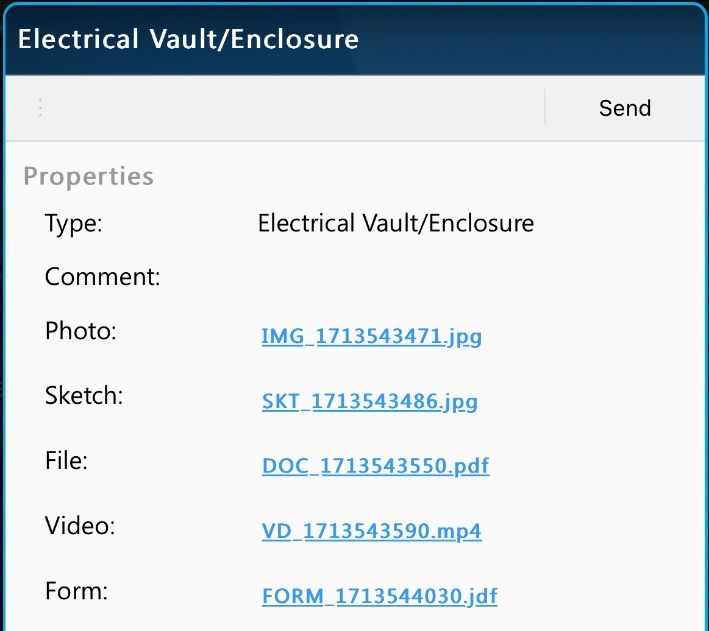
To view the attachment, tap Details. All feature attachments will be listed in the Properties section. Tap the associated link to view the attachment.
Editing Form Attachments
-
With the feature selected from the map, tap Details and then tap Edit
-
Tap the link for the form to be edited
-
Update the form as needed, then tap Close to save the changes
Deleting Attachments
-
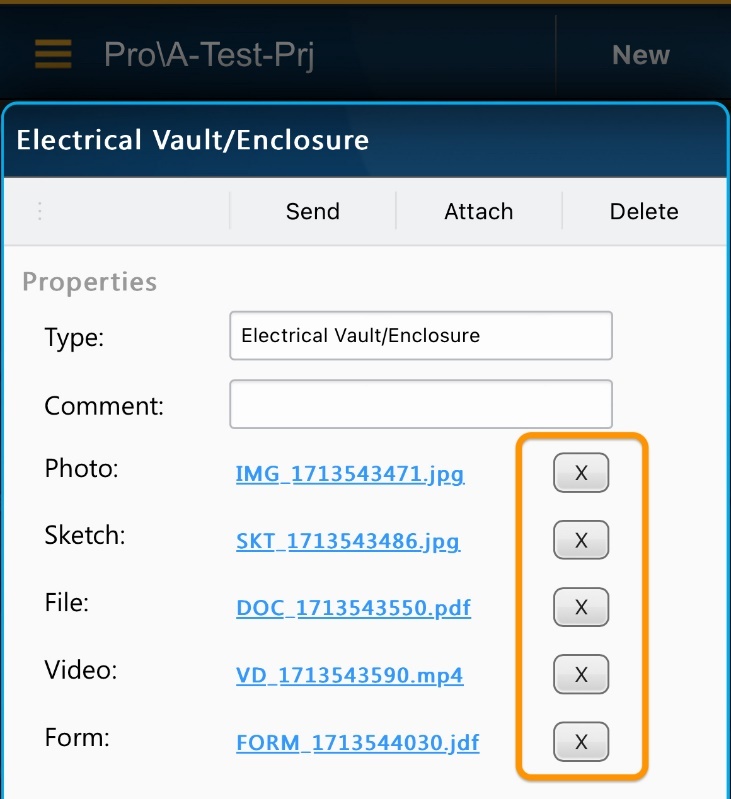
With the feature selected from the map, tap Details and then tap Edit
-
Tap the X button next to the attachment to be deleted
For Questions or Issues
Please fill out the request form (https://pointman.com/custom-support/) or send an email to [email protected] and include the following:
-
Question / Brief description of what you are experiencing
-
Include screenshots / screen recordings showcasing the issue if any
-
Include supporting data files showcasing the issue if any
-
Include a PointMan Log FIle
-
-
List of steps that were already taken to troubleshoot the issue
The PointMan Support Team is available from 8:30am to 4:30pm MST Monday through Friday.