
STEPS FOR PAIRING EMLID RX REACH WITH POINTMAN ON IOS DEVICES:
Things to Know Before You Get Started...
*** You must first download Emlid Flow App and pair with your Emlid RX, before you begin using PointMan: https://apps.apple.com/us/app/emlid-flow/id1463967138
* For more information or specifications on Emlid RX Reach devices, please visit: https://apps.apple.com/us/app/emlid-flow/id1463967138
-
POWER ON & UPDATE: Make sure both Emlid and IOS devices are charged, powered on, and updated with the latest firmware before you begin. Be sure both your Emlid Flow App & PointMan Mobile App are updated with the latest firmware.
- *You can check for app updates by visiting the app’s page within the Apple App Store, on your IOS device
-
CONNECT EMLID FLOW APP: Open the Emlid Flow App. Select “Receivers” at the bottom left corner of the screen. Look for “RX” under “Available” tab. If the device it is not listed, “refresh” your page in the top right corner and select RX)
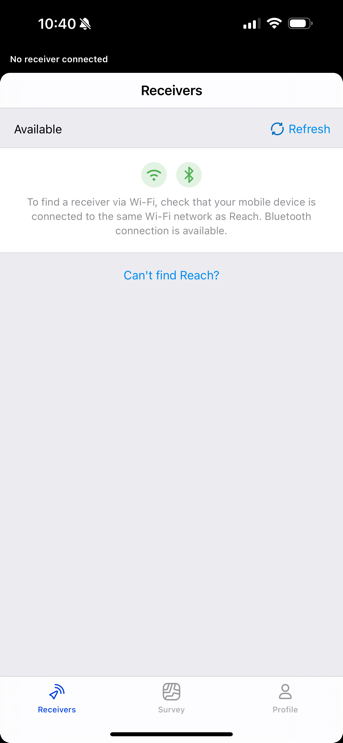
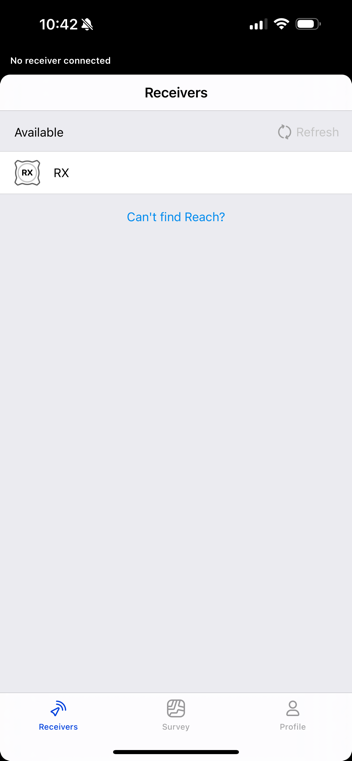
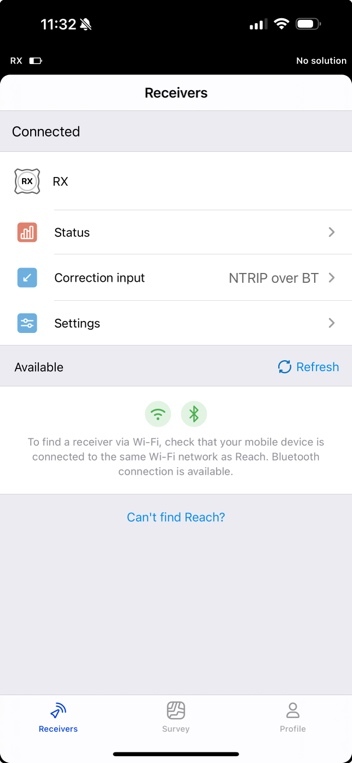
- *If the device has been connected in the past you may see it connect to the Emlid Flow app, automatically.
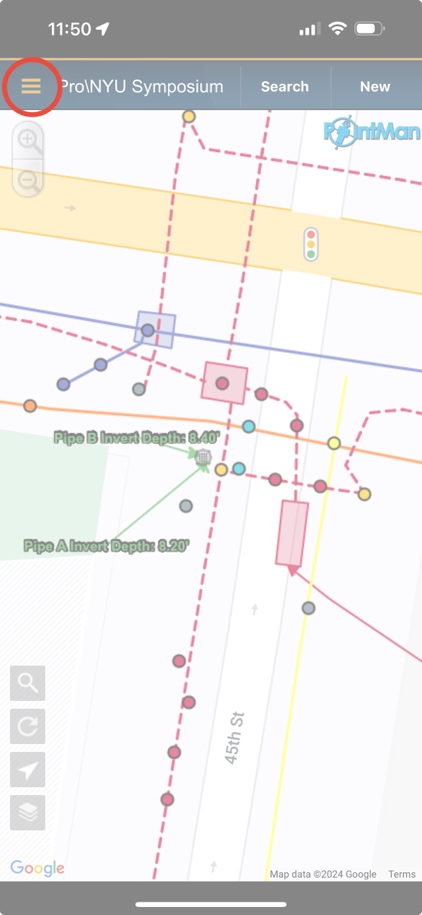
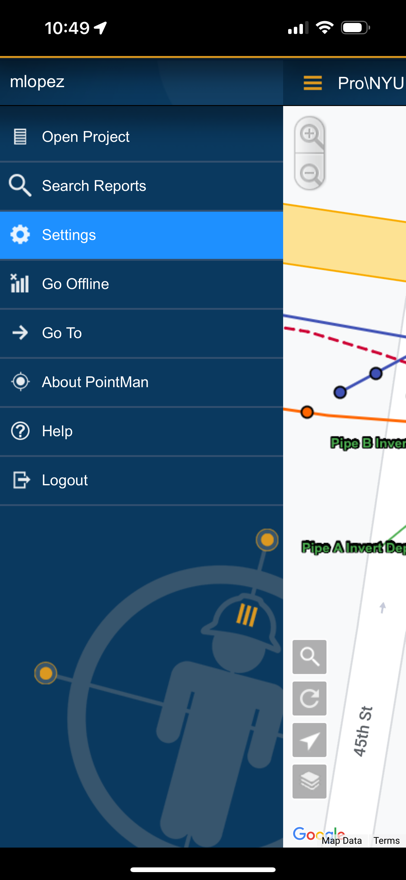
- OPEN POINTMAN SETTINGS: Open and login to the PointMan mobile app on the IOS device. Open any project to begin this step. (If this is your first time using PointMan, you may need to create a project first) Once inside the project map, open the menu by selecting the three lines in the top left corner of your screen. This opens the sidebar menu from which you’ll select the SETTINGS tab.
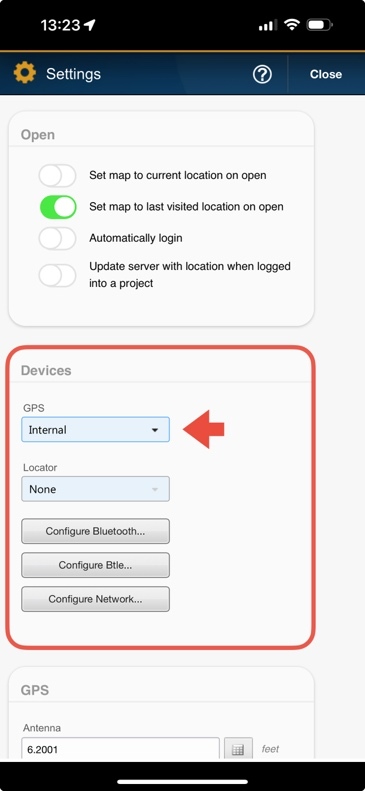
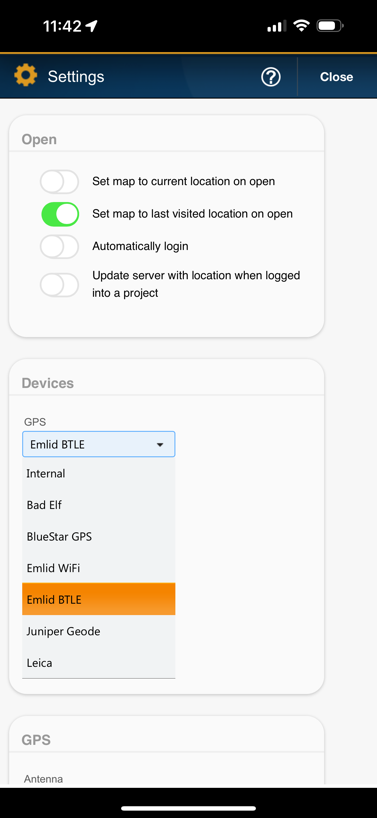
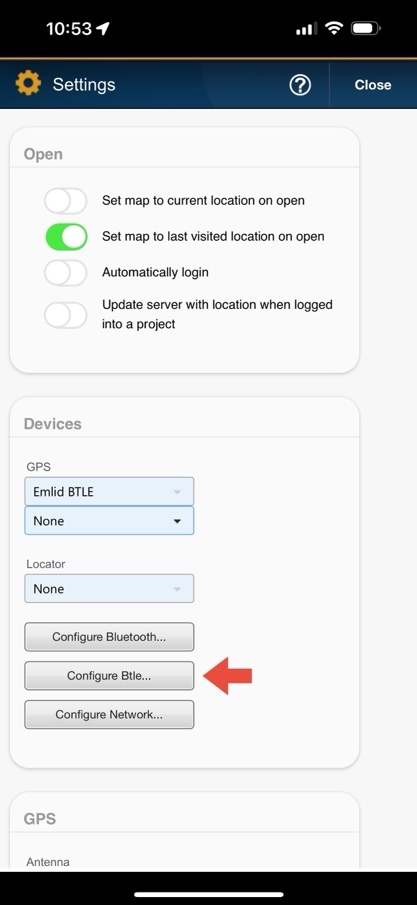
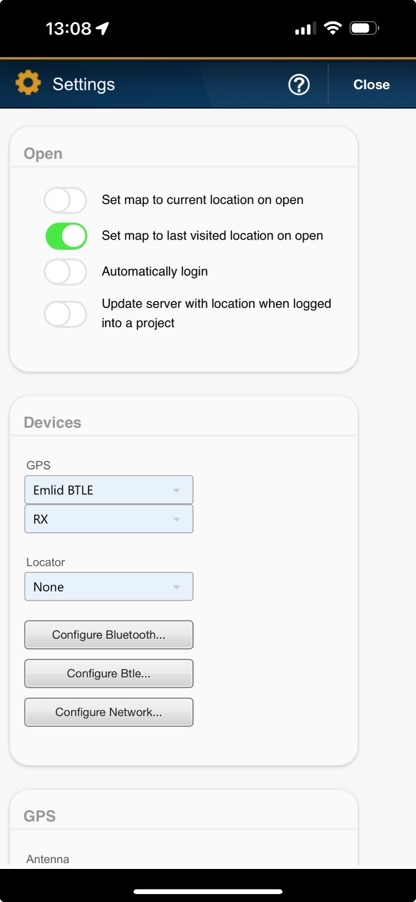
- FIND GPS DEVICE: Once in Settings page, locate the DEVICES category, and find GPS tab. Select GPS tab to open the dropdown picklist. Select the Emlid BTLE option from the list.
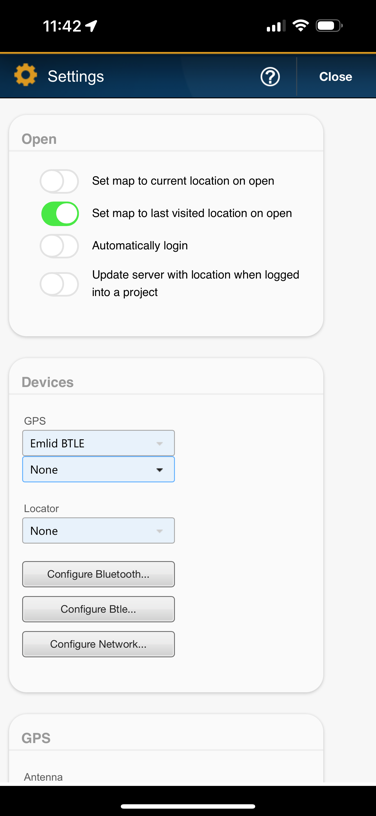
*Once Emlid BTLE is selected as GPS, a second dropdown option will appear below Emlid BTLE
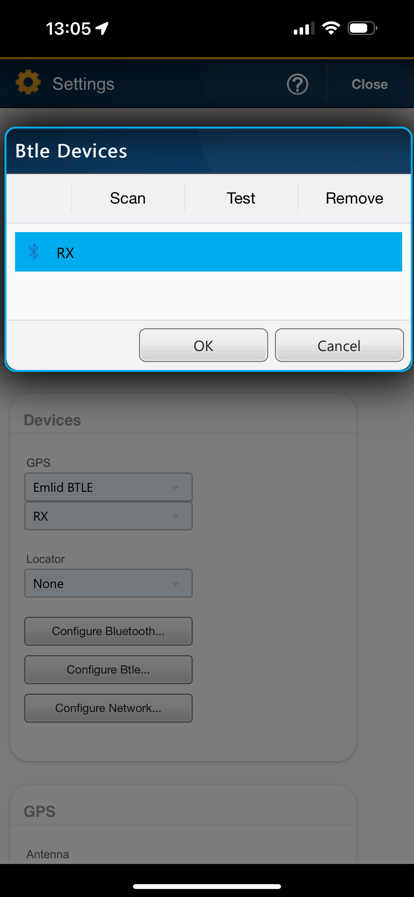
- PAIRING RX to POINTMAN: Before your RX device appears as an option below Emlid BTLE, you must first configure the RX under the CONFIGURE BTLE button. Select the “Configure BTLE” tab to open the “BTLE Devices” pairing screen. Tap SCAN in the top right corner, for which then PointMan will begin scanning for the RX device.
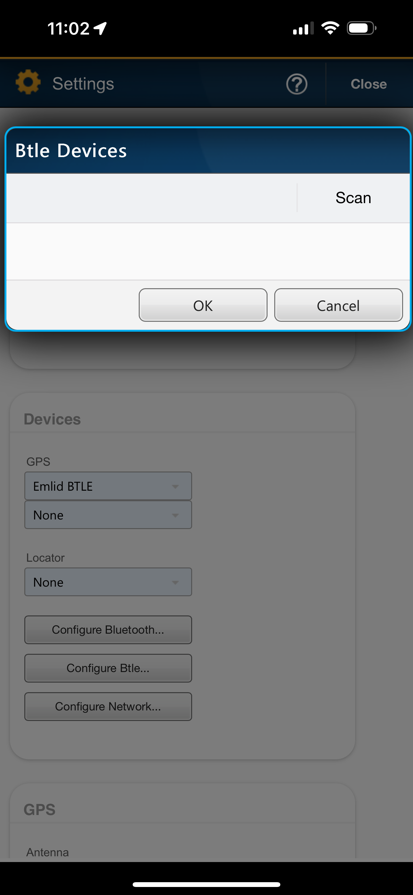
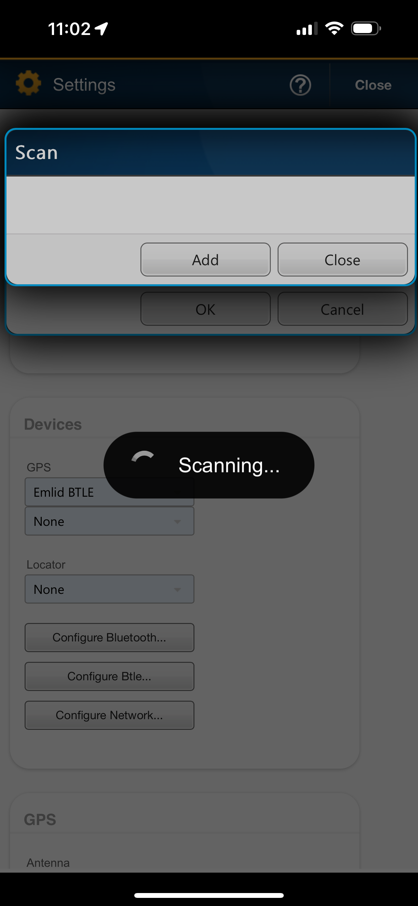
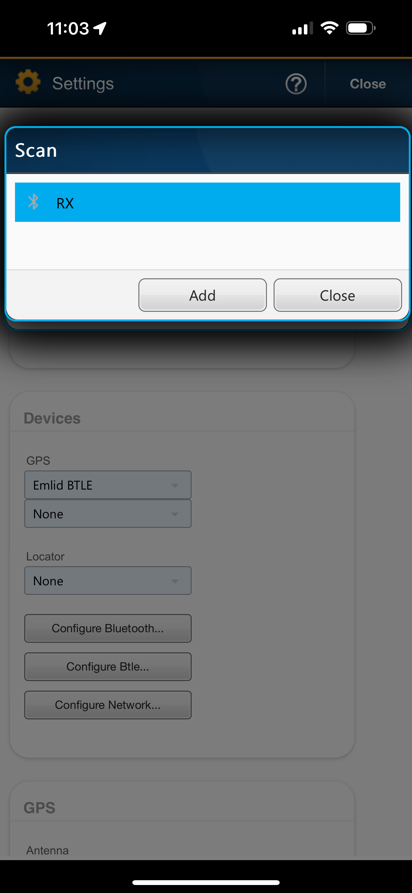
- After a quick moment, you should see RX appear in the “Scan” window. Select RX name, and tap ADD. RX should now appear under the “BTLE Devices” window. Select RX, and tap OK. You have now paired your RX to PointMan.
Troubleshooting
Troubleshooting Tips: Troubleshooting Issues with GPS/GNSS Units
Note about Uninstalling PointMan: If you are a PointMan Mobile License user, uninstalling the PointMan app will remove all project data stored on your device. It is important to backup any project data before uninstalling the mobile app.
For questions or issues, please fill out the request form (https://pointman.com/custom-support/) or send an email to [email protected] and include the following:
-
Brief description of what you are experiencing
-
Include screenshots / screen recordings showcasing the issue if any
-
Include supporting data files showcasing the issue if any
-
-
The devices you are using and if you have anything set in the GPS settings
- ex: GPS, Locator, Mobile Device, EPSG, Correction Service, etc.
-
List of steps that were already taken to troubleshoot the issue
The PointMan Support Team is available from 8:30am to 4:30pm MT Monday through Friday.