This documentation for Data Dictionary covers how to use the Manage Picklists feature within a data dictionary.
-
Login to PointMan Pro
-
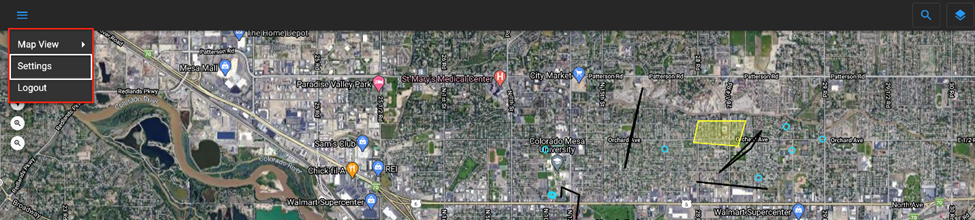
Select the Hamburger Icon and from the dropdown, select Settings
-
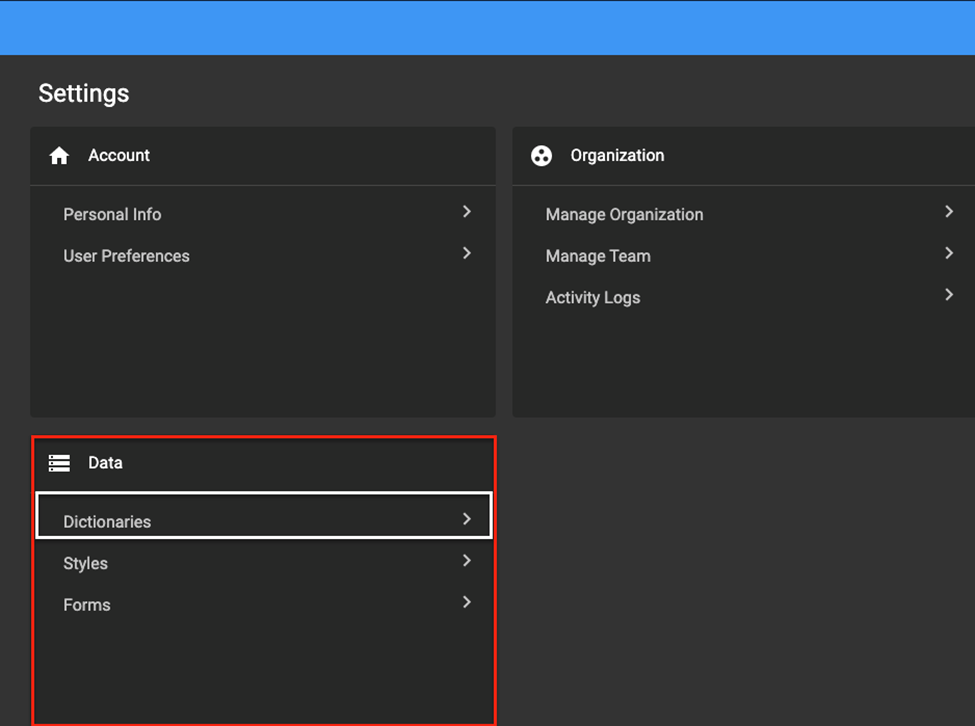
Select the Dictionaries tab under the Data header
-
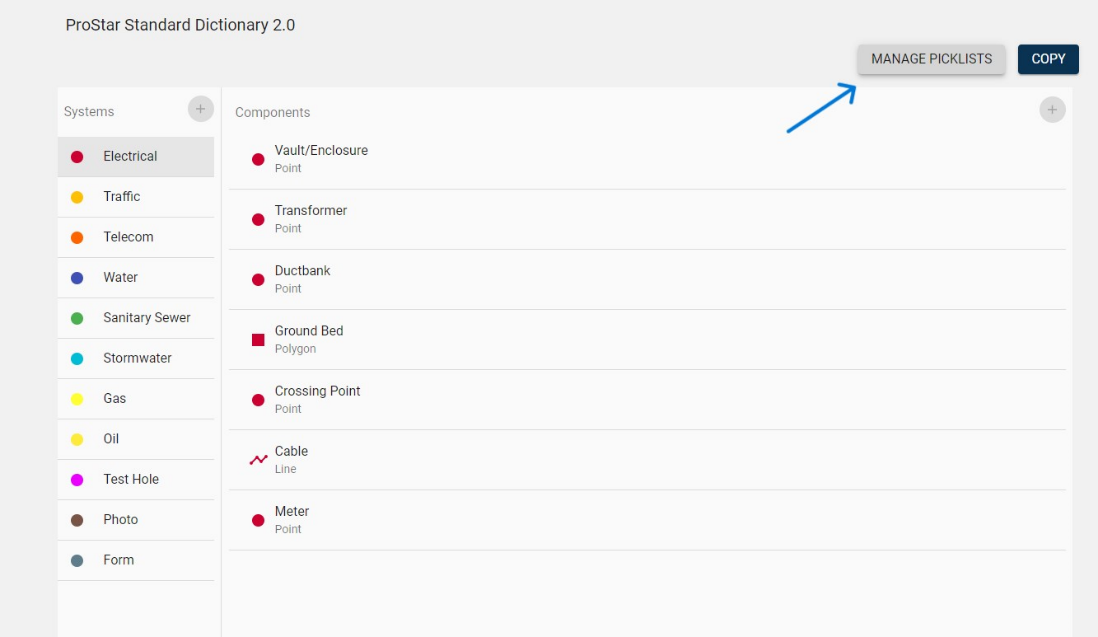
Once the Dictionaries page has been opened, scroll through the list of dictionary templates, and click on the one you are looking for.
-
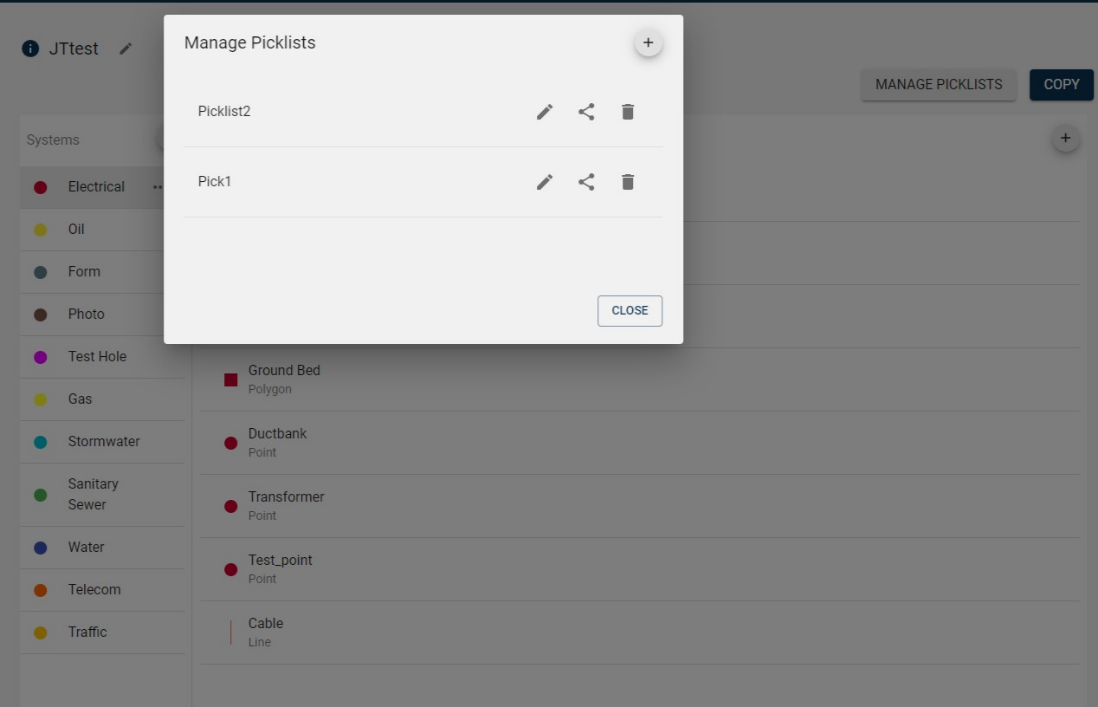
Click on the Manage Picklists button
-
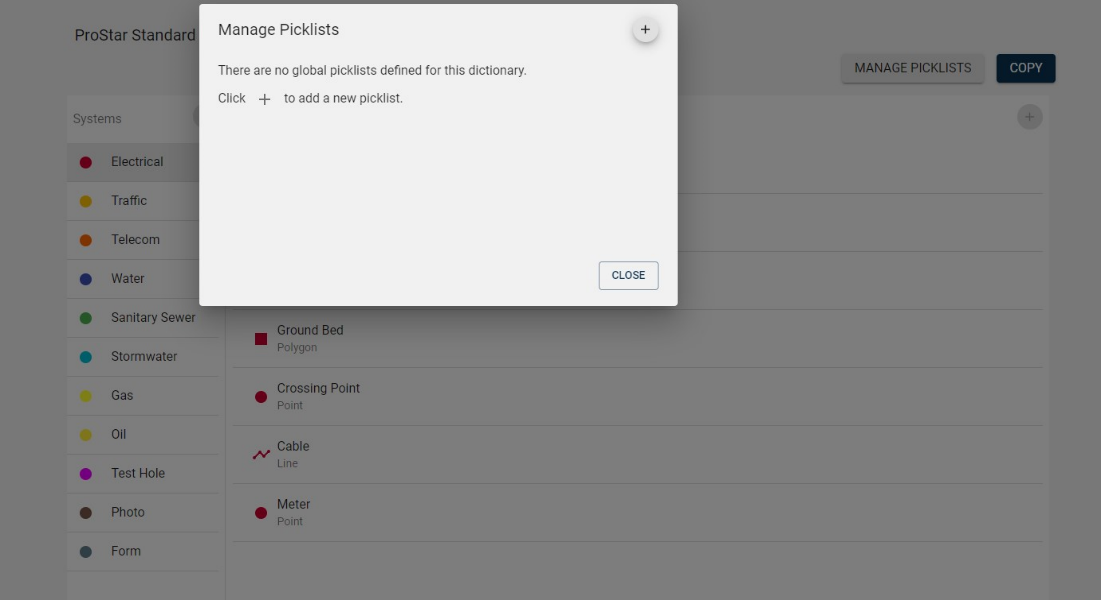
To add a new Picklist, click on the plus icon
-
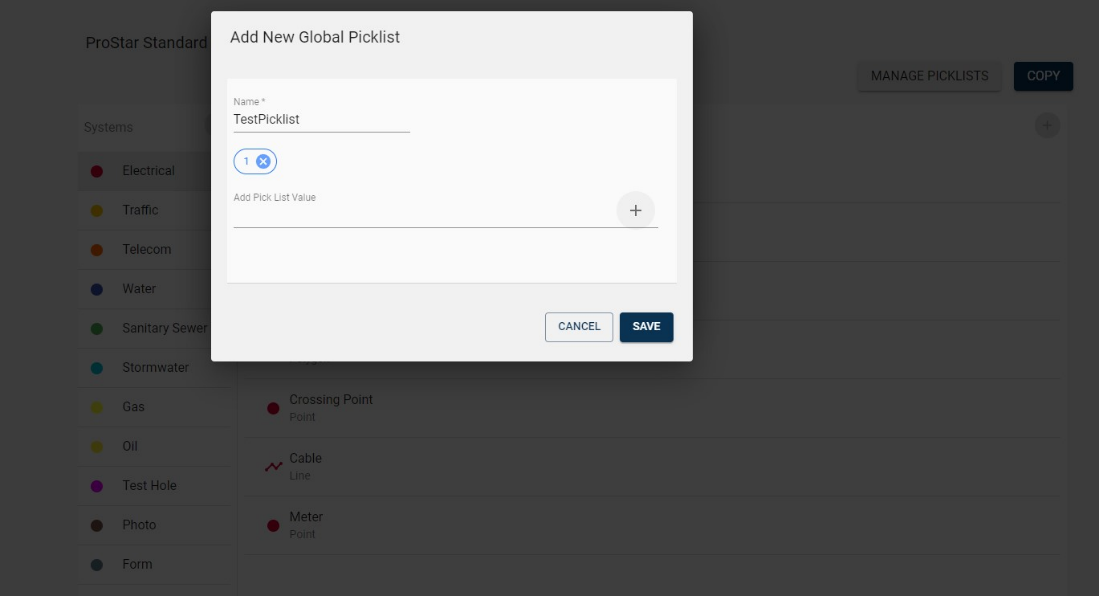
On this menu you can now name your picklist and add picklist values as necessary
-
Once you are done setting up this picklist, click Save
-
Upon clicking Save in step 8 you should also be directed to the Manage Picklists menu. Alternatively, you can follow steps 1 – 5 to get to the pop-up dialogue
-
From this menu, you can edit / show associated components and/or delete any picklists that you have saved to the data dictionary that you are currently working in.