
How do I create a project?
Note: Only Admins with permissions set to Admin at the Organization level may create projects.
Prerequisite: You must create an Organizational Template before you can create a project as the PointMan Templates are not editable.
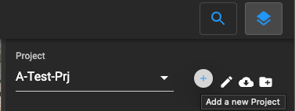
- Click the Stack icon in the top right corner of the screen to open the Project panel.
- Click the Plus icon to the right of the Project name.
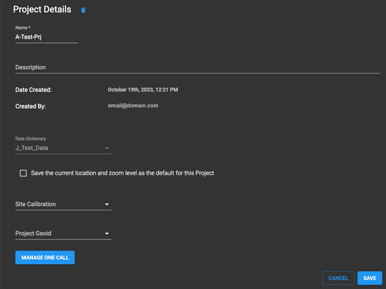
- Enter a name.
- Select an Organizational Template from the Data Dictionary dropdown.
- Click Save and the Project Details page will open.
- Set a Site Calibration and/or a Project Geoid as needed. Otherwise, skip this step.
- Set up One Call Management as needed. Otherwise, skip this step.
- Click Save.
How do I edit, delete, or archive a project?
- Click the Stack icon in the top right corner of the screen to open the Project panel.
- Select the project you want to change from the Project dropdown.
- Click the Pencil icon next to the Project dropdown to open the Project Details page.
Edit the Project
- You may update the following items:
- Whether to “Save the current location and zoom level as the default for this Project”
- Set up or change the Site Calibration
- Set up or change the Project Geoid
- Set up or modify One Call Management
- Then click Save.
Delete or Archive the Project
- Click Archive in the bottom left.
- To delete the project, check the box for "Permanently Delete Assets associated with this project". Then click Archive.
- To archive the project, click Archive without checking the box.
Note: Archived projects may be restored as long as it associated data dictionary has not been deleted.