
Prerequisite: The form must first be assigned to the Project.
To attach a form via the Web interface:
- Click to select the feature from the map view.
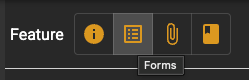
- Click the Forms icon at the top of the Feature Panel.
- Hover over the + icon. Then click the + icon that is next to the Form to attach.
- Modify the form as needed and click Save.
- The Mobile app will need to be refreshed to receive the update and further modify the form.
To edit a form:
- Click the Forms icon at the top of the Feature Panel.
- Then click the Pencil icon of the Form to edit.
- Click Save.
- The Mobile app will need to be refreshed to receive the update and further modify the form.
To preview the form:
- Click the Forms icon at the top of the Feature Panel.
- Then click the PDF icon of the Form to view.
To delete the form:
- Click the Forms icon at the top of the Feature Panel.
- Then click the PDF icon of the Form to view.