
General Locator Troubleshooting
-
Ensure your mobile device software, the PointMan App, and GPS unit firmware are up to date
- Verify that any supporting apps related to your GPS unit are installed on your mobile device and are up to date
-
In the PointMan App Settings page under the Map section, enable the “Show connection error suggestions” option
- Disconnect all devices connected via Bluetooth, enable Safe Launch, and reconnect just the necessary devices
- Verify the locator is configured according to any and all settings outlined in its related help doc.
- iOS devices: Hardware should be paired through the Configure Btle dialog in the PointMan Settings, rather than directly through the iPhone or iPad’s Bluetooth settings.
Radiodetection
-
Verify that the option for the second Locator dropdown is set to your locator's bluetooth name
-
RD8000, RD8100, RD8200, RD8200G
-
Locator must be put into pairing mode for it to appear in the Android Bluetooth scan
-
-
RD8200SG
-
Select the RTK Bluetooth from the second GPS dropdown. Then select the name that either starts with 82SG... or RDRX... from the second Locator dropdown.
-
Vivax
-
Confirm Bluetooth is enabled on the locator
-
vLoc3 Pro RTK
-
If Vivax-Metrotech+Level is selected from the GPS dropdown, PointMan will only receive the data to capture when the Fix Type is RTK and the locator is level.
- To bypass these requirements, use the Vivax-Metrotech option instead.
-
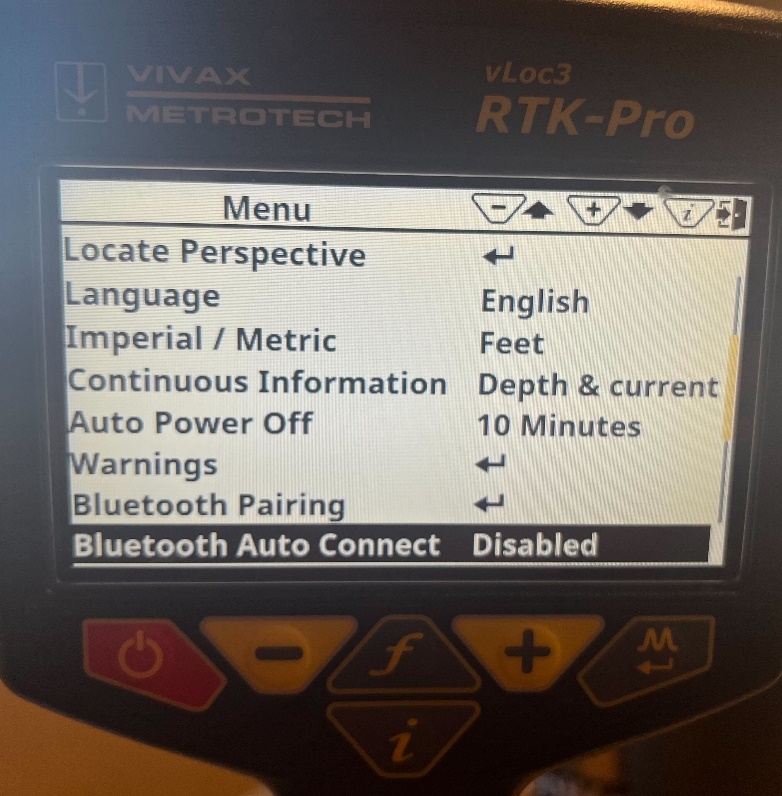
- Disable Bluetooth Auto Connect
- Hold the i button to open the Locator menu
- Use the + button to scroll down to the Bluetooth Auto Connect Setting
- Use the M button to toggle the setting off
- Correction Service accounts must be set through the MyLocator3 App using a windows machine.
Troubleshooting
Note about Uninstalling PointMan: If you are a PointMan Mobile-only License user, uninstalling the PointMan app will delete all project data stored on your device. It is important to backup any project data before uninstalling the mobile app.
For questions or issues:
Contact the PointMan Support Team by completing the Support Request form or send an email to [email protected] and include the following:
-
Brief description of what you are experiencing
-
Include screenshots / screen recordings showcasing the issue if any
-
Include supporting data files showcasing the issue if any
-
-
The devices you are using and if you have anything set in the GPS settings
- ex: GPS, Locator, Mobile Device, EPSG, Correction Service, etc.
-
List of steps that were already taken to troubleshoot the issue
The PointMan Support Team is available from 8:30am to 4:30pm MT, Monday through Friday.