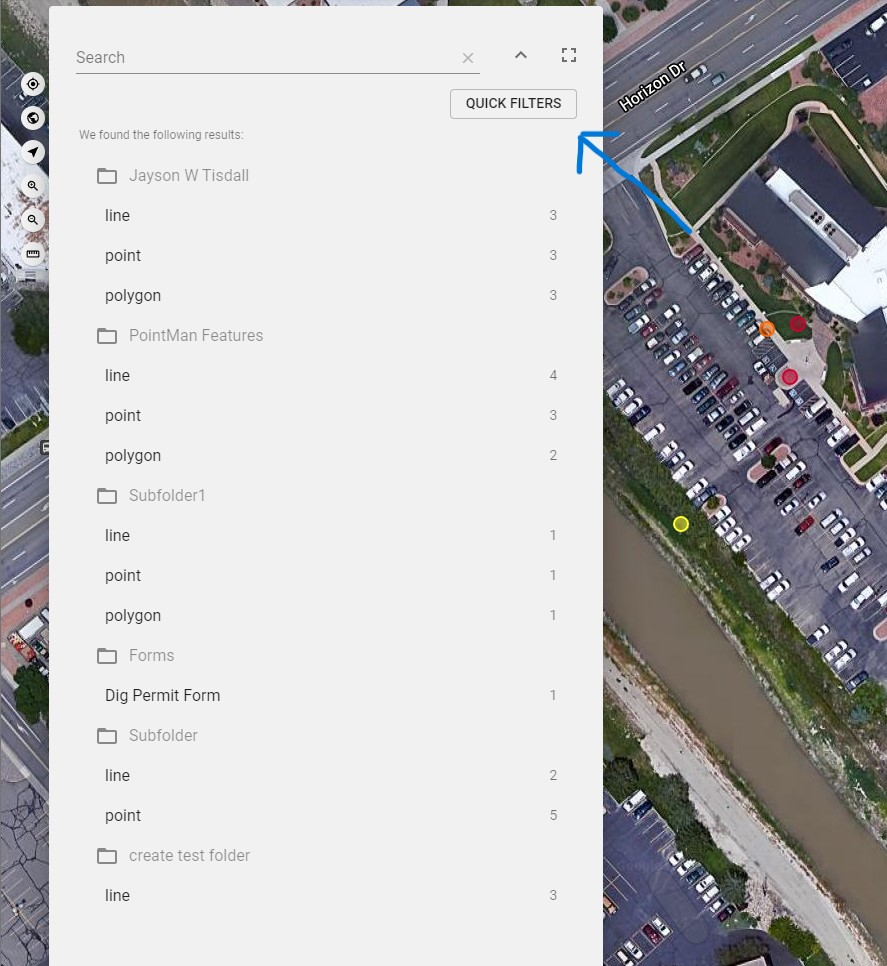
Here is how to filter and search the features placed on the map.
-
Login to PointMan Pro Cloud via the Desktop Access
-
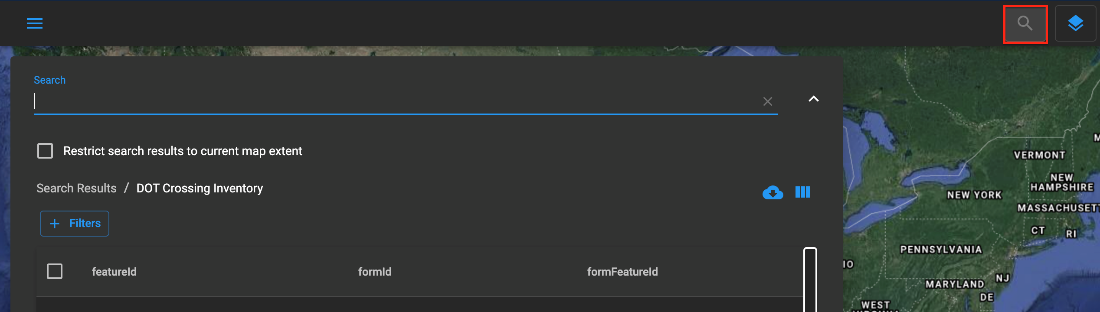
Click on the Search Icon to open the search panel
-
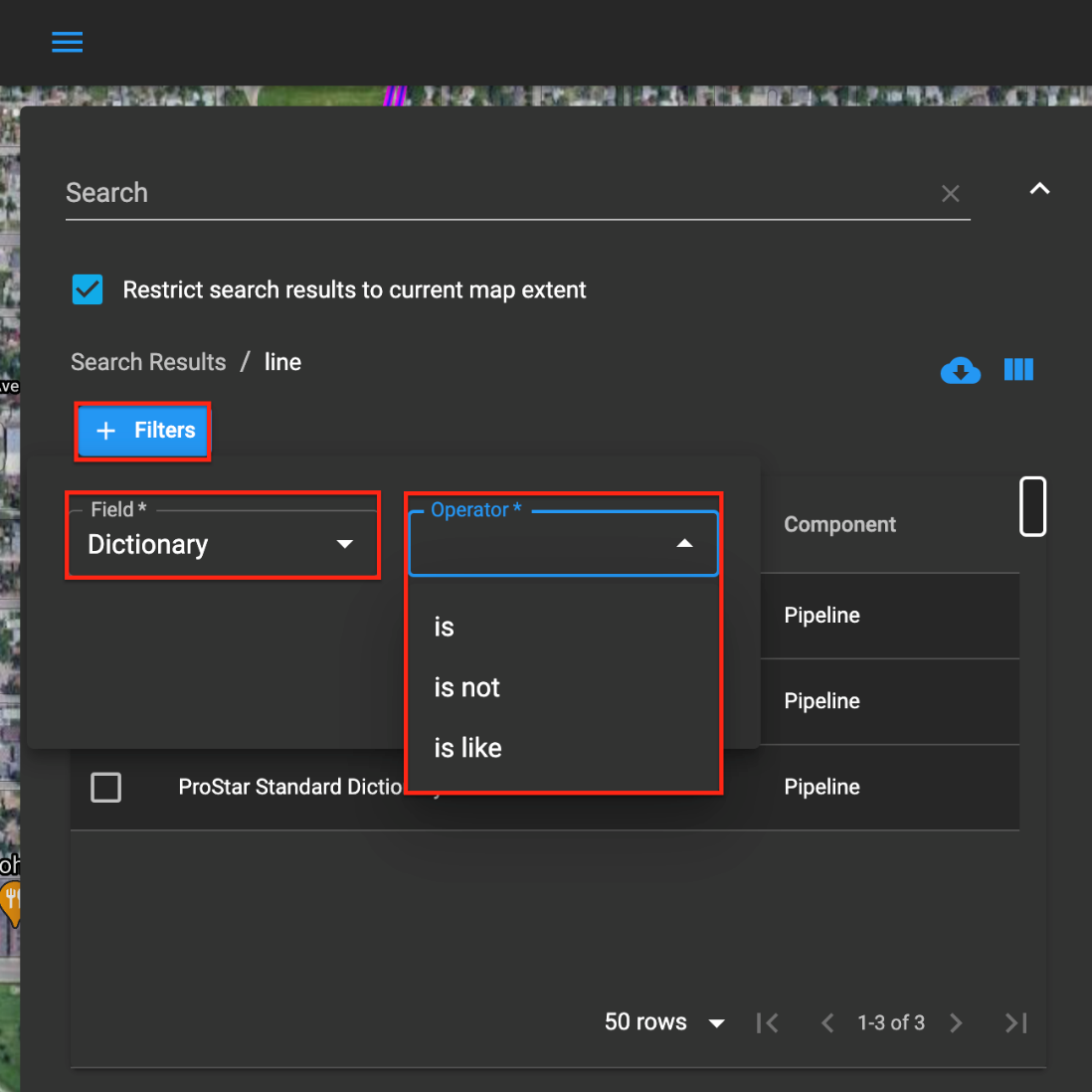
Filter searches using the Filters Icon
-
Select the desired option from the field dropdown menu by clicking the down arrow icon
-
Select the appropriate operator
-
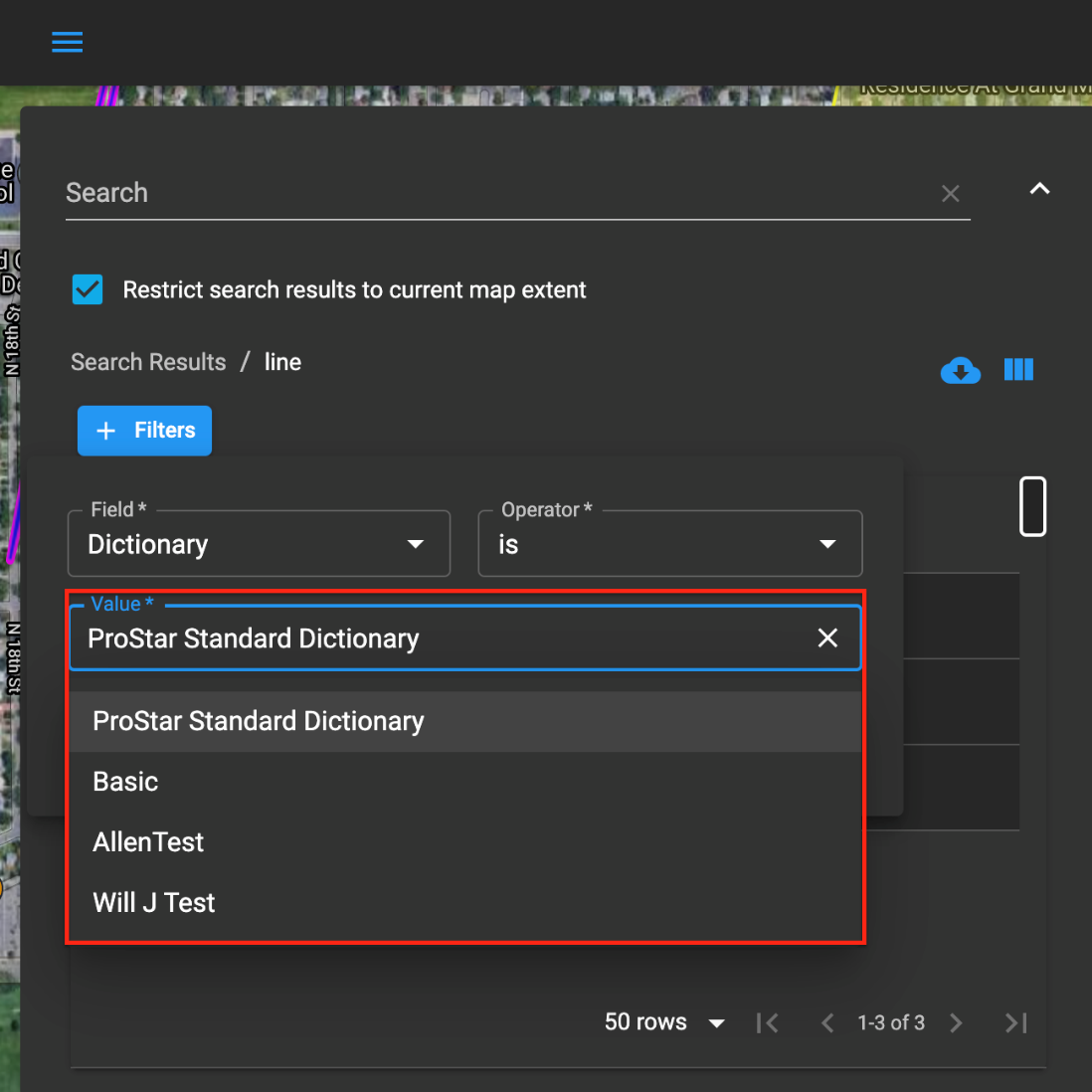
Click on the Value text box from the newly opened field and search for a relevant item. The text box will give suggestions that are relevant to the current selection.
-
Note: PointMan Pro allows for multiple filters to be added.
-
Click Update
Quick Filters Menu
-
Click on the search button in the toolbar and look for the Quick Filters button.
-
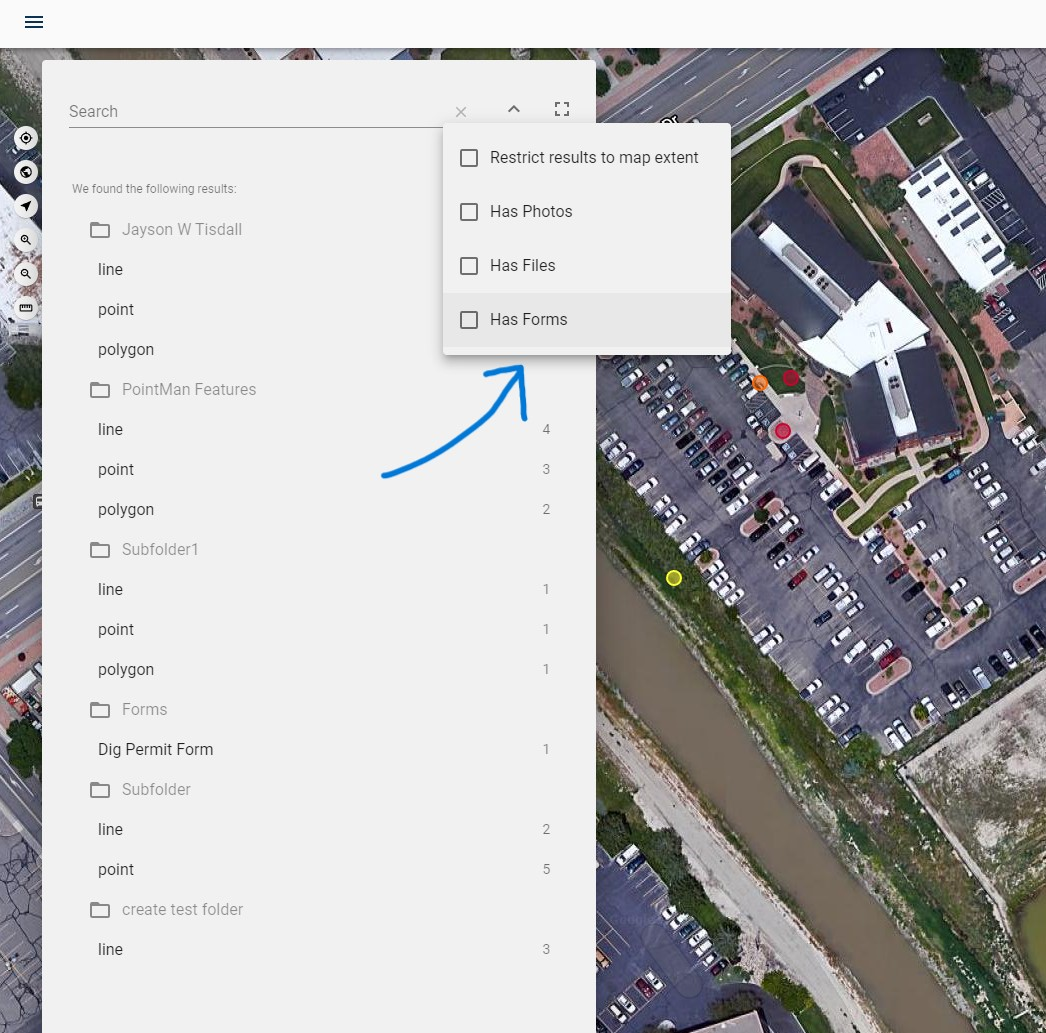
Hover over the button to see the list of Quick Filter options displayed below.
-
Select the filter/filters necessary and they will automatically be displayed to the left of the menu.