
Files can be attached to any feature both via the Mobile app and the Cloud environment. This document focuses on creating attachments via the Cloud environment.
There is currently a 5mb size limit on attachments.
Note: All attachments both at the Feature and Vertex level, will be listed under the Attachments tab of the Feature panel. However, all Form attachments will appear under the Forms tab instead.
Steps
-
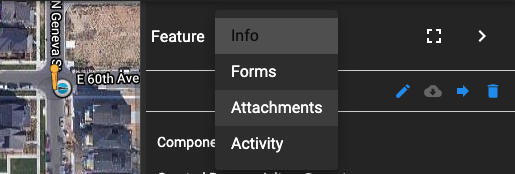
Select the feature you would like to attach a file to. Then click the dropdown at the top of the Feature Panel to select Attachments.
-
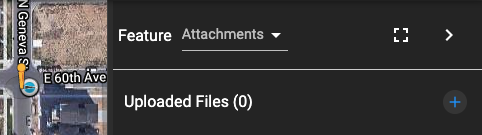
Click the Plus button to add a file. Note: Any attachments done via the Mobile app will be listed in this Attachments view.
-
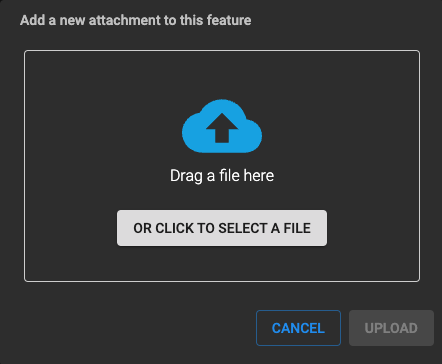
Drag or select a file to upload.
-
Click Upload.
-
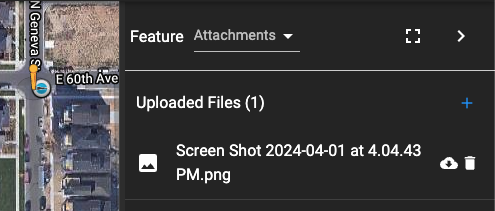
The file will now be listed in the Attachments view.
-
Viewing, Downloading, and Deleting Attachments
-
The file may be viewed/downloaded or deleted via the Cloud access.
-
The file may also be viewed or deleted via the Mobile app.
-
Feature Attachments and Vertex Attachments appended via the Mobile app may also be viewed or deleted through the Cloud access.
-
For Questions or Issues
Please fill out the request form (https://pointman.com/custom-support/) or send an email to [email protected] and include the following:
-
Question / Brief description of what you are experiencing
-
Include screenshots / screen recordings showcasing the issue if any
-
Include supporting data files showcasing the issue if any
-
-
List of steps that were already taken to troubleshoot the issue
The PointMan Support Team is available from 8:30am to 4:30pm MST Monday through Friday.