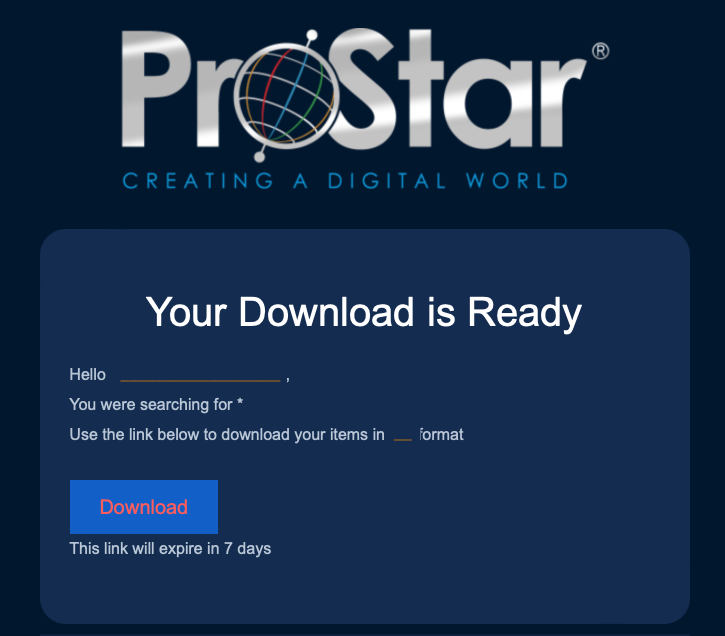
When exporting all Project data from the PointMan Web interface, a download link will be emailed to the email entered in the Recipient field.
What are the steps to export a Project?
- Log in to the PointMan Web interface and open the Project that you want to export.
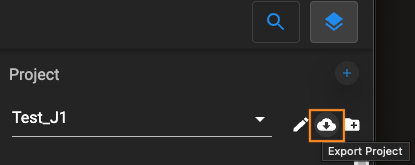
- To the right of the project name in the Project Panel, click the Cloud Download icon.
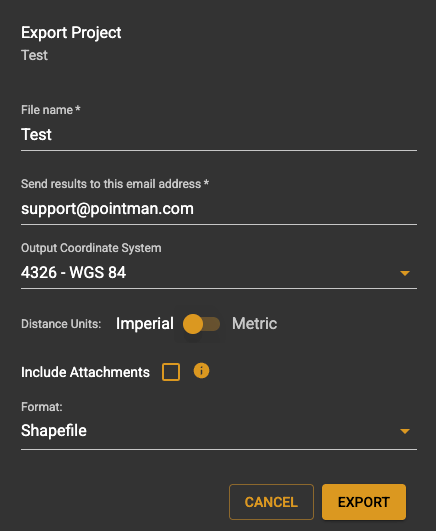
- From the Export Project dialog, modify the fields as needed.
-
- Confirm the correct Distance Unit is selected.
- If you want to export any associated attachments, be sure to check the box for Include Attachments.
- Verify the correct File Type is selected from the Format dropdown.
- When exporting to a file format other than KML or KMZ, be sure to select the appropriate coordinate system for the region where the data was collected.
- Click Export.
- Check Export Request Status. Open the Jobs Panel via the Briefcase icon that is next to the Search icon, then go to the Exort tab.
- Use the Refresh button in the Jobs Panel to check the updated status.
- Once you see a Success status, an email with the subject line, “Download your PointMan Pro Search Results”, will be sent to the email provided in the "Send results to this email address" field.
- Click the Download button in the email.