Data Organization is an Enterprise feature that allows for additional levels of control over data that is stored within the cloud environment. Users with Admin permissions can employ this feature to move folders, layers, and features from the project level down to the feature level. This feature can be accessed through either the layer panel or search panel from the desktop application.
Note: This is a paid-for feature. If you wish to add this feature to your Pro environment, please reach out to the PointMan Sales team via email: [email protected] or by phone: 970-242-4024, with your request.
Folder Level
-
Login to the PointMan cloud environment using an account with admin level permissions https://app.pointman.com/signin
-
Open a project containing data you would like to organize
-
Navigate to a Basic or PM Folder
-
Hover over the folder header
-
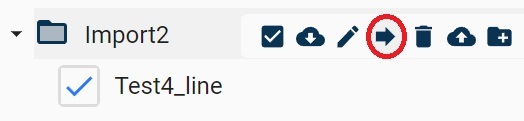
Click on the right arrow icon to open the "Move Folder" window
-
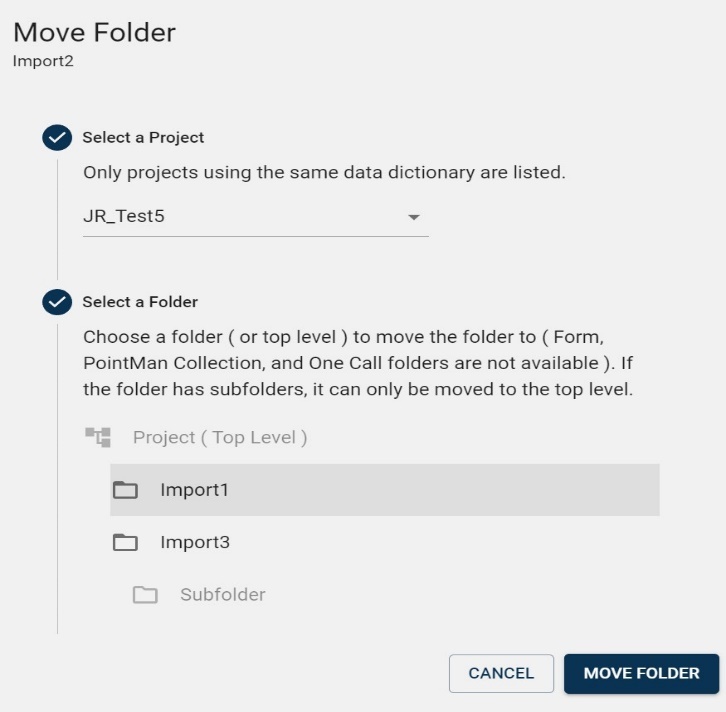
In the "Move Folder" window, there will be options to move this folder at both the project and folder level.
-
-
*Only projects that share the same data dictionary can be selected. Folders with any subfolders can only be moved at the project level*
-
-
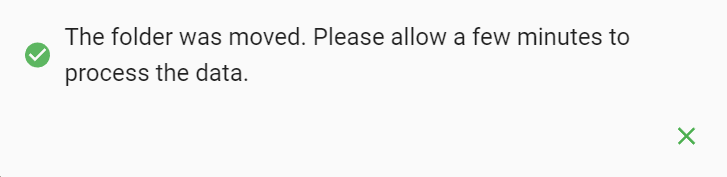
After clicking on “Move Folder” a toast will appear at the bottom of the screen indicating that the folder was moved successfully
-
Note: Folders and Subfolders can be moved at the project level within the “Move Folder” window by selecting a project in the “Select a project” dropdown and then choosing “Project ( Top Level )” under the “Select a Folder” dropdown
Layer Level
Data Organization can also be applied at the layer level for both Imported features and PointMan features following a similar procedure:
-
Login to the PointMan cloud environment using an account with admin level permissions https://app.pointman.com/signin
-
Open a project containing layers you would like to organize
-
Navigate to a PM Feature Folder or Basic folder containing imported features
-
Expand the folder
-
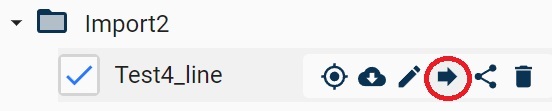
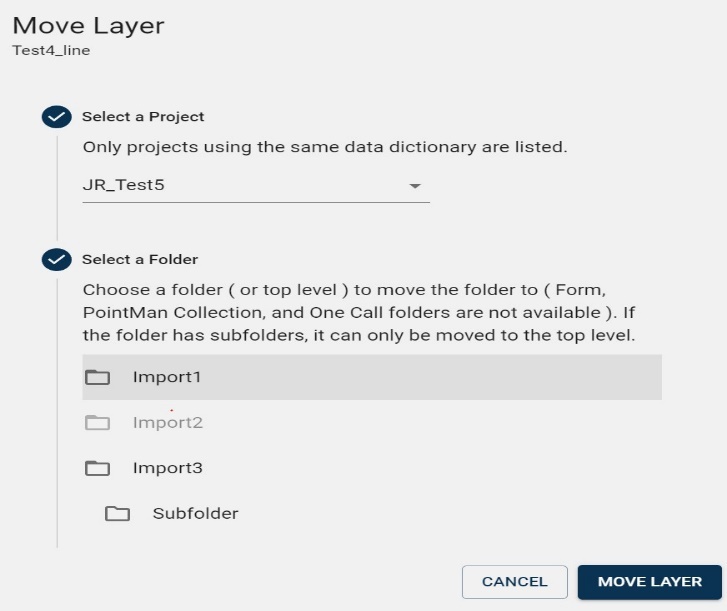
Hover over the layer and select the click on the right arrow to open the “Move Layer” window
-
Like the “Move Folder” window, the “Move Layer” window will allow you to move layers at both the project and folder levels
-
Once you have made your project and folder selection, click on the “Move Layer” button
-
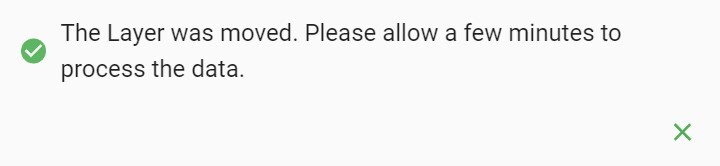
A toast will appear at the bottom of the screen indicating that the layer has been moved successfully
Feature Level
Finally, data can be organized at the feature level through the search panel:
-
Login to the PointMan cloud environment using an account with admin level permissions https://app.pointman.com/signin
-
Open a project containing features you would like to move
-
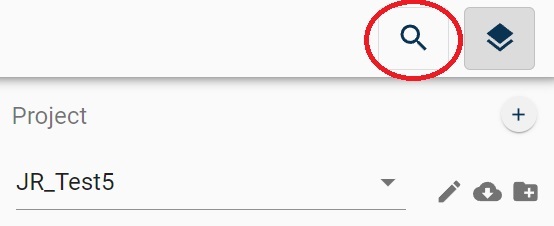
In the top right corner, click on the magnifying glass icon
-
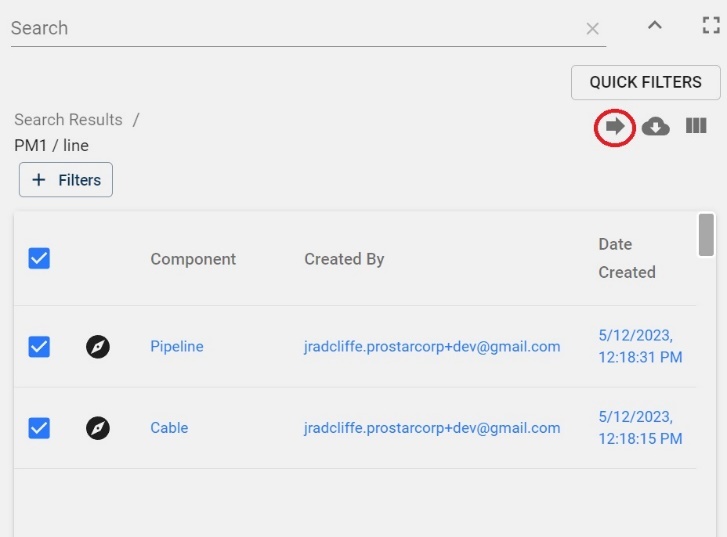
This will open the search panel and display all the features and their associated folders/subfolders contained within the project
-
From the search panel, PointMan features can be selected singularly or as a group and moved between folders within the same project and between projects by clicking on the right arrow in the top right corner of the panel
-
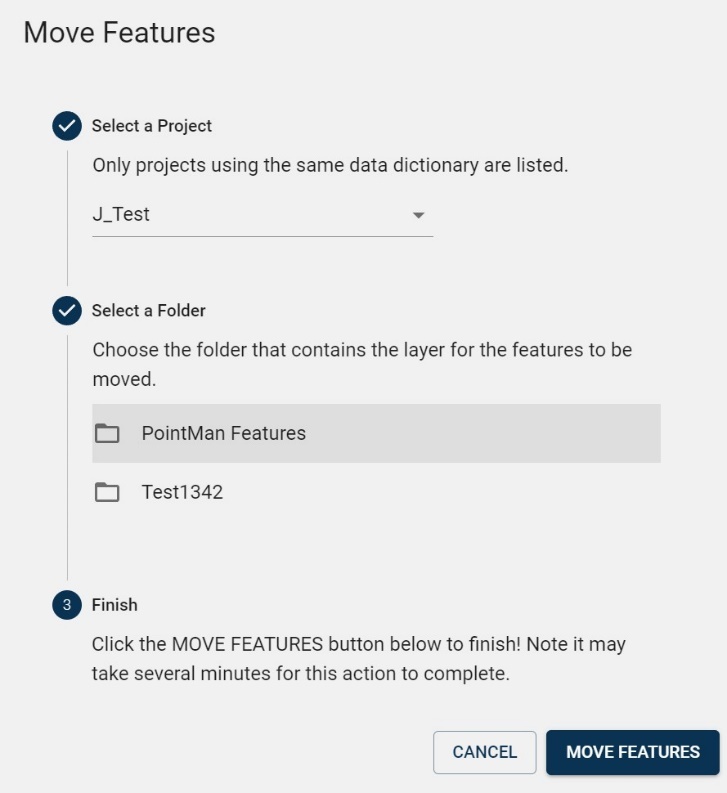
This will open the “Move Features” window which will be utilized identically to the Folder and Layer windows
-
Once you have made your project and folder selection, click on “Move Features”
-
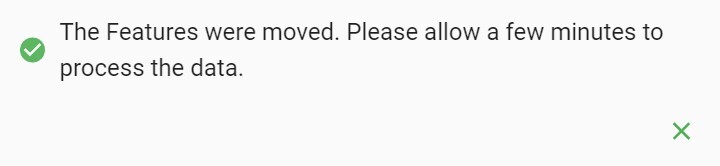
A toast will appear indicating that the features have been moved successfully