
When using the Search panel, users may customize the column views to display or hide certain columns/fields when viewing their search results.
Steps
-
Click the Magnifying Glass icon in the top right of the screen to open the Search panel.
-
Select the layer containing the data you want to view.
-
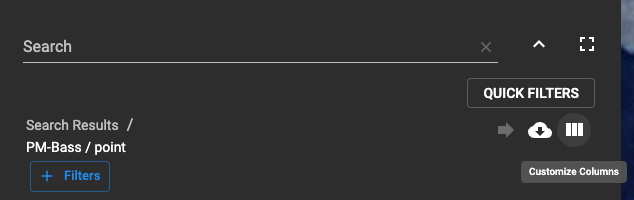
Towards the top right of the Search panel, click the Columns icon.
-
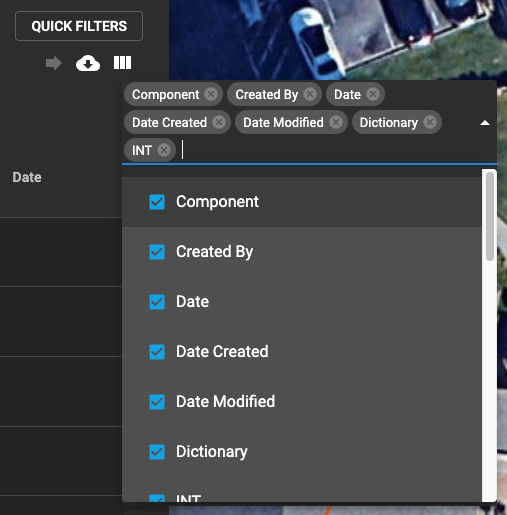
This will open a dropdown menu. Check or uncheck the boxes for the fields/columns you want to be displayed or not.
-
-
The options listed will change depending on what data is included in the layer being viewed.
-
Note: When exporting data with a modified column view, PointMan will still include all fields/columns upon export.
For Questions or Issues
Please fill out the request form (https://pointman.com/custom-support/) or send an email to [email protected] and include the following:
-
Question / Brief description of what you are experiencing
-
Include screenshots / screen recordings showcasing the issue if any
-
Include supporting data files showcasing the issue if any
-
-
List of steps that were already taken to troubleshoot the issue
The PointMan Support Team is available from 8:30am to 4:30pm MST Monday through Friday.