User Types: Admin, Collector, and Viewer
What access levels are available for each user type?
For Admin users, the access at each level are Admin, Edit, and View.
- View allows users to only view and export data.
- Edit allows the user to
- edit project details, such as assigning site calibrations and geoids
- create, edit, and delete folders or layers
- restore deleted data
- import data
- Admin allows the user to also delete and archive the projects they have access to.
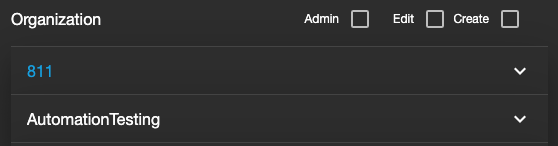
- The Admin setting at the Organization level specifically allows the user to
- create, edit, and delete projects, site calibrations, data dictionaries, symbols
- restore deleted projects
- manage users and forms
For Data Collectors, the access at each level are Admin, Edit, and Create.
- Create allows users to create features, but not edit or delete them.
- Edit allows users to create and edit features, but not delete them.
- Admin allows the user to also delete features.
Viewer user permissions can be customized to grant visibility to select projects, folders, or layers. They may also export data as needed.
To update user permissions
Notes:
Only Admins with the Admin permission set at the Organization level may manage users.
A maximum of 100 checkboxes can be manually selected, regardless of the permission level selected or the number of additional permissions automatically enabled as a result.
Steps:
- Open the Manage Team page in Settings and click the Pencil icon for the user you would like to update the permission settings for
- Go to the Permissions tab and check the boxes for the desired permissions
- Click Update to save your changes
- All users whose permissions were updated will need to sign out and sign back in for the changes to take effect on both the web interface and the mobile app.
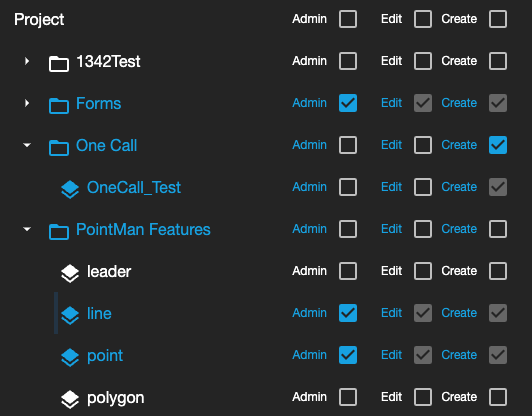
When reviewing the saved permissions: Projects, folders, and layers with enabled permissions are highlighted in blue for easier visibility.
Ex: