How can I customize my Data Dictionary (aka Organizational Template)?
- Add, edit, or delete systems and components
- Set custom component styling (see the Steps to set custom component styling section below).
- For points, Symbols can be assigned.
Note: All updates made to a dictionary will be applied to all projects the dictionary is assigned to.
Steps to create a customizable dictionary
- Go to Dictionaries in the PointMan Web interface Settings.
- Click Add New Template to the right of "Organizational Templates".
- Enter a Name.
- Then from the Templates dropdown, we recommend selecting the ProStar Standard Dictionary 2.0 option.
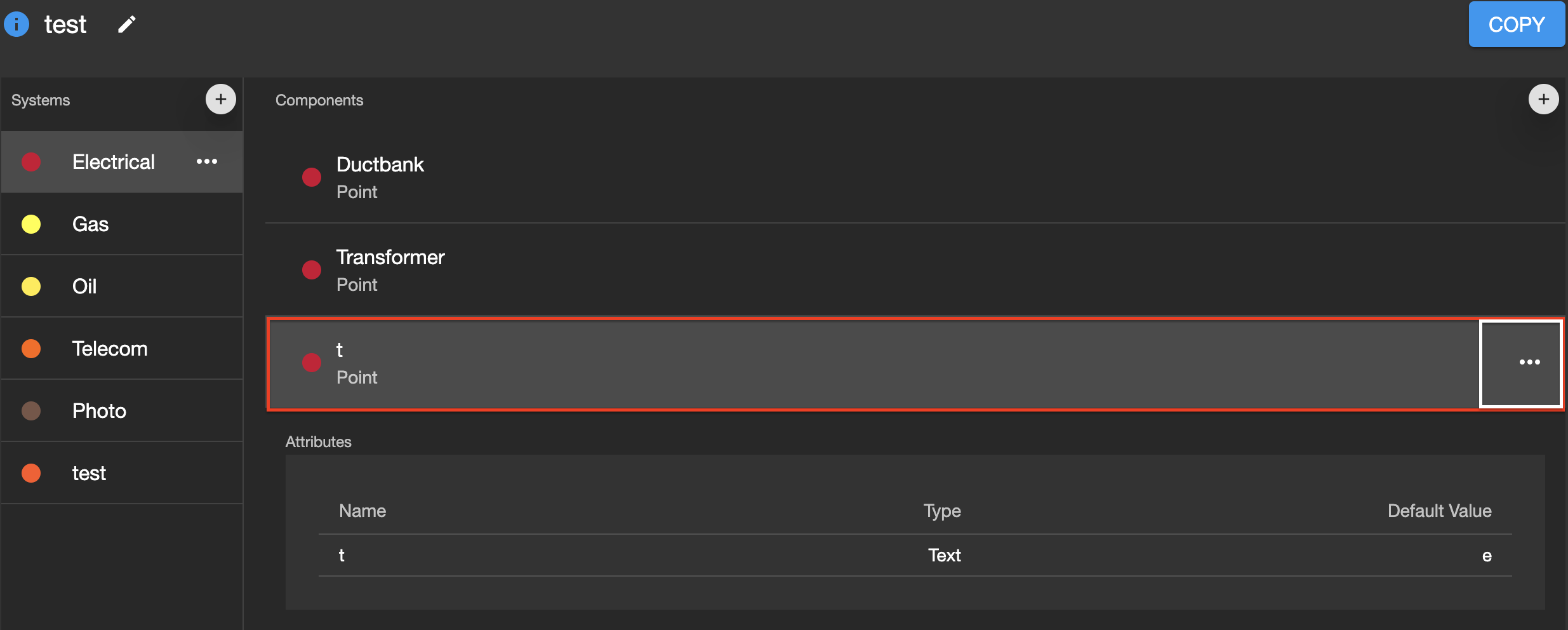
- All Systems and Components automatically added can be modified or deleted as needed.
- Use the + icons to add new Systems and Components.
- Click the 3-dots button next to the System or Component to Edit or Delete it.
- Additional custom attributes can be added to any component.
Steps to set custom component styling
- Open the Organizational Template you want to customize.
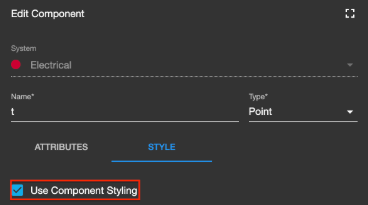
- Click the 3-dots button to the right of the Component name and click Edit Component.
- Click the Style tab and check the box for Use Component Styling.
- Adjust the styling as desired.
Styling options:- Points - Marker Size, Colors, Opacities, Width
- Lines - Color, Opacity, Width, and Dashed
- Polygons - Colors, Opacities, and Width
- Select Save to apply the styling to your Component. You may need to refresh the browser tab or mobile app to receive the updated dictionary.