Positive responses allow for accurate status updates on existing 811 tickets. With the new 811 Positive Response enterprise feature, agents have access to a more streamlined ticket response workflow for both the mobile and cloud versions of PointMan. This feature is currently only available for Colorado 811 tickets.
Mobile Workflow
1. On the Map View, find the One Call ticket that you want to associate a Locate form with and send a Positive Response for.
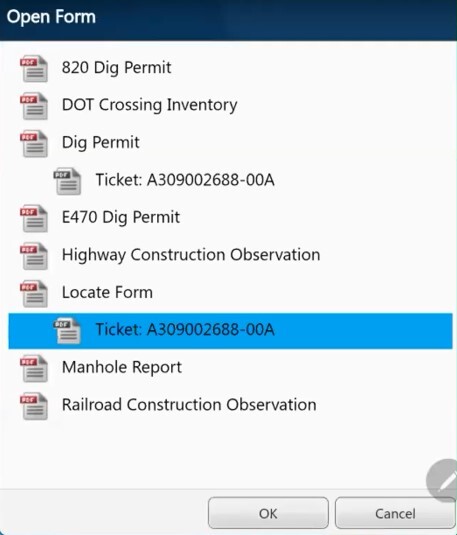
- **Ensure that the One Call ticket is centered on the screen and is zoomed in enough or you won’t see the auto-populated ticket number when generating a Locate form (See image included in Step 3 for clarification.)
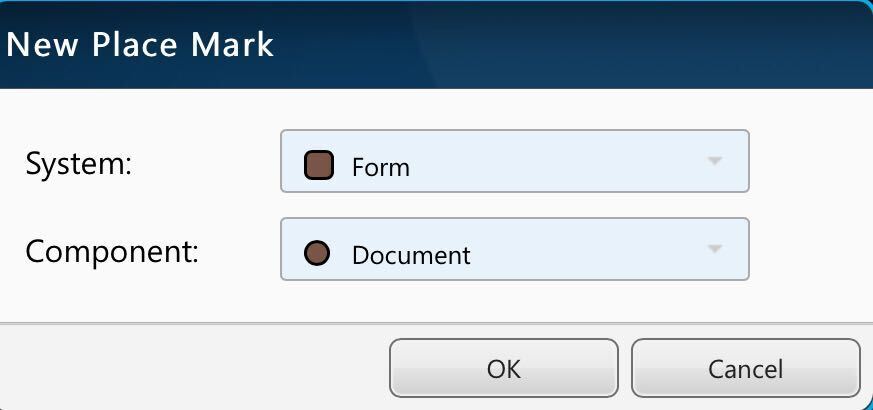
2. Tap New to create a new feature: System = Form and Component = Document
3. The ticket number will auto-populate under the Locate Form section of the Open Form window. Tap to select it and tap OK
4. Fill out the form information and then press "Close" in top right corner to save the form
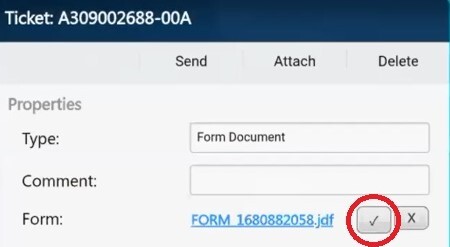
4. Tap on the Form feature and tap on Details
6. Tap the checkmark icon next to the form link to send a Positive Response
7. Select the appropriate Member and Response Code. Include comments if required
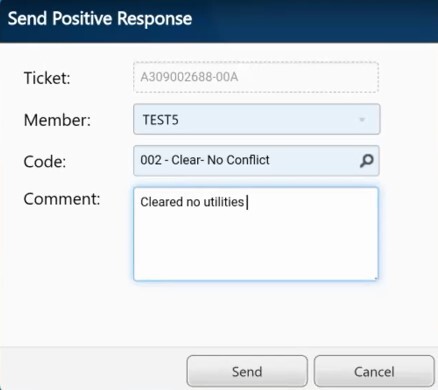
8. Tap "Send"
9. Return to the map screen and open the ticket feature details again
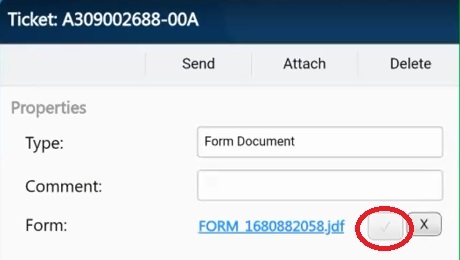
10. The checkmark icon next to the attached form will be greyed out, indicating the positive response has been sent successfully
Cloud (Desktop) Workflow:
-
Find the One Call ticket that has the Locate form that you want to send a Positive Response for. If an associated Locate form has not already been created, create one first.
-
To create a Locate form with an auto-populated ticket number, click on the selected One Call ticket to open its Feature panel
-
Tap the dropdown next to the “Feature” label and select Forms. Choose the Locate form option
- (Note: If you do not see the Locate form in the list of the Forms tab, the form will need to be enabled from the Settings page)
-
Fill out the form
- (Note: Photos and sketches will need to be added via the Mobile app)
-
-
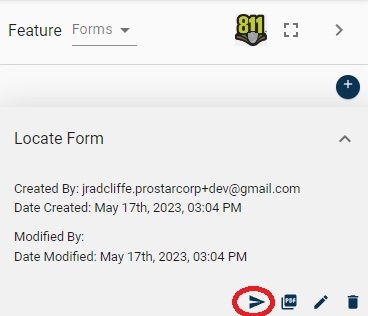
Once the Locate form is completed, return to the Forms tab in the Pro desktop access and click the Send icon to "Submit Positive Response"
-
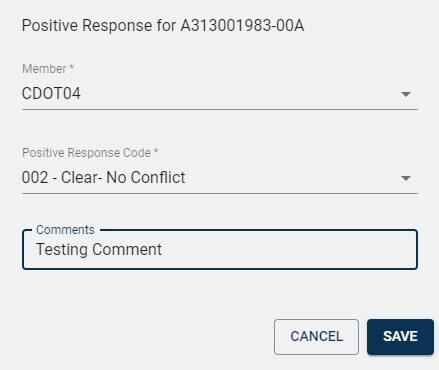
Select the appropriate Member and Response Code. Include comments if required
-
Click "Save"
-
The Positive response is now submitted for the ticket
-
Return to the map screen and select the One Call ticket you submitted the positive response for
-
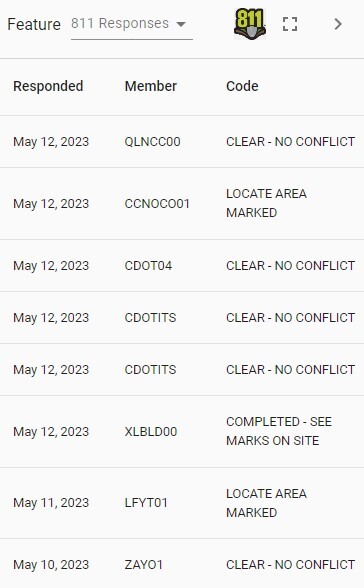
Go to the 811 Responses tab in the Feature dropdown menu
-
From this tab, you can view all the positive responses that have been submitted for the selected One Call ticket